
OnePlus 12 speaker quiet, crackly or muffled? Learn safe ways to clean and test it, what to avoid, and when to get a free diagnosis and same-day repair.
Read moreTag: Alexandria VA

Moto G Power Rear Camera Not Working? What to Try First
Moto G Power rear camera black, blurry or showing an error? Try Motorola’s own fixes first, then learn when it needs repair. Free diagnosis, same-day service.
Read more
Pixel 9 Battery Replacement: When to Do It, What to Check
Is your Pixel 9 battery dying fast? Learn Google’s own battery health checks, the overnight test and when replacement makes sense. Free diagnosis, same-day repair.
Read more
Galaxy S24 Ultra Cracked Screen: Repair Options and Costs
Cracked Galaxy S24 Ultra screen? Compare repair options, see real screen prices from $199.99, and learn what to do first. Free diagnosis, same-day repair.
Read more
iPhone Face ID Not Working? Fixes to Try Before Repair
iPhone Face ID not working? Try Apple’s own fixes first, learn the signs of a TrueDepth camera fault, and get a free diagnosis at My Cellphone Repairs.
Read more
OnePlus 12 Back Glass Cracked? What It Means for You
You pull your OnePlus 12 out of a pocket and notice a hairline crack across the back. Maybe it was a drop, maybe you are not sure when it happened. A cracked back glass looks minor next to a shattered screen, but it deserves a closer look, and the right next step depends on how bad it is.
This guide explains what the OnePlus 12’s back is made of, how to stay safe around cracked glass, what the phone’s water rating means for a damaged back, and when to book a repair. If you are searching for back glass repair or OnePlus screen repair near you, our free diagnosis is the place to start.
Quick facts
- Free diagnosis, always. We tell you the cause before any repair starts.
- Same day for most repairs. Walk-ins welcome.
- 30-day warranty on premium screens and other repairs (budget screens have no warranty).
- Exact quote before we start. Back glass repair on this model is quoted after a free diagnosis.
Key takeaways
- Reviewers and the spec sheet list Gorilla Glass 5 on the back of the OnePlus 12 and Gorilla Glass Victus 2 on the front, with an aluminum frame.
- The phone is rated IP65, which reviewers describe as protection against jets of water, not a full dunk like IP68.
- Android Authority says the back glass has a slight texture that helps keep the phone from slipping out of your hand.
- Treat cracked glass as sharp, and keep the phone away from water until it is checked.
- Check your warranty terms before paying for any repair, and ask us if you are unsure what is covered.
In this article
- What is the OnePlus 12’s back made of?
- How do I stay safe with a cracked back?
- Does a cracked back matter for water?
- Will it still charge wirelessly?
- What does a back glass repair involve?
- Myths and facts about back glass cracks
- What happens if I wait?
What is the OnePlus 12’s back made of?
According to Android Authority’s review, the spec table lists Gorilla Glass 5 on the back and an aluminum frame, and the rear glass has a slight texture that helps stop the phone slipping from your hand. Notebookcheck’s review says the display is protected by Gorilla Glass Victus 2, and that the Glacial White version has a glossy back while the other two colors get a matte frosty finish.
In plain English, glass looks premium and allows wireless charging, but it can crack when it takes a knock at the wrong angle. The OnePlus 12 also supports 50W AirVOOC wireless charging, as both reviews note.
How do I stay safe with a cracked back?
Cracked glass can have sharp edges and tiny splinters. A few sensible habits help until the phone is repaired:
- Handle the phone gently and avoid pressing on the crack.
- Do not peel at loose pieces of glass.
- Use a case if you must carry it, and keep it away from pockets that rub against it.
- Keep it dry. If it gets wet, power it off and bring it in.
- If you notice glass bits or a swollen look, stop using the phone and come in.
We can often tell you in a free diagnosis whether the damage is only cosmetic or whether it affects anything inside.
Does a cracked back matter for water?
Possibly. Both reviews point out that the OnePlus 12 is rated IP65, not IP68. Android Authority says IP65 protects against jets of water from all sides, and Notebookcheck says the phone can still survive the occasional splash or two. Neither describes it as made for a swim.
That is a modest water rating to begin with. A crack in the back is one more reason to keep the phone away from water until it is checked. We cannot say how a particular crack changes the phone’s water protection, which is why we look at each phone before suggesting anything.
Will it still charge wirelessly?
We cannot promise either way from a photo. If you use a wireless charger, mention it at your free diagnosis, and we will check that the phone charges as you expect after the work. In the meantime, charging by cable avoids putting the damaged back on a hot charger pad.
What does a back glass repair involve?
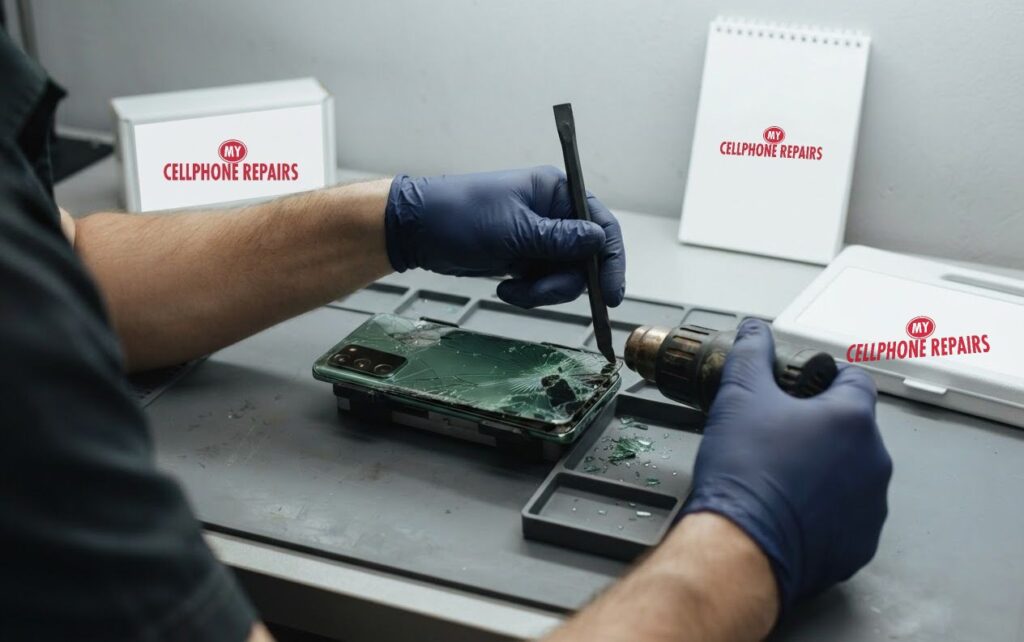
A back glass repair means carefully warming the glued edge, lifting off the damaged panel, cleaning away old adhesive, and fitting a new panel, as shown in the picture above. It takes patience, because the phone has parts under the glass that must not be damaged.
Because we do not list a fixed online price for this model, you get a free diagnosis and an exact quote before we start. Most repairs are done the same day. If you are weighing repair against replacement, you can ask us about both.
Myths and facts about back glass cracks
- Myth: Gorilla Glass cannot crack. Fact: Any glass can crack from a drop or a hard knock, whatever its brand name.
- Myth: A back crack is only cosmetic. Fact: It might be, but it needs to be checked, especially around water and wireless charging.
- Myth: Tape or glue will fix it for good. Fact: It may hold the pieces for a day, but it is not a repair.
- Myth: Warranty always covers it. Fact: Coverage depends on your terms and the cause of the damage, so check before you pay.
What happens if I wait?
A hairline crack may stay stable for a while, but glass can spread a crack with each knock. Pieces can loosen and become sharp. If the crack lets in moisture or dirt, you could end up with a bigger repair.
If you can, book a free diagnosis soon. Most repairs are done the same day, and walk-ins are welcome.
Try this first: restart and force restart your OnePlus
A crack does not usually cause software trouble, but if your phone is also acting up, these steps delete nothing and take under a minute.
- Restart: press and hold Power and Volume Up (or the Power button on older models), then tap Restart.
- Force restart (frozen phone): OnePlus 6T and later: hold Volume Up and Power for about 10 seconds. Some models use Volume Down and Power.
- Safe mode: open the power menu, then touch and hold Power off and tap Safe mode.
A factory reset will not fix cracked glass, so we do not suggest it here. OnePlus’s own page: Phone will not turn on or frozen screen. If it vibrates but the screen stays black, the screen may be damaged.
When to stop and come in: the phone will not turn on after a force restart and 30 minutes on the charger, it vibrates but the screen stays black, it restarts by itself over and over, it gets hot, or it has been wet. Free diagnosis at any of our stores, and most repairs are done the same day.
Full step-by-step guide: How to restart and reset your OnePlus →
Repair prices
We do not list a fixed price for back glass repair on this model online, so you get a free diagnosis and an exact quote before we start. You can say no before any work begins.
Searching for “OnePlus screen repair”, “phone repair near me open now” or “phone repair walk in” will show our stores, and most are open on Sundays too.
We also fix tablets and computers
Glass damage is not only a phone issue. We also handle tablet repair near me searches, including iPad screen repair cost questions, plus laptop screen repair and MacBook repair. Bring your device in for a free diagnosis and the same quote-first approach.
Frequently asked questions
Can back glass be replaced on a OnePlus 12?
Yes, back glass can be replaced. We give you a free diagnosis and an exact quote before we start, and most repairs are done the same day.
Is a cracked back glass dangerous?
The glass can be sharp, and loose pieces can come away. Handle it gently, keep it dry and book a free diagnosis soon.
How long does a back glass repair take?
Most repairs at My Cellphone Repairs are done the same day, and walk-ins are welcome. Book a repair online or stop by a store.
Sources
- Android Authority: OnePlus 12 review
- Notebookcheck: OnePlus 12 5G review
- OnePlus Support: Phone will not turn on or frozen screen
#MyCellphoneRepairs #OnePlus #OnePlus12 #OnePlusRepair #BackGlassRepair #CrackedBackGlass #PhoneRepair #SmartphoneRepair #SameDayRepair #VinelandNJ #GrandRapidsMI
Moto G Power Won’t Charge? Easy Checks Before Repair
You plug in before bed, and in the morning the battery is still nearly empty. Or the charger only works if you hold the cable at an angle. A Moto G Power that will not charge usually has a simple cause, and Motorola lists several checks you can do in minutes.
This guide walks through those checks in order, explains charging behavior that looks like a fault but is not, and shows when a worn charging port is the real culprit. If you need charging port repair or a Motorola screen repair and charging check on the same visit, our free diagnosis is where to start.
Quick facts
- Free diagnosis, always. We tell you the cause before any repair starts.
- Same day for most repairs. Walk-ins welcome.
- 30-day warranty on premium screens and other repairs (budget screens have no warranty).
- Exact quote before we start. A port clean-out and a port replacement are very different jobs, so we diagnose first.
Key takeaways
- Start with the basics: the plug fully seated, the case removed, the charger and outlet checked.
- If the battery is fully drained, connect the charger and wait about 10 minutes before pressing Power, as Motorola advises.
- Slower charging or a stop at 80% can be normal. Motorola says TurboPower slows when the battery reaches 111°F, and overcharge protection may hold charging at 80% after three days plugged in.
- Hold the Power button for 7 to 10 seconds to reboot if the phone seems stuck.
- If every check fails, the cable, charger or port may be faulty, and a technician should look at the port.
In this article
- What should I check first? A step-by-step list
- Why does my Moto charge slowly or stop at 80%?
- What if the charging port is dirty or loose?
- Could water be the cause?
- Myths and facts about phone charging
- What happens if I wait?
What should I check first? A step-by-step list
Motorola’s own troubleshooting for the moto g power starts with the easy things. Work through them one by one:
- Check the connection. Make sure the USB plug is firmly seated in the phone.
- Remove the case. A case can stop the plug from reaching the port.
- Check the charger and cable. Use the included charger or a compatible one, and look for damage to the wire or plug. If it is damaged, try charging from a computer instead.
- Check the outlet. Make sure any switch controlling it is on, and look for damage or loose parts. Try another outlet if needed.
- If the battery is flat, connect the charger, wait about 10 minutes, then press Power.
- Reboot. Hold the Power button for 7 to 10 seconds.
If the phone charges from a computer but not the wall charger, that points to the charger or outlet. If nothing charges it, the port or battery needs a look.
Why does my Moto charge slowly or stop at 80%?
Not every charging oddity is a defect. Motorola says its TurboPower charger can warm the battery, which is normal, and charging slows if the battery reaches 111°F, then resumes once it cools. Fast charging applies below 78%, so if the battery is under 78% and not charging quickly, unplug and reconnect the charger.
Motorola also says overcharge protection may hold charging at 80% after three days plugged in. To charge fully, unplug and reconnect. It is a feature, not a fault.
What if the charging port is dirty or loose?
Motorola’s charging page does not cover port cleaning, so we lean on general guidance here. Google’s Pixel help, for example, says that for debris in a USB-C port you should hold the port facing down and gently tap the phone against your hand, and not insert anything. That is a sensible rule for any phone, because metal tools and pins can damage the contacts.
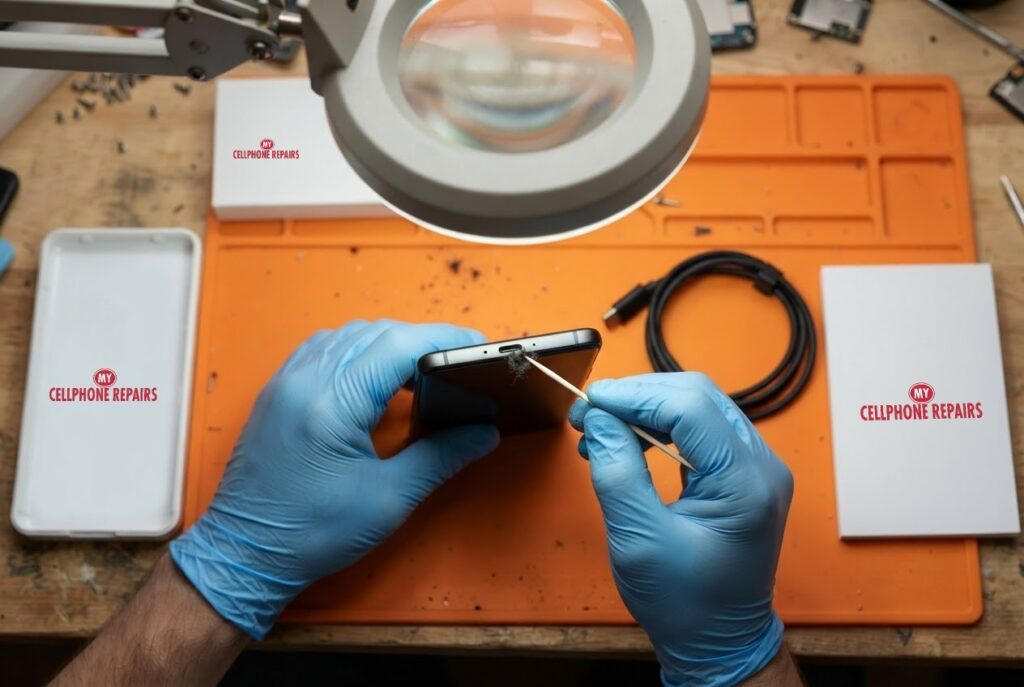
Pocket lint is a common reason a cable stops seating firmly. If a plug will not click in all the way, or only charges at one angle, bring it in. We can inspect the port under magnification, clean it safely, and tell you if the port itself has worn out.
Could water be the cause?
Yes. Motorola’s guide for the 2026 moto g power says not to charge the phone while it is wet, and to avoid moisture in openings such as the charging port when cleaning. The same guide lists IP68 and IP69 ratings, but says the phone is not designed to work while submerged and should not be exposed to liquids other than fresh water.
If your phone got wet, do not keep plugging it in. Let it dry, and bring it in if it still will not charge. For more on wet phones, see our water damage guides.
Myths and facts about phone charging
- Myth: A phone that stops at 80% is broken. Fact: Motorola says overcharge protection may hold it at 80% after three days plugged in.
- Myth: Warm during fast charging means failure. Fact: Motorola says some warmth from TurboPower is normal, and charging slows if it reaches 111°F.
- Myth: A flat battery should charge instantly. Fact: Motorola says to wait about 10 minutes after connecting a fully drained phone.
- Myth: Any cable is fine. Fact: Motorola recommends the included charger or a compatible one, and says to check for damage.
What happens if I wait?
If the cause is the cable or outlet, waiting costs nothing. If the port is loose or damaged, forcing the cable in or wiggling it can make things worse. A phone that cannot charge eventually cannot be used, and you could lose access to photos and messages.
If the phone is still not charging after the checks above, bring it in the same day if you can.
Try this first: restart and force restart your Motorola
These steps delete nothing and take under a minute. Charge to at least 5% first for a force restart, if you can.
- Restart: press and hold the Power button, then tap Restart.
- Force restart (frozen phone): press and hold the Power button for 10 to 20 seconds until the phone restarts. Some older models use Power and Volume Up.
- Safe mode: open the power menu, touch and hold Power off, then tap OK.
A factory reset will not fix a worn charging port, so we do not suggest it here. Motorola’s own page: Force reboot or restart. Menu names may differ slightly on your model.
When to stop and come in: the phone will not turn on after a force restart and 30 minutes on the charger, it vibrates but the screen stays black, it restarts by itself over and over, it gets hot, or it has been wet. Free diagnosis at any of our stores, and most repairs are done the same day.
Full step-by-step guide: How to restart and reset your Motorola →
Repair prices
We do not list a fixed price for charging port repairs on this model online, because the work ranges from a safe clean-out to a port replacement. That is why we offer a free diagnosis and an exact quote before we start. You can say no before any work begins.
Searching for “Motorola screen repair”, “cheap phone repair near me” or “phone repair open Sunday” will show our stores.
We also fix tablets and computers
Charging trouble affects more than phones. We also handle tablet charging port repair, tablet repair near me searches, plus laptop repair and MacBook repair. Bring your device in for a free diagnosis and the same quote-first approach.
Frequently asked questions
Why is my phone not charging?
Check the plug is seated, remove the case, test another charger and outlet, and reboot by holding Power for 7 to 10 seconds. If none of that works, book a free diagnosis for the port.
Why does my phone charge so slowly?
Motorola says charging slows when the battery reaches 111°F, and fast charging applies below 78%. Unplug and reconnect, and bring it in if it stays slow.
Why won’t my phone charge when plugged in?
The cause can be the cable, charger, outlet, a dirty or worn port, or a flat battery that needs about 10 minutes. We test each one during a free diagnosis.
Sources
- Motorola Support: Charging issues, moto g power 2026
- Motorola: moto g power 2026 user guide
- Motorola Support: Force reboot or restart
#MyCellphoneRepairs #Motorola #MotoGPower #MotorolaRepair #ChargingPort #ChargingPortRepair #NotCharging #PhoneRepair #SameDayRepair #BaltimoreMD #CampHillPA
Pixel 9 Dropped in Water? What to Do in the First Hour
The phone slips out of your hand at the sink, or off the edge of the pool, and for a second everything goes still. Your first hour matters. A wet Pixel needs a calm, simple routine, and the wrong move, like plugging it in, can turn a scare into a repair bill.
This guide explains what Google tells Pixel owners to do, how water resistance really works, what the “Liquid or debris in USB port” message means, and when to bring the phone in. If you want phone repair near you for a water-damaged Pixel, our free diagnosis tells you where things stand.
Quick facts
- Free diagnosis, always. We tell you the cause before any repair starts.
- Same day for most repairs. Walk-ins welcome.
- 30-day warranty on premium screens and other repairs (budget screens have no warranty).
- Exact quote before we start. Water damage varies from a clean-out to board work, so we diagnose first.
Key takeaways
- Google’s steps for a wet Pixel: take it out of the water, turn it off, wipe it with a soft cloth and let it dry on a flat surface at room temperature.
- Do not charge a wet phone. If the USB-C port is wet, power the phone off and let it dry.
- Water resistance is not permanent. Google says normal wear and tear can reduce it, and chips or cracks make it worse.
- Google says damage from accidents or external causes, such as water damage, is not covered by warranty.
- If you are unsure, bring it in. A free diagnosis costs nothing, and waiting can make things worse.
In this article
- What should I do in the first hour?
- Isn’t my Pixel water resistant?
- What does “Liquid or debris in USB port” mean?
- Myths and facts about wet phones
- When should I bring my Pixel in?
- What happens if I wait?
What should I do in the first hour?
Google’s Pixel help page gives four short steps, and they are worth following in order:
- Remove it from the water right away.
- Turn it off. Do not keep using it to see whether it still works.
- Wipe it dry with a soft cloth.
- Set it on a flat surface to finish drying at room temperature.
That is the whole list. It is deliberately simple. Rushing to dry the phone with something hot, shaking it, or poking at the ports is how people make things worse.
Isn’t my Pixel water resistant?
Pixel phones are designed to be water-resistant, according to Google’s help page, but that protection is not a promise. Google says normal wear and tear can reduce it, and that you should avoid chips or cracks in the body or screen. It also says not to submerge the phone or take it into sinks, showers, saunas, bathtubs, pools or other bodies of water.
In plain English, the rating describes how the phone behaved when it was new and tested. A phone that has been dropped, opened or cracked may not keep water out the way it once did. That is why a dunk that a new phone shrugged off can hurt an older one.
What does “Liquid or debris in USB port” mean?
Pixels can show a warning when the USB-C port or cable overheats, or when the phone detects liquid or debris in the port. Google’s steps for this are careful. Unplug everything. If the port is wet, turn the phone off and let it dry on a flat surface at room temperature. If you see debris, hold the port facing down and gently tap the phone against your hand. Google says not to insert anything into the port.
If the “Liquid or debris” message appears and the port is clean and dry, wait until the phone shows that the USB port is OK to use. Google says that if the message lasts two hours or more, or the port stays disabled after you clear the cache for USB Settings, contact support. That is also a good moment to bring the phone to us.
Myths and facts about wet phones
- Myth: If it turns back on, it is fine. Fact: A phone that powers up can still have moisture inside. Google’s advice is to turn it off and let it dry completely.
- Myth: Charging helps check whether it survived. Fact: Google says not to charge a wet phone and to let a wet port dry first.
- Myth: Warranty covers a dunk. Fact: Google says damage from accidents or external causes, such as water damage, is not covered by warranty.
- Myth: The water rating means I can use it in the bath. Fact: Google lists baths, pools, showers and saunas among places not to take the phone.
When should I bring my Pixel in?
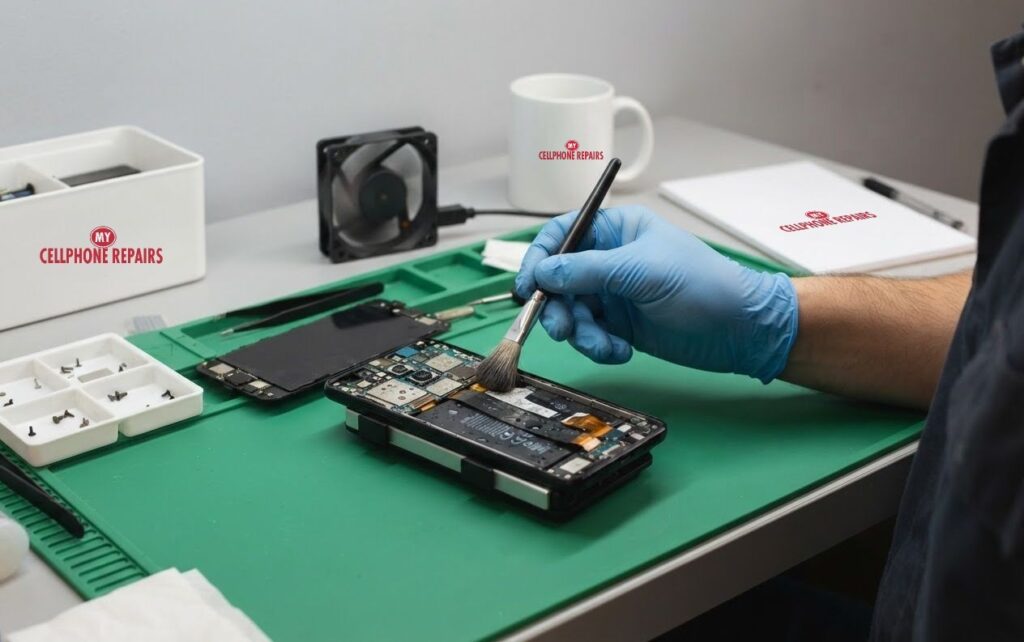
Bring it in if it was fully dunked, if it will not turn on, if the screen flickers, the speaker sounds muffled, the camera looks foggy, or the USB-C port stays disabled. We open the phone, check for moisture, and tell you what we find before any repair.
We cannot promise every water-damaged phone is recoverable, and we will tell you plainly if it is not. What we can promise is a free diagnosis, an exact quote and no work you have not agreed to.
What happens if I wait?
If the phone is off and drying on a flat surface, a short wait is what Google recommends. But if you leave a wet phone switched on or plugged in, or put it away without checking, you risk turning a small problem into a larger one. Do not wait for days hoping it improves.
If your phone is still acting strangely after it is fully dry, come in the same day if you can. Most repairs are done the same day.
Try this first: restart and force restart your Pixel
Use these only once the phone is fully dry. A wet phone should stay off. These steps delete nothing.
- Restart: press and hold the Power button (on some models Power and Volume Up), then tap Restart.
- Force restart (frozen phone): press and hold the Power button for up to 60 seconds, and let go when the G logo appears.
- Safe mode: open the power menu, touch and hold Restart until Reboot to safe mode appears, and tap OK.
A factory reset will not fix water damage, so we do not suggest it here. Google’s own page: Turn your Pixel on and off.
When to stop and come in: the phone will not turn on after a force restart and 30 minutes on the charger, it vibrates but the screen stays black, it restarts by itself over and over, it gets hot, or it has been wet. Free diagnosis at any of our stores, and most repairs are done the same day.
Full step-by-step guide: How to restart and reset your Google Pixel →
Repair prices
We do not list a fixed price for water damage, because it ranges from a drying and clean-out to deeper repairs. That is why we offer a free diagnosis and an exact quote before we start. You can say no before any work begins.
Searching for “Google Pixel repair” or “same day phone repair” will show our stores, and most are open on Sundays too.
We also fix tablets and computers
Spills happen to more than phones. We also handle tablet repair near me searches, such as a wet iPad, plus laptop repair near me and MacBook repair, including computer won’t turn on after water spill cases. Bring your device in for a free diagnosis.
Frequently asked questions
Can a water-damaged Pixel be fixed?
Sometimes, depending on how long it was wet and what was damaged. We cannot promise recovery, but a free diagnosis tells you what is possible and what it costs before we start.
Pixel dropped in water, what to do?
Take it out, turn it off, wipe it with a soft cloth and let it dry flat at room temperature. Do not charge it while wet. Then bring it in for a free diagnosis.
Why does my Pixel say liquid or debris in the USB port?
The phone detected moisture or debris in the port. Unplug, let it dry, and tap debris out gently without inserting anything. If it lasts two hours or more, book a free diagnosis.
Sources
- Google Pixel Help: Help prevent water damage to your Pixel phone
- Google Pixel Help: Fix “Unplug charger” or “Liquid or debris” message
- Google Pixel Help: Turn your Pixel on and off
#MyCellphoneRepairs #GooglePixel #Pixel9 #PixelRepair #WaterDamage #WaterDamageRepair #PhoneRepair #SmartphoneRepair #SameDayRepair #AlexandriaVA #Waldorf
Galaxy S24 Ultra Face Unlock Not Working? Fixes to Try
You lift your Galaxy to check a message and it just sits there on the lock screen, refusing to recognize you. After a few tries you are typing the PIN again. A Galaxy that stops recognizing your face is annoying, and the cause is usually a setting, a smudge or the lighting, though sometimes it is the camera.
This guide covers the checks Samsung itself lists, how to re-register your face, what can quietly switch face unlock off, and the signs that the front camera needs a look. If you want a Samsung screen repair or camera check done the same day, our free diagnosis is the place to start.
Quick facts
- Free diagnosis, always. We tell you the cause before any repair starts.
- Same day for most repairs. Walk-ins welcome.
- 30-day warranty on premium screens and other repairs (budget screens have no warranty).
- Exact quote before we start. Camera and sensor work varies, so we diagnose first.
Key takeaways
- Samsung says biometric unlock can be disabled by a turned-off setting, Lockdown mode, or company-managed restrictions. Check these first.
- Re-registering your face fixes many recognition problems: remove the face data, then register again.
- Glasses, hats, masks, makeup, bangs and beards can interfere. Adding an alternative appearance can help.
- Keep the front camera lens clean, use good lighting and avoid blurry conditions.
- Face recognition is less secure than a PIN, pattern, password or fingerprint, according to Samsung.
In this article
- Why would my Galaxy stop recognizing my face?
- What should I check first? A step-by-step list
- How do I re-register my face?
- When is the front camera to blame?
- Myths and facts about Galaxy face unlock
- What happens if I wait?
Why would my Galaxy stop recognizing my face?
Face recognition lets you unlock the phone and confirm your identity in some apps. It relies on the front camera seeing your face clearly and matching it to the data you registered. Anything that changes what the camera sees can cause a miss: a new hairstyle, glasses, a mask, dim light, a dirty lens or a screen protector that covers the camera area.
Samsung also notes that the feature needs a screen lock set up first (PIN, pattern or password), and that the phone may ask for that lock at least once every 24 hours, after 4 hours without use, or after a restart. So a request for your PIN is not always a fault. It can simply be the normal safety rule.
What should I check first? A step-by-step list
Try these in order and test after each one:
- Clean the front camera lens with a soft, dry cloth and remove any film or case edge that covers it.
- Improve the conditions. Use good lighting and hold the phone steady so the image is sharp. Samsung says blurry images reduce accuracy.
- Check that Face unlock is on. Go to Settings, Security and privacy, Screen lock and biometrics, enter your PIN, tap Face recognition and make sure Face unlock is switched on.
- Look for Lockdown mode. It turns off biometric unlocking until you enter your PIN, password or pattern. Biometrics resume the next time you lock the phone without Lockdown mode active.
- Check for company restrictions. On a work-managed phone, ask your IT administrator.
- Restart the phone. The Try this first box below shows how.
Samsung notes that menus can vary by model and software version, so your screens may be named slightly differently.
How do I re-register my face?
If recognition keeps failing, Samsung’s fix is to remove the stored face data and register again. Go to Settings, Security and privacy, Screen lock and biometrics, enter your credentials, tap Face recognition, then tap Remove face data and confirm. Then tap Register face and follow the prompts. Hold the phone 8 to 20 inches away and center your face in the circle until the progress bar reaches 100%. You may need to take off your glasses.
Two warnings. Removing the data is permanent, so you must register again afterward. And if you often change how you look, use the Add alternative appearance option under Face recognition. Samsung also lists options such as Require open eyes and Brighten screen, which can make recognition work better in the dark.
When is the front camera to blame?
Software and settings come first, but hardware can be the cause. Open the Camera app and switch to the selfie camera. If the picture is black, blurry, has lines, or the lens is cracked, face recognition cannot work well because it depends on that camera. That is the point where a technician should look, not another round of resets.
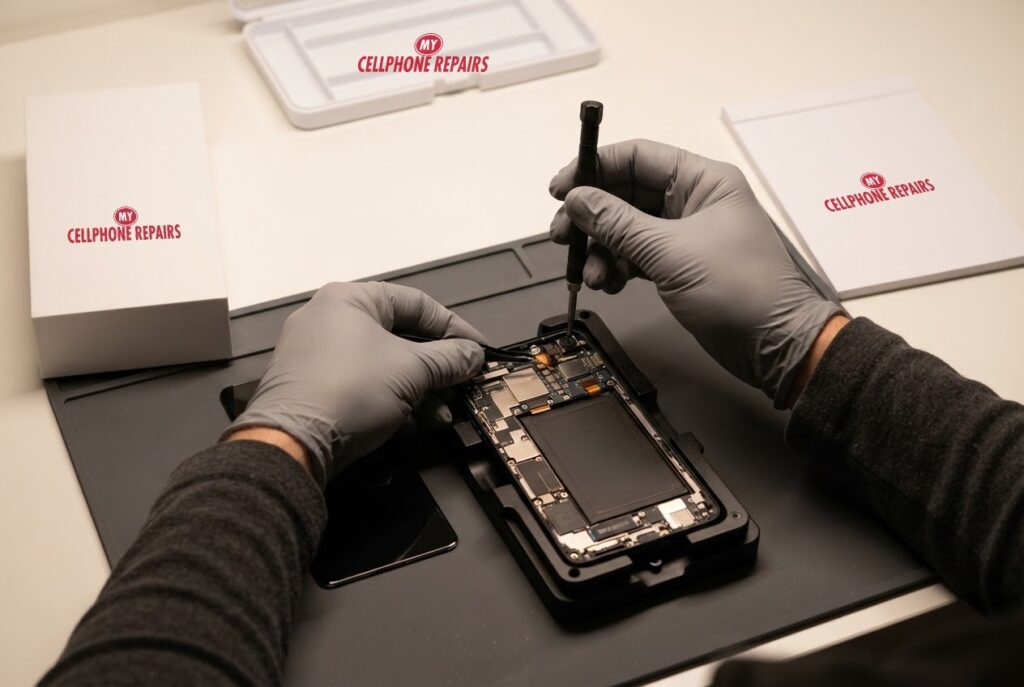
A repair like this means opening the phone and fitting a new front camera module, which is the job shown in our picture above. We do not list a fixed price for it online, so we give you a free diagnosis and an exact quote before we start. Samsung support also suggests, as a last resort, updating the software and backing up before any factory reset, but a reset will not fix a damaged camera.
Myths and facts about Galaxy face unlock
- Myth: Face unlock is as secure as a PIN. Fact: Samsung says face recognition is less secure than Pattern, PIN, Iris or Fingerprint, and someone who looks similar to you, such as a twin, may be able to unlock the phone.
- Myth: If it fails once, the camera is broken. Fact: Light, a dirty lens or a changed look are common causes.
- Myth: A new screen protector never matters. Fact: Anything covering the front camera area can interfere.
- Myth: Removing face data is harmless to try over and over. Fact: It deletes the registration each time, so you must register again.
What happens if I wait?
Waiting is harmless if the cause is a setting or lighting, because your PIN still works. If the cause is a failing front camera, the problem can affect video calls and selfies too, and waiting will not improve it. If you also see a cracked screen near the camera, bring it in sooner.
When in doubt, a short visit tells you whether you need a setting change or a repair.
Try this first: restart and force restart your Galaxy
These steps delete nothing and take under a minute. They help when software is behind a camera or recognition glitch.
- Restart: swipe down twice from the top, tap the Power icon, then tap Restart. Or press and hold the Side key and Volume Down, then tap Restart.
- Force restart (frozen phone): press and hold Volume Down and the Side key for about 7 to 10 seconds, until the screen goes black and the Samsung logo appears.
- Safe mode: open the power menu, then touch and hold Power off until Safe mode appears, and tap it. Restart normally to leave Safe mode.
A factory reset will not fix a damaged camera, so we do not suggest it here. Samsung’s own page: Different ways to restart your Galaxy. Menu names may differ slightly on your model.
When to stop and come in: the phone will not turn on after a force restart and 30 minutes on the charger, it vibrates but the screen stays black, it restarts by itself over and over, it gets hot, or it has been wet. Free diagnosis at any of our stores, and most repairs are done the same day.
Full step-by-step guide: How to restart and reset your Samsung Galaxy →
Repair prices
We do not list a fixed price for face unlock or front camera repairs, because the work ranges from a settings check to a camera module replacement. That is why we offer a free diagnosis and an exact quote before we start.
Searching for “Samsung screen repair” or “phone repair near you” will show our stores, and most are open on Sundays too.
We also fix tablets and computers
Camera and unlock problems also show up on tablets. We handle tablet repair near me searches, including Samsung tablet repair, plus laptop repair and MacBook repair. Bring your device in for a free diagnosis and the same quote-first approach.
Frequently asked questions
Why is face unlock not working on my Galaxy?
Common causes are a switched-off setting, Lockdown mode, a dirty camera, poor lighting or a changed appearance. Re-register your face, and if it still fails, book a free diagnosis.
Is face unlock available after a screen or camera repair?
Samsung says to register your face under Settings, Security and privacy, Biometrics. After a repair, we can check the front camera works, and you can register again. Ask us at your free diagnosis.
How long does a front camera repair take?
Most repairs at My Cellphone Repairs are done the same day, and walk-ins are welcome. We give you an exact quote after the free diagnosis. Book a repair online or stop by a store.
Sources
- Samsung Support: Biometric unlocking disabled on your Galaxy phone
- Samsung Support: Use Facial recognition security on a Galaxy phone or tablet
- Samsung Support: Different ways to restart your Galaxy
#MyCellphoneRepairs #Samsung #GalaxyS24Ultra #SamsungRepair #FaceUnlock #FrontCamera #SamsungGalaxy #PhoneRepair #SameDayRepair #HyattsvilleMD #Bowie
iPhone Says No Service or SOS Only? What to Check First
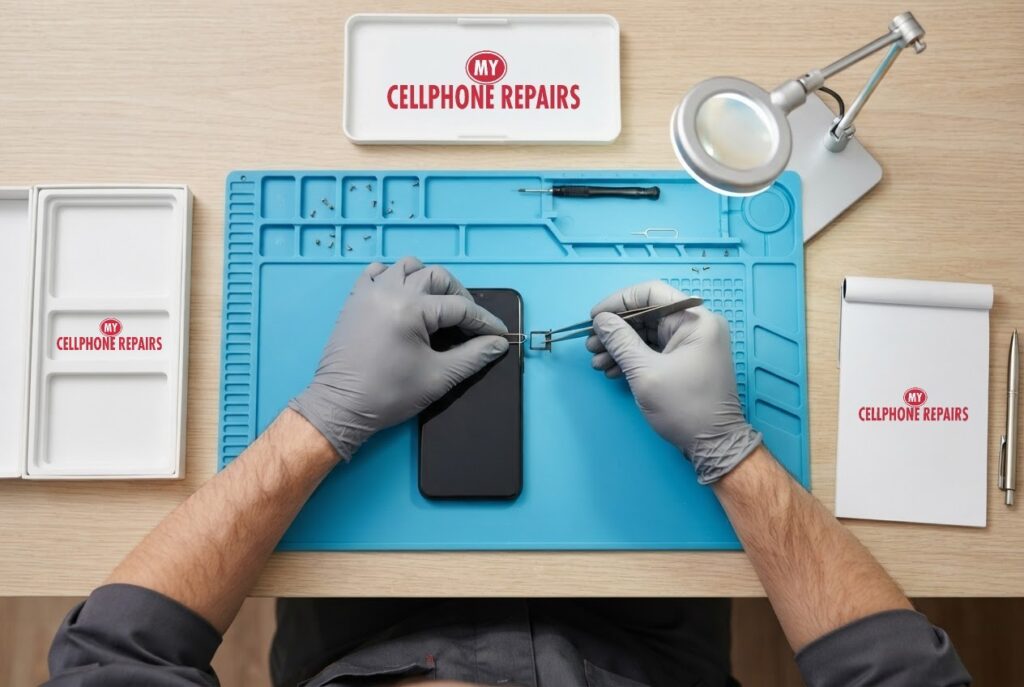
You step out of a meeting, glance at your phone, and the bars are gone. In their place sits a little “SOS” or the words “No Service”, and your calls and texts have stopped. An iPhone that says No Service or SOS only is stressful, but it is often fixable in a few minutes, and Apple has a clear order of checks to follow.
In this guide you will learn what each message really means, the checks to run in the right order, how to tell a carrier or SIM problem from a hardware fault, and when to bring the phone to us. If you are searching for cell phone repair near me because your phone will not connect, our free diagnosis is the quickest way to find out what is going on.
Quick facts
- Free diagnosis, always. We tell you the cause before any repair starts.
- Same day for most repairs. Walk-ins welcome.
- 30-day warranty on premium screens and other repairs (budget screens have no warranty).
- Exact quote before we start. Signal problems range from a SIM check to a hardware repair, so we diagnose first.
Key takeaways
- “SOS” means your iPhone is not on your carrier’s network but can still reach emergency services through other carriers. “No Service” or “Searching” means it is not connected to a cellular network at all.
- Start with Airplane Mode on for at least 15 seconds, then restart. Both are free and delete nothing.
- Many cases are about the account, coverage, carrier settings or the SIM, not a broken phone. Your carrier can check the account side.
- On a dual-SIM iPhone, make sure the line is switched on in Settings, then Cellular.
- If your carrier finds no account or network problem and you suspect hardware, that is when repair service makes sense.
In this article
- What do SOS, No Service and Searching mean?
- What should I check first? A step-by-step list
- Why does it happen when I travel?
- How do I tell a carrier problem from a hardware problem?
- Myths and facts about iPhone signal problems
- What happens if I wait?
What do SOS, No Service and Searching mean?
Apple explains the status bar in simple terms. SOS or SOS only means your iPhone is not connected to your own carrier’s network, but it can still make emergency calls through other carriers. Apple says this is available in Australia, Canada and the United States. No Service or Searching means the phone is not connected to a cellular network at all.
That difference matters. SOS tells you the phone can see some network, just not yours. No Service tells you it cannot find one to use. Either way, the question is the same: is the problem the phone, the SIM, or the account and coverage behind it? The checks below answer that, in the order Apple recommends.
What should I check first? A step-by-step list
Work through these one at a time and look at the status bar after each step:
- Toggle Airplane Mode. Open Settings, turn Airplane Mode on for at least 15 seconds, then turn it off so the phone can look for a network again.
- Restart the iPhone. Use the Try this first box below if you are not sure how.
- Contact your carrier. Ask them to confirm that your account is active and in good standing, that there are no outages in your area, that your device is not blocked or barred, and that you have the right plan. If you bought the phone in another country, ask whether IMEI registration is required where you live.
- Update iOS. Install the latest version available for your iPhone.
- Check for a carrier settings update. Connect to Wi-Fi, then go to Settings, General, About. If an update is waiting, a prompt to update carrier settings appears.
- Check your SIM or eSIM lines. On a dual-SIM phone, go to Settings, Cellular, tap the line, and make sure it is on. For a physical SIM, remove it and put it back in. If it is damaged, does not fit the tray or came from another device, ask your carrier for a new one.
Menu names can be slightly different on your iOS version, but the idea is the same. Stop as soon as service returns, and note which step fixed it in case it comes back.
Why does it happen when I travel?
Apple’s roaming page lists the settings that affect service abroad: Date & Time, Cellular Data, Data Roaming, Airplane Mode and whether the correct SIM or eSIM is turned on. Under Settings, General, Date & Time, make sure Set Automatically is on. Then go to Settings, Cellular (or Cellular Data), turn on Cellular Data, tap Cellular Data Options and turn on Data Roaming.
If you see No Service or SOS only while roaming, Apple says to confirm Cellular Data and Data Roaming are on for the active SIM or eSIM. A quick Airplane Mode toggle of about 30 seconds can also let the phone pick the best network. If it still cannot connect, try a different SIM or contact your carrier. Exceeding a plan’s data limit can also cause slow speeds or no data, so check the usage under Cellular Data.
How do I tell a carrier problem from a hardware problem?
Apple’s own wording is helpful here: if your carrier confirms there is no account or network issue and you suspect a hardware problem, get service. That is the dividing line.
Some clues point toward the phone itself. The signal never comes back even after the carrier says everything is fine. A SIM that works in another phone does not work in yours. Or the trouble started after a drop or after the phone got wet. None of these proves a hardware fault on its own, which is why we test the phone with a known-good SIM and check the SIM tray before suggesting any part. You will know what we found, and what it costs, before any work begins.
Myths and facts about iPhone signal problems
- Myth: No Service always means the phone is broken. Fact: Apple’s first steps are Airplane Mode, a restart, your carrier, an update, carrier settings and the SIM.
- Myth: A factory reset is the first thing to try. Fact: It is not in Apple’s list of steps. It deletes everything and will not fix a carrier or hardware fault.
- Myth: SOS only means you cannot call anyone. Fact: Apple says it can still reach emergency services through other carriers where available.
- Myth: Wi-Fi working means cellular is fine. Fact: Wi-Fi is a separate connection. Your phone can use Wi-Fi while showing No Service for calls and texts.
What happens if I wait?
For a short outage, waiting is fine. Carriers have outages, and a few minutes of Airplane Mode and a restart often settle things. But if you are still on SOS or No Service after the checks above, do not wait for it to fix itself. You could miss calls, verification texts and alerts, and a hardware cause does not go away on its own.
If you rely on your phone for work or family, call your carrier first, then book a free diagnosis with us. We can usually tell you the same day whether it is the SIM, the settings or the phone.
Try this first: restart and force restart your iPhone
These steps delete nothing and take under a minute. A restart is step two in Apple’s list for No Service.
- Restart: iPhone X or later: hold a volume button and the side button until the power-off slider appears, drag it, then hold the side button to turn it back on. Or go to Settings, then General, then Shut Down.
- Force restart (iPhone 8 and later): quickly press and release Volume Up, quickly press and release Volume Down, then press and hold the side button until the Apple logo appears. This can take more than 10 seconds.
A factory reset will not fix a hardware or carrier problem, so we do not suggest it here. Apple’s own page: Restart your iPhone.
When to stop and come in: the phone will not turn on after a force restart and 30 minutes on the charger, it vibrates but the screen stays black, it restarts by itself over and over, it gets hot, or it has been wet. Free diagnosis at any of our stores, and most repairs are done the same day.
Full step-by-step guide: How to restart and reset your iPhone →
Repair prices
We do not list a fixed price for signal problems, because the work ranges from reseating a SIM to a hardware repair. That is why we offer a free diagnosis and an exact quote before we start. You will know the cost, and you can say no, before any work begins.
You can also search your model on our appointment page to see current repair prices. Searching for “phone repair near you” or “same day phone repair” will show our stores, and most are open on Sundays too.
We also fix tablets and computers
Cellular problems are not only a phone issue. We also handle tablet repair near me searches, such as iPad cellular and charging port problems, plus laptop repair and MacBook repair. Bring your device in for a free diagnosis and the same quote-first approach.
Frequently asked questions
Why does my iPhone say No Service but Wi-Fi works?
Wi-Fi and cellular are separate connections. Apple’s steps are Airplane Mode for 15 seconds, a restart, a check with your carrier, an iOS update, carrier settings and your SIM. If none of that helps, book a free diagnosis.
Why is my iPhone stuck on SOS or emergency calls only?
SOS means your phone cannot reach your carrier but can still reach emergency services through other carriers. Check your account and coverage with your carrier, then bring it in if they find no problem.
How long does an iPhone signal repair take?
Most repairs at My Cellphone Repairs are done the same day, and walk-ins are welcome. We give you an exact quote after the free diagnosis. Book a repair online or stop by a store.
Sources
- Apple Support: If you see SOS, No Service, or Searching on your iPhone or iPad
- Apple Support: About cellular data roaming options for your iPhone and iPad
- Apple Support: Restart your iPhone
#MyCellphoneRepairs #iPhone #Apple #iPhoneRepair #NoService #SOSOnly #PhoneSignal #PhoneRepair #SameDayRepair #TowsonMD #Baltimore