
Galaxy S24 Ultra dropped in water? Follow Samsung’s steps for the moisture warning, drying time and wireless charging, and know when to book a free check.
Read moreTag: Galaxy S24 Ultra

Galaxy S24 Ultra Screen Ink Spots? What They Mean
Black ink spot on your Galaxy S24 Ultra screen? Learn what Samsung says causes it, why it may spread, what to do first, and real screen repair prices.
Read more
Galaxy S24 Ultra Cracked Screen: Repair Options and Costs
Cracked Galaxy S24 Ultra screen? Compare repair options, see real screen prices from $199.99, and learn what to do first. Free diagnosis, same-day repair.
Read more
Galaxy S24 Ultra Face Unlock Not Working? Fixes to Try
You lift your Galaxy to check a message and it just sits there on the lock screen, refusing to recognize you. After a few tries you are typing the PIN again. A Galaxy that stops recognizing your face is annoying, and the cause is usually a setting, a smudge or the lighting, though sometimes it is the camera.
This guide covers the checks Samsung itself lists, how to re-register your face, what can quietly switch face unlock off, and the signs that the front camera needs a look. If you want a Samsung screen repair or camera check done the same day, our free diagnosis is the place to start.
Quick facts
- Free diagnosis, always. We tell you the cause before any repair starts.
- Same day for most repairs. Walk-ins welcome.
- 30-day warranty on premium screens and other repairs (budget screens have no warranty).
- Exact quote before we start. Camera and sensor work varies, so we diagnose first.
Key takeaways
- Samsung says biometric unlock can be disabled by a turned-off setting, Lockdown mode, or company-managed restrictions. Check these first.
- Re-registering your face fixes many recognition problems: remove the face data, then register again.
- Glasses, hats, masks, makeup, bangs and beards can interfere. Adding an alternative appearance can help.
- Keep the front camera lens clean, use good lighting and avoid blurry conditions.
- Face recognition is less secure than a PIN, pattern, password or fingerprint, according to Samsung.
In this article
- Why would my Galaxy stop recognizing my face?
- What should I check first? A step-by-step list
- How do I re-register my face?
- When is the front camera to blame?
- Myths and facts about Galaxy face unlock
- What happens if I wait?
Why would my Galaxy stop recognizing my face?
Face recognition lets you unlock the phone and confirm your identity in some apps. It relies on the front camera seeing your face clearly and matching it to the data you registered. Anything that changes what the camera sees can cause a miss: a new hairstyle, glasses, a mask, dim light, a dirty lens or a screen protector that covers the camera area.
Samsung also notes that the feature needs a screen lock set up first (PIN, pattern or password), and that the phone may ask for that lock at least once every 24 hours, after 4 hours without use, or after a restart. So a request for your PIN is not always a fault. It can simply be the normal safety rule.
What should I check first? A step-by-step list
Try these in order and test after each one:
- Clean the front camera lens with a soft, dry cloth and remove any film or case edge that covers it.
- Improve the conditions. Use good lighting and hold the phone steady so the image is sharp. Samsung says blurry images reduce accuracy.
- Check that Face unlock is on. Go to Settings, Security and privacy, Screen lock and biometrics, enter your PIN, tap Face recognition and make sure Face unlock is switched on.
- Look for Lockdown mode. It turns off biometric unlocking until you enter your PIN, password or pattern. Biometrics resume the next time you lock the phone without Lockdown mode active.
- Check for company restrictions. On a work-managed phone, ask your IT administrator.
- Restart the phone. The Try this first box below shows how.
Samsung notes that menus can vary by model and software version, so your screens may be named slightly differently.
How do I re-register my face?
If recognition keeps failing, Samsung’s fix is to remove the stored face data and register again. Go to Settings, Security and privacy, Screen lock and biometrics, enter your credentials, tap Face recognition, then tap Remove face data and confirm. Then tap Register face and follow the prompts. Hold the phone 8 to 20 inches away and center your face in the circle until the progress bar reaches 100%. You may need to take off your glasses.
Two warnings. Removing the data is permanent, so you must register again afterward. And if you often change how you look, use the Add alternative appearance option under Face recognition. Samsung also lists options such as Require open eyes and Brighten screen, which can make recognition work better in the dark.
When is the front camera to blame?
Software and settings come first, but hardware can be the cause. Open the Camera app and switch to the selfie camera. If the picture is black, blurry, has lines, or the lens is cracked, face recognition cannot work well because it depends on that camera. That is the point where a technician should look, not another round of resets.
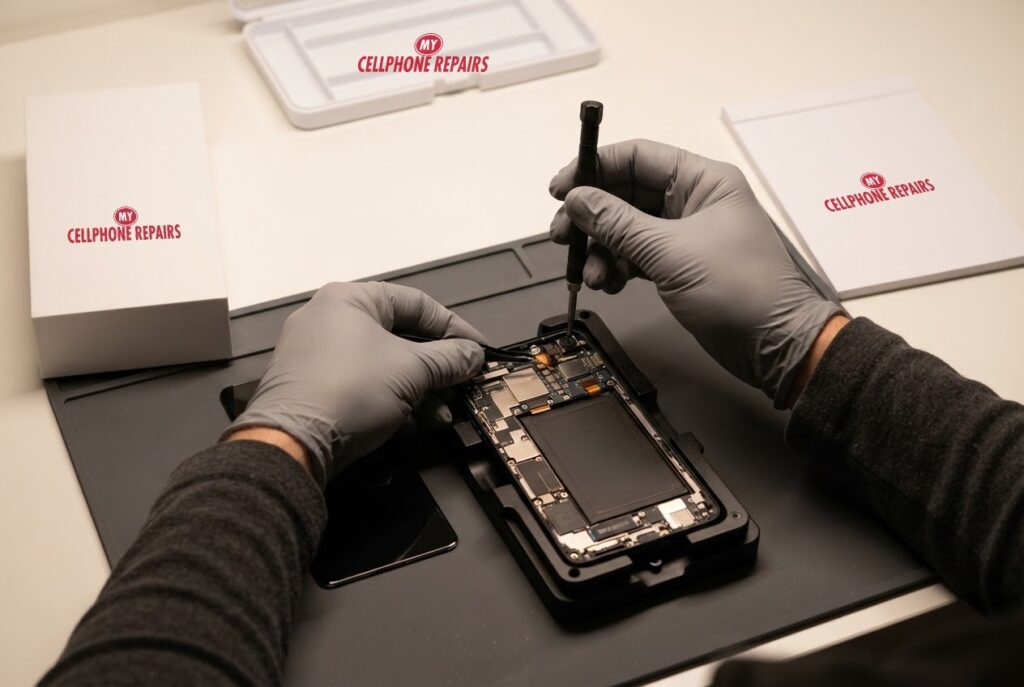
A repair like this means opening the phone and fitting a new front camera module, which is the job shown in our picture above. We do not list a fixed price for it online, so we give you a free diagnosis and an exact quote before we start. Samsung support also suggests, as a last resort, updating the software and backing up before any factory reset, but a reset will not fix a damaged camera.
Myths and facts about Galaxy face unlock
- Myth: Face unlock is as secure as a PIN. Fact: Samsung says face recognition is less secure than Pattern, PIN, Iris or Fingerprint, and someone who looks similar to you, such as a twin, may be able to unlock the phone.
- Myth: If it fails once, the camera is broken. Fact: Light, a dirty lens or a changed look are common causes.
- Myth: A new screen protector never matters. Fact: Anything covering the front camera area can interfere.
- Myth: Removing face data is harmless to try over and over. Fact: It deletes the registration each time, so you must register again.
What happens if I wait?
Waiting is harmless if the cause is a setting or lighting, because your PIN still works. If the cause is a failing front camera, the problem can affect video calls and selfies too, and waiting will not improve it. If you also see a cracked screen near the camera, bring it in sooner.
When in doubt, a short visit tells you whether you need a setting change or a repair.
Try this first: restart and force restart your Galaxy
These steps delete nothing and take under a minute. They help when software is behind a camera or recognition glitch.
- Restart: swipe down twice from the top, tap the Power icon, then tap Restart. Or press and hold the Side key and Volume Down, then tap Restart.
- Force restart (frozen phone): press and hold Volume Down and the Side key for about 7 to 10 seconds, until the screen goes black and the Samsung logo appears.
- Safe mode: open the power menu, then touch and hold Power off until Safe mode appears, and tap it. Restart normally to leave Safe mode.
A factory reset will not fix a damaged camera, so we do not suggest it here. Samsung’s own page: Different ways to restart your Galaxy. Menu names may differ slightly on your model.
When to stop and come in: the phone will not turn on after a force restart and 30 minutes on the charger, it vibrates but the screen stays black, it restarts by itself over and over, it gets hot, or it has been wet. Free diagnosis at any of our stores, and most repairs are done the same day.
Full step-by-step guide: How to restart and reset your Samsung Galaxy →
Repair prices
We do not list a fixed price for face unlock or front camera repairs, because the work ranges from a settings check to a camera module replacement. That is why we offer a free diagnosis and an exact quote before we start.
Searching for “Samsung screen repair” or “phone repair near you” will show our stores, and most are open on Sundays too.
We also fix tablets and computers
Camera and unlock problems also show up on tablets. We handle tablet repair near me searches, including Samsung tablet repair, plus laptop repair and MacBook repair. Bring your device in for a free diagnosis and the same quote-first approach.
Frequently asked questions
Why is face unlock not working on my Galaxy?
Common causes are a switched-off setting, Lockdown mode, a dirty camera, poor lighting or a changed appearance. Re-register your face, and if it still fails, book a free diagnosis.
Is face unlock available after a screen or camera repair?
Samsung says to register your face under Settings, Security and privacy, Biometrics. After a repair, we can check the front camera works, and you can register again. Ask us at your free diagnosis.
How long does a front camera repair take?
Most repairs at My Cellphone Repairs are done the same day, and walk-ins are welcome. We give you an exact quote after the free diagnosis. Book a repair online or stop by a store.
Sources
- Samsung Support: Biometric unlocking disabled on your Galaxy phone
- Samsung Support: Use Facial recognition security on a Galaxy phone or tablet
- Samsung Support: Different ways to restart your Galaxy
#MyCellphoneRepairs #Samsung #GalaxyS24Ultra #SamsungRepair #FaceUnlock #FrontCamera #SamsungGalaxy #PhoneRepair #SameDayRepair #HyattsvilleMD #Bowie
Galaxy S24 Ultra Overheating? Causes and Safe Fixes
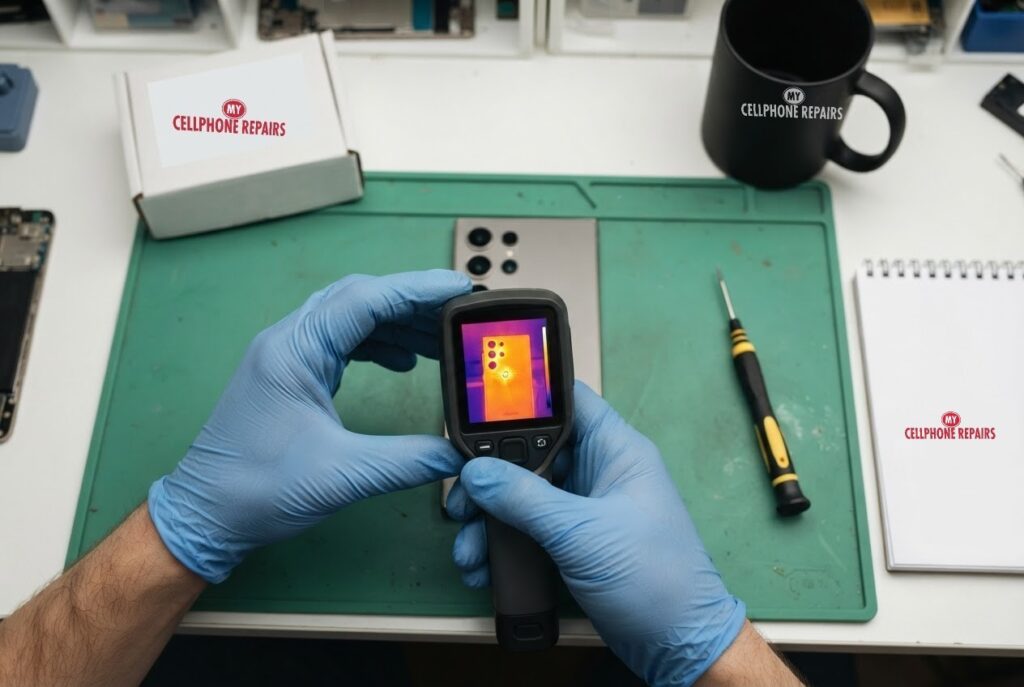
You are halfway through a map route, the phone is charging in the car, and suddenly the back of your Galaxy feels like a mug of coffee. The screen dims, the app lags and a warning pops up. A Galaxy S24 Ultra that keeps overheating is annoying, and sometimes it is a sign worth taking seriously.
This guide explains why phones get hot, which causes you can fix yourself in minutes, which warning signs mean “stop and get it checked”, and what to do about it. If the heat comes with swelling, a hissing sound or a burning smell, skip ahead to the safety section and call us. Our free diagnosis and same day repair are there when settings are not enough.
Quick facts
- Galaxy S24 Ultra battery replacement from $89.
- Free diagnosis, always. Same day for most repairs.
- 30-day warranty on premium screens and other repairs (budget screens have no warranty).
- Walk-ins welcome. Open Sundays at 9 of our 10 listed stores.
Key takeaways
- Warm is normal during gaming, video recording and charging. Hot with nothing running is not.
- Common causes: heavy multitasking or gaming, long camera or 8K recording, direct sun, background apps, a faulty charger and using the phone while it charges.
- Quick fixes: update the software, lower the refresh rate, remove the case while charging and use the original charger.
- Safe mode shows whether a downloaded app is the cause.
- Swelling, hissing, popping or a strong smell means stop using the phone and come in.
In this article
- Why does my Galaxy S24 Ultra get so hot?
- How do I stop my Galaxy S24 Ultra overheating? Step by step
- Is it an app or the hardware?
- When is overheating dangerous?
- Overheating myths and facts
- How can I prevent overheating?
Why does my Galaxy S24 Ultra get so hot?
Every phone makes heat when its chip works hard and when its battery charges. Samsung owners in the Samsung Community list the usual triggers: heavy multitasking or gaming, extended camera use or 8K video recording, direct sunlight or hot places, software bugs and background apps, faulty chargers or third-party accessories, and using the phone while it charges.
Android Authority adds the battery side of the story. It explains that excess heat can break down a battery’s internal cells, that overcharging can make a battery overheat, and that fast charging adds heat through the battery and the surrounding power circuitry. A well-made battery has safety features, but heat is still worth respecting.
So a warm phone during a long game or a fast charge is not unusual. A phone that is hot while idle, or that heats up within minutes of light use, deserves a closer look.
How do I stop my Galaxy S24 Ultra overheating? Step by step
These steps come from a Samsung Community guide for the Galaxy S24 Ultra. It is a user-posted guide rather than official documentation, so menu names may differ slightly on your phone. Try them in this order and let the phone cool between tests:
- Update the software. Settings, then Software update, then Download and install. Samsung updates can fix bugs that add heat.
- Limit background activity. Close unused apps from Recent Apps, then go to Settings, Battery and device care, Memory, and tap Clean now.
- Calm the display. In Settings, then Display, set Motion smoothness to Standard (60Hz) and lower the brightness or turn on Adaptive brightness.
- Charge without using the phone. Let it charge undisturbed and take the case off if it gets warm.
- Use proper charging gear. Samsung’s original charger or certified accessories, not a bargain cable.
- Turn on battery protection. Settings, Battery and device care, Battery, More battery settings, then switch on Protect battery and Adaptive battery.
- Reset settings if it persists. Settings, General management, Reset, Reset settings. This keeps your data but resets Wi-Fi, Bluetooth and permissions.
Community members also report relief from switching the Device care performance profile from Standard to Light, but that is one owner’s experience rather than a guaranteed fix.
Is it an app or the hardware?
The quickest way to separate the two is Safe mode. Google’s Android help explains that Safe mode can help you find an app that is causing problems such as restarting, freezing, crashing or running slowly. Use the phone normally in Safe mode. If the heat and lag stop, an app is probably the cause. If they continue, an app probably is not, and it is time to look at the charger, the battery or the phone itself.
To find the guilty app, uninstall recently downloaded apps one at a time and restart normally after each one. A Samsung Community answer says the same thing: if the phone does not overheat in Safe mode, remove third-party apps until normal behaviour returns.
Do not skip the charger either. Android Authority recommends using the charger and cable that came in the box because they are matched to the phone’s voltage and current. It also advises not charging under a pillow or in bed, and avoiding long charging sessions in hot places such as a car dashboard or in direct sun.
When is overheating dangerous?
Heat alone is usually a settings or app issue. Heat together with any of these is a different story:
- The back of the phone, or the screen, is lifting, bulging or no longer sits flat.
- A hissing or popping sound. Android Authority lists these as warning signs.
- A strange smell, or the phone gets too hot to hold even when idle.
- The battery drains very fast or the phone shuts down by itself.
Android Authority describes a swollen battery as dangerous. It can burst, catch fire, or explode, so you should stop using the phone right away. Turn it off, do not charge it, and keep it somewhere safe away from anything flammable. Do not squeeze or puncture it, and do not throw it in the bin. Take it to an authorized recycling site or bring it to us.
Samsung Community users also mention that a faulty third-party battery, or a poor connection after an earlier repair, can cause sudden overheating. That is one more reason to use a repair shop that stands behind its parts. Ours are covered by a warranty.
Overheating myths and facts
- Myth: A hot phone always means a bad battery. Fact: Gaming, 8K video, sun and background apps are all common causes, so test the simple things first.
- Myth: A factory reset always fixes heat. Fact: A reset can help a software problem, but it does not repair a faulty battery or charging circuit. Back up first if you try it.
How can I prevent overheating?
- Keep the phone out of direct sun and hot cars.
- Do not cover it while charging, and stop charging if it gets too hot, then let it cool before you start again.
- Avoid gaming or recording long videos while it charges.
- Keep the software up to date.
- Check Settings, Battery for the apps that use the most power, and uninstall the ones you rarely use.
Try this first: restart and force restart your Samsung Galaxy
These steps delete nothing and are worth doing before anything else:
- Restart: swipe down twice from the top, tap the Power icon, then Restart. Or hold the Side key and Volume Down, then tap Restart.
- Force restart (frozen phone): hold Volume Down and the Side key together for about 7 to 10 seconds, until the screen goes black and the Samsung logo appears.
- Safe mode: open the power menu, then touch and hold Power off until Safe mode appears and tap it. Restart normally to leave Safe mode.
A factory reset will not fix a hot or swollen battery. If you do reset for a software problem, back up first and know your Google account password. Samsung’s own page: Different ways to restart your Galaxy.
When to stop and come in: the phone will not turn on after a force restart and 30 minutes on the charger, it vibrates but the screen stays black, it restarts by itself over and over, it gets hot, or the back or screen is lifting (stop charging it). Free diagnosis at any of our stores.
Full step-by-step guide: How to restart and reset your Samsung Galaxy →
Repair prices
A Galaxy S24 Ultra battery replacement starts from $89 at My Cellphone Repairs. If heat turns out to be a charging port, screen or other fault, you will get a free diagnosis and an exact quote before we start.
Searching for “Samsung screen repair” or “cell phone repair near me”? Search your model on our appointment page to see live prices, then walk in or book.
We also fix tablets and computers
Heat problems happen on other devices too. We also repair Samsung tablets, iPads, laptops and MacBooks, including swollen battery laptop and MacBook cases. Search for “tablet repair near me” or “laptop repair near me” and you will find us.
Frequently asked questions
Why does my Galaxy S24 Ultra get hot while charging?
Charging itself makes heat, and fast charging makes more. Use the original charger, take the case off and avoid using the phone while it charges. If it still gets very hot, book a free diagnosis.
Is it safe to keep using a phone that overheats?
Occasional warmth is normal. If the phone swells, hisses, smells or gets too hot to hold while idle, stop using it, turn it off and bring it in. Do not charge it.
How much is a Galaxy S24 Ultra battery replacement?
It starts from $89 here, with a free diagnosis first and most repairs done the same day. Book a repair or walk in.
Sources
- Samsung Community: How to Fix Overheating Issues on the Galaxy S24 Ultra
- Android Authority: Why phones explode and how to protect yourself
- Android Authority: What to do if your phone battery is swollen
- Android Help: Find problem apps by rebooting to safe mode
- Samsung: Different ways to restart your Galaxy
#MyCellphoneRepairs #Samsung #Galaxy #SamsungRepair #GalaxyS24Ultra #PhoneOverheating #BatteryReplacement #PhoneRepair #FreeDiagnosis #HyattsvilleMD #Maryland
Galaxy S24 Ultra Cracked Back Glass: Fix It or Wait?
A cracked back on a Galaxy S24 Ultra is not just cosmetic. Here is why it matters for water resistance and what to do today.
Read more
Galaxy S24 Ultra Camera Rattle or Blur? What It Means
A faint rattle or blurry photos on your Galaxy S24 Ultra? Learn what OIS noise means, what to check first, and when to book a free diagnosis.
Read more
Galaxy S24 Ultra Not Charging? Port, Cable or Software
Galaxy S24 Ultra not charging or charging slowly? Work through port, cable, moisture warning and software checks in order, and learn when to come in.
Read more