
A MacBook repair warning is a clue, not a verdict. The unauthorized macbook repair warning message can sound like proof that something is wrong, but the exact wording matters. A status notice alone doesn’t establish that your MacBook is damaged or explain its repair history.
It’s understandable to feel unsure, especially if you didn’t arrange a repair or the laptop still seems to work normally. Before changing settings or trying fixes, note the message exactly, where it appears, and when it began. Record your MacBook model, macOS version, any repair history you know, and symptoms such as changes to the display, battery, charging, or sleep behavior.
This article explains what the alert does and doesn’t establish, which details to keep, and how to choose a sensible next step. You’ll learn how to separate the message from any symptoms and when a professional assessment can help. My Cellphone Repairs provides MacBook repair with certified technicians, backed by a warranty. Customers can walk in or book online.
Key Takeaways
- Read the unauthorized macbook repair warning message carefully. Its wording matters, but it may not explain the cause or confirm a specific repair.
- Separate the alert from any MacBook symptoms instead of assuming one proves a hardware fault.
- Compare a message-only concern with any symptoms, and note what remains uncertain.
- Capture the warning and record relevant context before troubleshooting or arranging an assessment.
- Professional MacBook repair can help assess the device and clarify what needs attention.
Unauthorized MacBook Repair Warning Message: Start With the Exact Wording
An unfamiliar repair-related alert can make it seem as if your MacBook has been altered or damaged. Don’t jump to that conclusion from a description alone. The phrase “unauthorized macbook repair warning message” may be how an owner describes what they saw, but it isn’t enough to identify the alert’s meaning or cause. Start with the wording displayed on the Mac, rather than trying to diagnose the issue from a summary.
Before troubleshooting, capture the complete message and its context. A clear photo or screenshot can preserve details that are easy to forget, including the title, additional text, and any instructions or buttons. If the alert disappears, write down what you remember and mark anything uncertain instead of filling in missing words.
Which details should you record from the warning?
Make a brief record before changing settings or taking further action. Include:
- The full wording: Copy the message, title, and any accompanying instructions as accurately as possible.
- Where and when it appeared: Note whether you saw it during startup, after signing in, or within a system screen. Record what you were doing immediately before it appeared.
- Basic Mac details: Add the MacBook model and macOS version if they’re readily available. Don’t delay documenting the alert to search through settings for information you can’t find quickly.
Keep your own description separate from the captured text. For example, label one note “what I remember” and another “exact wording.” That distinction helps an assessment stay grounded in what the Mac displayed, rather than an assumption about what it meant.
Why the wording matters more than the phrase “unauthorized”
“Unauthorized” sounds definitive, but a single word doesn’t identify a cause by itself. The complete alert might name a status, describe a component, or provide an instruction. Without seeing the exact language and where it appeared, don’t assume that your summary matches official system phrasing or proves that a particular repair took place.
Keep the conclusion narrow. A reported warning alone doesn’t establish that the MacBook is damaged, that fraud occurred, or that warranty coverage has been lost. Those are separate claims, and the phrase itself doesn’t prove them. Broader discussions of right to repair protections provide background on repair access and hardware restrictions, but they can’t explain a specific alert on your Mac.
System behavior can depend on the exact message and software version involved. Bring your device to My Cellphone Repairs to verify any specific interpretation and get professional assistance before acting on the warning. Until then, preserve the wording, note the context, and treat the alert as information to investigate, not a diagnosis.
What an Unauthorized MacBook Repair Warning Can, and Cannot, Tell You
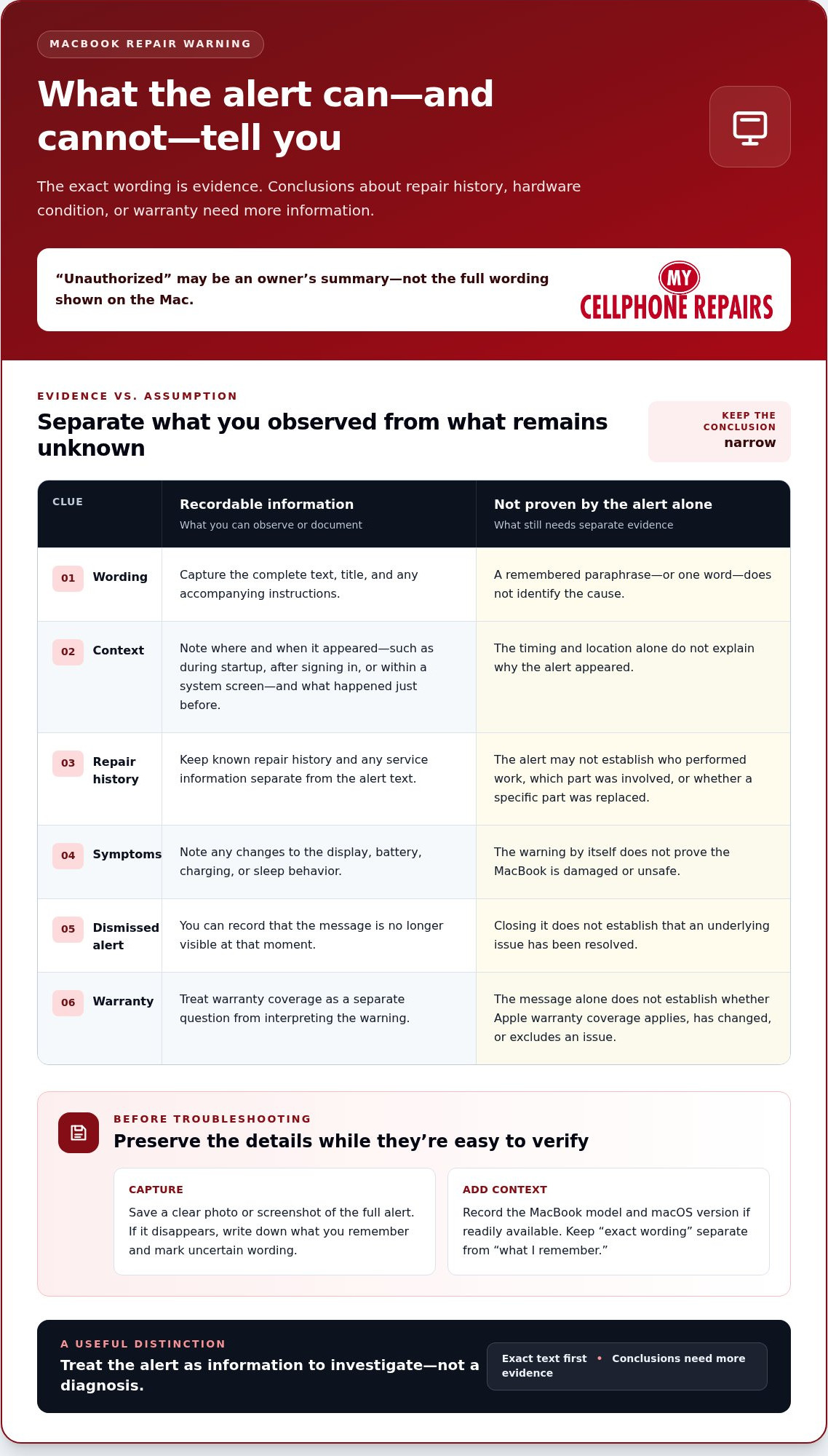
An alert can tell you what the Mac displayed. It can’t fill in every detail about repair history, hardware condition, or warranty status. Keep those questions separate. The exact words are evidence; conclusions about what caused the alert need more information.
This distinction matters because “unauthorized” may be the owner’s summary rather than the complete wording shown onscreen. Without a verified message and its context, it would be misleading to assign a specific cause or claim that a particular part was replaced. The phrase “unauthorized macbook repair warning message” describes a concern, not a confirmed diagnosis.
What the warning itself confirms
Start with the exact text, not a remembered paraphrase. A specific warning should only be interpreted after its wording and context are verified against current Apple documentation. Read what the alert explicitly says, including any status or instruction. Treat anything beyond that direct statement as a question to investigate, not as something the message has already proven.
Use this evidence-versus-assumption guide to keep the distinction clear:
Evidence: The exact text visible on the MacBook, where it appeared, and any instruction it displays. These are observations you can record.
Unverified interpretation: “A particular component was replaced.” The alert alone may not establish that history.
Unverified interpretation: “The MacBook is damaged or unsafe.” That conclusion needs evidence beyond the wording.
Unverified interpretation: “Closing the alert fixed the problem.” Dismissing a message doesn’t establish whether an underlying issue is resolved.
Even if the alert disappears, that only tells you it’s no longer visible at that moment. It doesn’t confirm that a repair, verification step, or hardware concern has been addressed. Keep a screenshot or written record so you can compare the message with any symptoms or service history later.
What not to assume about repairs or warranty
Don’t conclude from the word “unauthorized” alone that a repair was unauthorized in a specific policy sense. The message may not identify who performed work, which part was involved, or why the wording appeared. Those details require separate evidence, such as repair records or a professional assessment.
Warranty questions also need their own answers. A warning by itself doesn’t establish whether Apple warranty coverage applies, has changed, or excludes a particular issue. That is separate from My Cellphone Repairs’ stated warranty: the company backs its repairs with a warranty. This does not determine Apple’s coverage or promise a particular outcome for a MacBook issue.
If the message remains unclear, bring the exact wording and your notes for a professional assessment. My Cellphone Repairs provides MacBook repair services, performed by certified technicians and backed by a warranty.
Warning Message or MacBook Problem? Compare the Clues Carefully
A warning and a MacBook symptom are two separate pieces of information. One doesn’t automatically explain the other. Use the comparison below to describe what you know without turning an alert or a behavior change into a diagnosis.
Message only: You saw an alert but haven’t noticed another change. This records a message, not proof that the MacBook is operating normally or has a fault. Preserve the wording and note when it appeared.
Message plus symptom: An alert appears alongside a separate issue, such as trouble charging or an unexpected display change. Record each observation independently. Their timing may be useful, but it doesn’t prove the warning caused the symptom or that a repair caused either one.
Uncertain case: You can’t recall the exact text, aren’t sure when it appeared, or don’t know whether a behavior is new. Mark what’s uncertain and avoid filling in gaps with assumptions. A professional assessment can help clarify the situation.
This is a practical sorting tool, not a diagnostic test. The phrase “unauthorized macbook repair warning message” may sound like a clear explanation, but the warning and the computer’s behavior need to be assessed using their own evidence.
When the message appears without another reported issue
If the only concern is an alert, describe it that way. Don’t label the MacBook healthy or faulty based on the absence of a reported symptom. Save the full wording and note when and where it appeared, then use those details when seeking an explanation. Avoid dismissing or bypassing the message as a way to test whether the underlying concern has gone away.
When the warning appears alongside a MacBook fault
Write the symptom in plain language. Note what happened, when you noticed it, whether it continues, and whether it began before or after the alert. Keep that record separate from what you think caused it. Timing or a shared repair history is useful context, but it doesn’t establish a connection without diagnostic evidence.
If liquid exposure is part of the situation, record what happened and when. You can also consult this MacBook liquid damage repair guide for information relevant to that circumstance.
Keep scam concerns separate, too. A repair warning alone doesn’t establish that a scam occurred. Treat a suspected scam as a separate concern unless you have evidence connecting it to the alert. This keeps the next assessment focused on observable facts rather than an unsupported conclusion.
What to Do About an Unauthorized MacBook Repair Warning
Take a measured approach. The unauthorized macbook repair warning message may be unfamiliar, but you can make the next step clearer by preserving the evidence and separating what you saw from what you suspect. Don’t open the MacBook, bypass security, or try an unverified repair just to make the alert disappear.
Document the message before changing anything
Follow these steps in order. They help keep useful details intact without assuming what caused the warning.
- Capture the full alert. Take a clear photo or screenshot if possible. If it’s no longer visible, write down the wording you remember and mark any uncertain parts. Include the title and any instructions.
- Note the context. Record when and where the alert appeared, such as during startup or while using the MacBook. Note whether another issue was present at the same time. Don’t change settings just to see if the message returns.
- Describe separate symptoms. Use plain observations, such as “the MacBook won’t charge” or “the display looks different.” If there are no other symptoms you’ve noticed, record that too. Avoid guessing at a failed component or linking a symptom to the warning.
- Write down known repair history. Include work you know was done and approximately when, if you remember. Separate confirmed details from assumptions. If you don’t know whether the MacBook was previously repaired, say so rather than inferring it from the alert.
Keep these notes together. They give a technician a clearer starting point and help prevent an uncertain recollection from becoming mistaken for a confirmed repair history.
Know when to request a professional assessment
Arrange an assessment if the message remains unclear, appears alongside a device fault, or leaves you unsure about continuing to use the MacBook. A technician needs to inspect the device before identifying a repair cause. The warning alone can’t establish which part, if any, needs attention.
If the message includes an instruction from Apple or macOS, verify that action against current Apple documentation before following it. The right step can depend on the exact wording and context. Don’t rely on an incomplete quote or a general online description to decide what to change.
An assessment can help clarify the device’s condition, but don’t assume it will remove the warning or result in a specific repair. Keep the original message and your notes available. For professional MacBook repair, view MacBook repair help from My Cellphone Repairs.
Get MacBook Repair Help From My Cellphone Repairs
If you’ve recorded the warning but still can’t tell what it means, a professional assessment is a practical next step. My Cellphone Repairs provides MacBook repair. Certified technicians perform the work, and repairs are backed by a warranty. An assessment can help put the alert and any separate device symptoms into context, but the warning alone doesn’t determine what repair, if any, is needed.
What to bring when arranging a MacBook assessment
Bring the MacBook and the details you’ve already gathered. The exact message, a screenshot or photo, and a short note about when it appeared can help you explain the concern clearly. If you noticed another issue, describe what happened in everyday terms. For example, note that the MacBook won’t charge rather than guessing which part might be responsible.
- The MacBook: Bring the device so its condition can be assessed directly.
- The warning record: Keep the complete wording, including any title or instructions you captured.
- Your timeline: Note when you first saw the message and whether another issue appeared at the same time.
- Known repair history: Share only what you know. If you’re unsure whether work was done before, say so rather than drawing a conclusion from the alert.
These details give a technician useful context, but they don’t guarantee a particular diagnosis or repair result. The phrase “unauthorized macbook repair warning message” may describe your concern, while an assessment helps evaluate the MacBook itself. Keep the message and device symptoms distinct so the technician can consider each without assuming one caused the other.
Choose a convenient local repair visit
My Cellphone Repairs has a walk-in location at Bowie Town Center in Maryland, and customers can book online. The company also has locations at Woodland Mall in Grand Rapids, Michigan, and Capital City Mall in Camp Hill, Pennsylvania. These options are relevant for people looking for MacBook repair around Bowie, Towson and Baltimore County, Hyattsville, College Park, Cumberland, Vineland, Harrisburg, and Kentwood. Bring your notes along with the MacBook so you can explain what prompted the visit.
You don’t need to reach a diagnosis before arranging help. Share what you observed, what remains unclear, and whether you noticed a separate fault. A technician can assess the MacBook before identifying a repair cause. This keeps the next step focused on the device and its actual condition, not assumptions based on a warning alone.
If you’re ready to have your MacBook assessed, book MacBook repair assistance online or walk in at Bowie Town Center.
Take the Next Step With Confidence
An unfamiliar alert can feel urgent, but you don’t have to solve its meaning on your own before getting help. Treat the unauthorized macbook repair warning message as a reason to seek clarity, not as a verdict about your MacBook. A careful assessment can help you decide what deserves attention and what to do next.
If uncertainty is getting in the way of using your device or making a clear decision, explain what you observed and have the MacBook assessed. You don’t need to guess at a cause or attempt a fix just to feel in control.
My Cellphone Repairs offers MacBook repair by certified technicians, with repairs backed by a warranty. Walk in at Bowie Town Center or book online to arrange help.
Book MacBook repair with My Cellphone Repairs and take the next step with confidence.
Frequently Asked Questions
What does an unauthorized MacBook repair warning message mean?
The unauthorized macbook repair warning message means your Mac displayed a repair-related notice, but that phrase alone doesn’t identify why it appeared. The meaning depends on the exact text and where you saw it. Don’t treat a paraphrase as proof of a specific repair or part. Record whether the notice gave an instruction, described a status, or simply appeared, then use the exact wording for a verified interpretation.
Can an unauthorized repair warning appear even if a MacBook still works?
A MacBook may remain usable while a warning is displayed. Being able to start the computer or use an app doesn’t explain the alert or establish that every function is working as expected. Note what you can and can’t do, rather than relying on a general impression that the laptop “works.” If you’re uncertain about the message, preserve it and seek an assessment before drawing conclusions.
Does an unauthorized MacBook repair warning mean the computer is damaged?
No, the warning alone doesn’t prove that the MacBook is damaged. It also can’t confirm that the device has no fault. Consider the alert and any separate behavior, such as a charging or display issue, as distinct observations. Describe the behavior plainly and have the device assessed if it continues or affects use. Don’t diagnose a failed part based only on the warning’s wording.
Can an unauthorized repair warning affect MacBook warranty coverage?
The alert alone doesn’t establish whether Apple warranty coverage applies to your MacBook or a particular issue. Warranty decisions depend on the applicable terms and circumstances, so don’t infer eligibility or loss of coverage from the message. Keep relevant purchase and repair records, then consult current Apple warranty information for that question. A repair warranty from a repair provider is separate from Apple’s coverage.
How do I find out which MacBook warning message appeared?
If the alert is still visible, photograph or screenshot the whole message, including its title and any instructions. Note where it appeared and when you saw it. If it has disappeared, write down the words you recall and mark uncertain parts instead of trying to recreate the alert. A precise record helps distinguish the on-screen text from your interpretation and supports a more accurate review.
Can My Cellphone Repairs assess a MacBook with a repair warning?
Yes. My Cellphone Repairs provides MacBook repair, and customers can arrange a visit by walking in or booking online. Bring the MacBook and the exact warning record, plus a short account of what happened before and after it appeared. That gives the technician useful context for assessing the device. An assessment is not a promise that a particular cause or repair will be identified.
What should I do if an unauthorized repair warning appears with another MacBook problem?
Record the warning and the other problem separately. For example, note the alert’s wording and describe the device behavior in plain terms, along with when you noticed each. Avoid assuming that one caused the other. If the issue persists or interferes with using the MacBook, arrange a professional assessment and share your notes. Don’t open the laptop or try an unverified fix to clear the warning.