
OnePlus 12 not charging? You plug it in at night, wake up and find it at 12 percent. Or it charges only when the cable sits at a certain angle, and you have started propping the phone against a mug to keep it connected. Before you order a new charger or book a repair, there is a good chance the fix is something you can see with a torch.
This guide puts the checks in the order that wastes the least time, using Android Authority’s troubleshooting steps and Samsung’s charging guidance, then explains how to clean a USB-C port without damaging it and when to stop. If the port is worn, bent or damaged, we offer OnePlus repair near you and charging port repair with a free diagnosis and same day phone repair for most jobs.
Key takeaways
- Android Authority’s order is cable, charger, charging port, software, then battery, with hardware as the last resort.
- USB-C ports are small and collect pocket lint. Android Authority lists a cable that sits at an odd angle, falls out, charges only with certain cables or loses fast charging as symptoms.
- Switch the phone off before cleaning. Use compressed air first, then a non-metal tool such as a wooden or plastic toothpick, and never liquids or metal tools.
- A moisture warning can block charging until the port is dry. Let it dry in cool air, not heat.
- Our quick facts: free diagnosis, same day for most repairs, 30-day warranty on repairs, exact quote before we start.
In this article: the checks in order, how to clean the port safely, other causes of slow charging, when it is the port, myths vs facts, cost, FAQ.
Why is my OnePlus 12 not charging?
A phone that will not charge usually has one of five suspects: the cable, the charger, the charging port, the software or the battery. Android Authority’s guide to a phone that will not charge walks through them in exactly that order, and it makes sense, because the first two cost almost nothing to rule out and the last one is the expensive one.
- Confirm it is really charging. Android Authority suggests using an app such as Ampere to see whether current is flowing into the phone.
- Test the cable. Inspect it for rips, bends or cuts, try it on another device, and try a different cable on your phone.
- Test the charger. Check the adapter for cracks or bent prongs, try it with other devices or swap in a different one. Android Authority notes that proprietary fast charging can run slower with non-original cables, so the cable and adapter that came with the phone are the best test.
- Look at the port. Lint and debris are a common cause, and they are easy to fix (details below). If the phone was exposed to liquid, look for a moisture warning, which blocks charging until the port dries.
- Restart and update. Android Authority says to restart or power off the phone, because background activity can affect charging, and then check for software updates.
Try this first: restart, force restart and Safe mode (OnePlus)
These steps delete nothing. Menu names may be slightly different on your model and OxygenOS version.
- Restart: press and hold Power and Volume up (or the Power button on older models), then tap Restart.
- Force restart (frozen): on OnePlus 6T and later, hold Volume up and Power for about 10 seconds. Some models use Volume down and Power. If it vibrates but the screen stays black, the screen may be damaged.
- Safe mode: open the power menu, touch and hold Power off, then tap Safe mode. This switches off downloaded apps to rule out software.
When to stop and come in: the phone will not charge after you have tried another cable and charger and cleaned the port, it gets hot, restarts over and over, the back or screen is lifting, or it has been wet. A factory reset will not fix a charging port and erases everything, so back up and skip it. Maker’s own help: OnePlus support: phone will not turn on or frozen screen.
Full step-by-step guide: How to restart and reset your OnePlus → | All restart & reset guides →
How do I clean a USB-C port safely?
USB-C ports are tiny, and Android Authority explains that lint and dust from pockets and bags get trapped in them. Plugging a cable in again and again compacts that debris, which can stop the cable’s pins lining up. The symptoms are exactly what many people describe: the cable sits at an odd angle, falls out, only works with certain cables, fast charging stops, or you need to jiggle it.
Here is the safe method, combining Android Authority’s two guides and Samsung’s charging advice:
- Power the phone off. This matters especially if you use any metal tool, which can short the pins while it is on.
- Look inside with a light, including the back wall of the port, where the lint packs in.
- Use compressed air in one-second bursts with the can held upright. An air bulb also works.
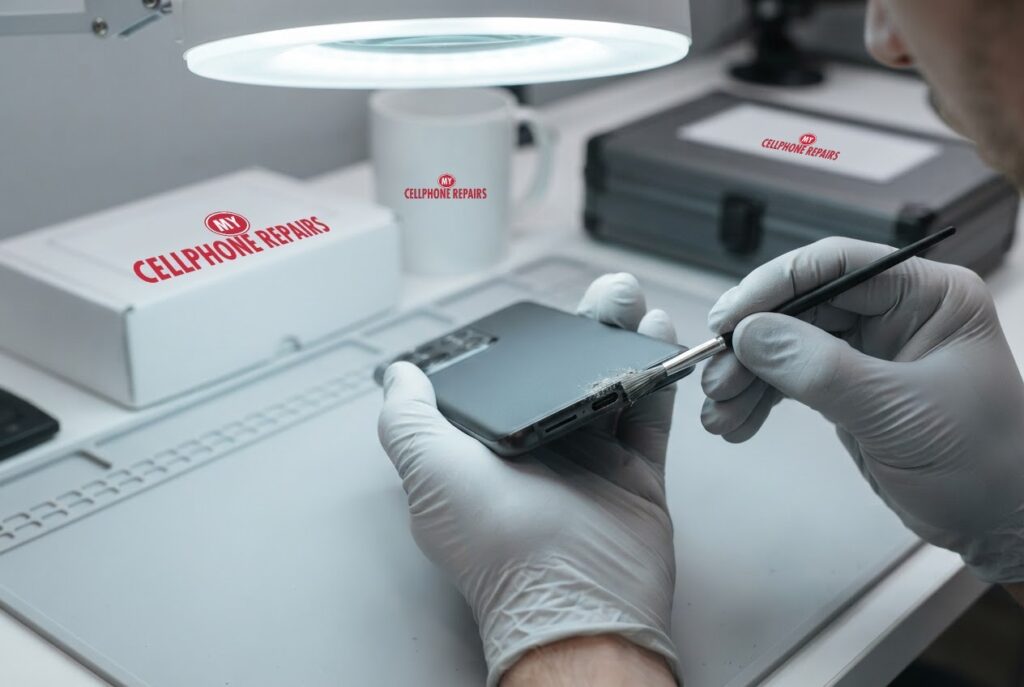
- If debris remains, use a non-metal tool. A wooden or plastic toothpick or a fine-tipped brush, working gently around the sides and along the back of the housing. Android Authority says to avoid the actual USB connector prong.
- Blast air again to remove loosened debris, then test with a cable. If it fits snugly and charges, you are done.
And the things to avoid: liquids and chemicals, cotton swabs (they leave fibres behind), metal pins or paperclips, scraping across the pin contacts, and forcing tools. Android Authority warns that a toothpick can break off inside the port if you push hard. If you are nervous, stop. A port that is still clogged is a job for a professional.
What else can make a OnePlus 12 charge slowly?
If the port is clean and the cable and charger are good, look at these. Samsung’s support page for Galaxy phones lists them, and most apply to any modern phone:
- Heat. Samsung says charging may slow or stop temporarily when the phone overheats. Let it cool before charging again.
- A battery protection or charging limit setting. Samsung notes that such a setting can stop charging early or cap the charge level. Check your OnePlus battery settings for any similar option.
- A PC or standard USB connection. Samsung says fast charging may not work when you connect to a computer.
- Moisture. Samsung and Android Authority both say charging pauses when moisture is detected and the port must be completely dry, even on water-resistant phones.
- An ageing battery. Android Authority says that if the battery is not removable, a professional should replace it.
When is it the charging port or battery?
Android Authority’s last step is hardware: if nothing works, check your warranty or insurance, because accidental damage may be covered, and otherwise use a repair shop. Samsung’s advice is similar: if the problem continues after the cable, charger, port and settings checks, have the phone inspected.
These signs point to a worn or damaged port or a failing battery:
- The cable wobbles or will not seat fully even after the port is clean.
- The phone charges only at one angle or disconnects when you touch it.
- The port looks bent or damaged.
- It still charges slowly or drops out with a known-good cable and charger.
- The back is lifting or the screen is bulging. That is a possible swollen battery: stop charging the phone and come in straight away.
A factory reset will not fix a damaged port and erases everything. Back up and keep it for genuine software problems. Our free diagnosis tells you whether it is the port, the battery or something else, and we quote the exact price before we start.
Myths vs facts about charging problems
- Myth: A new charger always fixes it. Fact: Android Authority puts the cable and charger first because they are cheap to test, but lint in the port is another common cause.
- Myth: Metal pins are the best way to clean a port. Fact: Android Authority and Samsung both say to avoid metal tools, which can short or damage the pins.
- Myth: Hot-air drying fixes a moisture warning. Fact: Android Authority says to let the port dry in cool air and not use a hot-air dryer.
- Myth: If charging is slow, the battery is dead. Fact: Heat, settings, the cable and the port are all possible causes, so rule those out first.
To prevent a repeat, keep the phone out of lint-filled pockets and bags, and use a soft silicone dust plug if you do not charge often, which Android Authority suggests.
How much does OnePlus 12 charging port repair cost?
We do not list a set charging port price for the OnePlus 12 online, and we never guess. You get a free diagnosis and an exact quote before we start. Most repairs are done the same day, they carry our 30-day warranty, and walk-ins are welcome. Most of our stores are open on Sundays.
If a drop also cracked the screen, our listed OnePlus 12 screen price is from $209.99, and we can quote both jobs together. We also fix tablets and computers: looking for tablet repair near me, tablet charging port repair or laptop repair near me? Bring them in for a free diagnosis too.
FAQ
Why is my OnePlus 12 charging so slowly?
Start with the cable and charger, then check the USB-C port for lint, and let the phone cool if it is hot. Android Authority notes that fast charging can be slower with non-original cables. If it is still slow, come in for a free diagnosis.
Is it safe to clean the charging port myself?
Yes, if you are gentle. Power the phone off, use compressed air first, then a wooden or plastic toothpick if needed, and never use liquids or metal. If the port stays clogged or looks damaged, we can clean or repair it.
How long does a OnePlus charging port repair take?
Most are done the same day. Walk in or book a repair and we will quote the exact price before starting.
Sources
- Android Authority: how to fix a phone that won’t charge
- Android Authority: phone not charging? Try this simple fix before paying for a repair
- Android Authority: how to clean a USB-C port
- Samsung Support: Galaxy device charging slowly or not charging at all
- OnePlus Support: phone won’t turn on or frozen screen
#MyCellphoneRepairs #OnePlus #OnePlusRepair #OnePlus12 #ChargingPort #PhoneNotCharging #ChargingPortRepair #PhoneRepair #AndroidRepair #SameDayRepair #Hyattsville #Alexandria
Get it fixed at My Cellphone Repairs: most repairs are done the same day. Walk in or book online.
Book NowPhone frozen or acting up? See our step-by-step restart & reset guides →
Our locations
- Towson Mall825 Dulaney Valley Rd, Second Level, Towson, MD 21204
(410) 828-4404 - Grand Rapids3077 28th St SE, Grand Rapids, MI 49512
(616) 799-6996 - PG Plaza Mall (Hyattsville)3500 East-West Hwy, Mall at Prince George's, Target Entrance, Hyattsville, MD 20782
(301) 559-1105 - Bowie Town Center15630 Emerald Way, Bowie, MD 20716
(240) 614-3600 - Capital City Mall (Camp Hill / Harrisburg area)3604 Capital City Mall Dr, Camp Hill, PA 17011
(717) 919-7868 - Cumberland Mall (Vineland)3849 S Delsea Dr, next to Boost Mobile, Dick's Sporting Goods entrance, Vineland, NJ 08360
(856) 765-5049 - Mondawmin Mall2401 Liberty Heights Ave, Lower Level, Baltimore, MD 21215
(443) 826-7711 - Baltimore Inner Harbor100 East Pratt St, Suite 101, Baltimore, MD 21202
(443) 838-8989 - St Charles Mall (Waldorf)11110 Mall Cir, Waldorf, MD 20603
(301) 645-7755 - Alexandria7650 Richmond Hwy, Alexandria, VA 22306
(703) 341-6789