
Before sending your MacBook for repair, back up your files, protect personal data, and make sure you know your system account credentials. If it’s an older Intel model with a firmware password, check whether it’s enabled and turn it off before service if possible; this step doesn’t apply to modern devices built with proprietary silicon architecture. These are the essentials of what to do before sending your MacBook for repair.
It’s normal to worry about private files or data loss during a repair at My Cellphone Repairs. A backup gives you a way to restore files if the startup disk needs to be erased or replaced, while careful preparation helps protect your account information.
This guide covers backing up your Mac, deciding how to protect or erase sensitive data, preparing login details, and handling a firmware password. Follow the steps that fit your Mac and the repair it needs, so you can hand it over to My Cellphone Repairs with a clear plan.
Key Takeaways
- Back up your files before service so you have a way to restore them if the startup disk needs attention.
- Decide how to protect sensitive data, and understand when erasing your Mac may make sense.
- If you have an Intel Mac, check for a firmware password and turn it off before service if possible.
- Keep your macOS account name and password ready, but avoid sharing your administrator password when possible.
- My Cellphone Repairs offers MacBook Repair when your Mac needs hands-on service.
Disable an Intel Mac firmware password
Should you remove MacBook accessories, cases, and external devices before shipping? Yes. Remove the case, dongles, and connected drives unless an item is needed to demonstrate the fault. For an in-person visit, bring the power cable and any accessory that needs attention.
- Identify your Mac’s processor. Check whether it has an Intel processor or Apple silicon before changing startup security settings. A firmware password applies to some Intel Macs; this step doesn’t apply to Macs with Apple silicon. If you’re unsure, open the Apple menu, select About This Mac, and look for the chip or processor information.
- Check whether a firmware password is enabled. Restart the Intel Mac and try starting from macOS Recovery using Command-R. If a lock or password prompt appears before Recovery loads, a firmware password may be set. Don’t confuse that prompt with your regular macOS account password, which appears later during login.
- Turn off the firmware password before service if possible. If you can open Recovery, look in the Utilities menu for Firmware Password Utility or Startup Security Utility. The name depends on the macOS version. Choose the option to disable the firmware password, then enter the existing password when asked. Restart the Mac afterward to confirm it starts without the extra prompt.
- Keep the password private and accessible. You’ll need the current firmware password to change or disable it. Store it securely while preparing the Mac, and don’t guess repeatedly if you can’t remember it. A firmware password is different from your macOS login password, Apple Account password, and FileVault recovery key. Knowing which credential appears on screen helps avoid mixing them up.
- Turn off Find My Mac when preparing the device for service. Find My Mac is tied to Activation Lock, which can prevent another person from activating the Mac after it’s erased. Open your Apple Account settings, find the Find My controls, and turn off Find My Mac. Follow the prompts to authenticate with your Apple Account password. Keep that password available, but don’t give it out casually.
- Confirm the Mac is ready to hand over. Restart once after changing the firmware setting and check that no firmware lock appears. For shipping, remove external devices and pack only items needed for the repair. For an in-person visit, bring the power cable if the charging issue is part of the problem. These checks make the handoff clearer and help prevent accessories from being separated from the Mac.
Before an in-person Mac service visit, know your macOS account name and password in case you need to log in at the service location. When possible, Mac owners should avoid giving repair technicians their administrator password.
On an Intel Mac without a T2 chip, enabling FileVault encrypts the Data volume and can take many hours or even days. A commenter said FileVault does not degrade performance on modern Macs. For a shipment, customers can visit the courier’s website to schedule a pickup or find a drop-off location for the Mac shipment.
Erase data before storage or logic board replacement
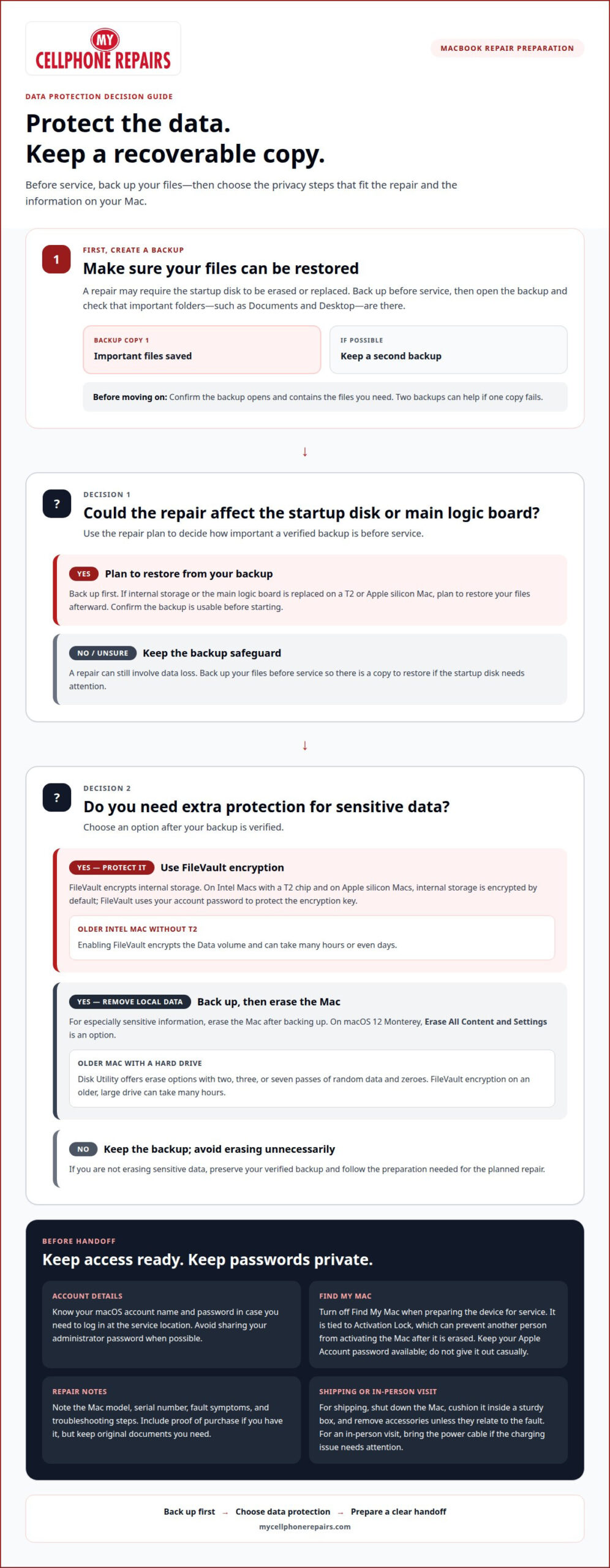
Back up your files before any repair that may involve the startup disk or main logic board. Then decide whether FileVault protection or erasing sensitive data better fits your privacy needs.
-
Back Up Mac Data
Create a backup before service because a repair may require erasing or replacing the startup disk. If possible, keep two backups so one failed copy doesn’t leave you without another. Before handing over the Mac, open the backup and check that it contains important folders such as Documents and Desktop.
-
Protect or Erase Sensitive Data
Turn on FileVault to encrypt your Mac’s internal storage. Intel Macs with a T2 chip and Apple silicon Macs encrypt internal storage by default; FileVault uses your account password to protect the encryption key. For especially sensitive information, back up your files first, then erase the Mac. On macOS 12 Monterey, Erase All Content and Settings is an option.
- Consider the repair before erasing.
If the service involves replacing internal storage or the main logic board in a T2 or Apple silicon Mac, plan to restore your files from a backup afterward. Erasing first removes the local data you’d otherwise need to recover, so confirm your backup is usable before starting. For an older Mac with a hard drive, Disk Utility offers erase options with two, three, or seven passes of random data and zeroes. FileVault encryption on an older, large drive can take many hours.
- Prepare the repair details and shipping box.
Note the Mac’s model, serial number, fault symptoms, and any troubleshooting steps. Include proof of purchase if you have it, but keep original documents you need. For shipping, shut down the Mac, cushion it inside a sturdy box, and remove accessories unless they relate to the fault.
- Check the repair process and protect your privacy.
Before sending the computer, review the repair provider’s written process, estimate, and instructions for status updates or tracking. Risks with an unauthorized repair shop can include unclear handling of personal data, unexpected data loss, or work that doesn’t address the fault. Avoid sharing your administrator password when possible, and erase sensitive files after backing them up if privacy is your priority. For a MacBook hardware issue, MacBook Repair is a relevant service option.
Think of preparation as two separate safeguards: protect the data on the Mac and preserve a recoverable copy before service. If you’re concerned about data security, you can turn on FileVault or remove data, for example by erasing all content and settings. Consider these options in light of the information on the computer and the planned repair. Either way, keep a usable backup.
For especially sensitive data, the recommended next step after making backups is to erase the Mac before repair. Keeping two backups can help protect against backup failure. Confirm the copies are available before choosing to erase, and proceed only when the files you’ll need are preserved. Decide whether to protect the Mac’s data with FileVault or remove it, and make sure your backup plan is ready before service. Don’t let a privacy decision leave you without a copy to restore.
Back up your Mac before service
Choose a backup method you can access after the repair, then verify the copy before handing over your Mac. A usable backup gives you a way to recover files if the device returns with erased or replaced storage.
- Choose what the backup needs to preserve.
List the files and settings you’ll need to resume work. Include locally stored items such as a current project folder, downloaded documents, and photos that haven’t synced elsewhere. Note apps that store important files in their own libraries. This list makes it easier to spot missing items when you inspect the backup.
- Select a separate backup destination.
Choose an external drive or a separate backup service. A synced iCloud folder can keep selected files accessible, but syncing alone isn’t a complete backup of your Mac. If a file is deleted on one device, that change may sync elsewhere. Save a separate copy of important files before service.
- Run the backup before changing the Mac.
Use the backup tool already set up, such as Time Machine, or copy essential folders to a separate destination. Connect the Mac to power and keep the backup drive attached until the process finishes. Don’t erase content and settings or remove files until the backup is complete. A key part of what to do before sending your MacBook for repair is letting that copy finish.
- Verify the copy with real files.
Open the backup destination and inspect items from different locations. For example, open a document from Documents and view a photo from your library. Confirm the backup has a recent completion date and that the files open from the copy, not the Mac’s internal storage. This can reveal missing folders before handoff.
- Keep a second copy of critical information.
If the files are important and you have another suitable destination, keep two backups. Store the copies separately instead of placing both drives beside the Mac. That way, one lost or damaged device won’t affect every copy. Label each backup with its date so you can identify the newest version.
- Plan how you’ll restore your files.
Write down where the backup is stored and how you’ll access it after service. If internal storage or the main logic board is replaced in a Mac with a T2 chip or Apple silicon, plan to restore from backup. Keep the backup device available, and check restored files before treating the transfer as complete. This final preparation is another practical step in what to do before sending your MacBook for repair.
Know your macOS user account credentials
Before service, identify the macOS account you use to sign in and keep its login details accessible. The Mac login password, Apple Account password, and firmware password serve different purposes.
- Confirm your macOS account name and password.
Open the Apple menu, then check Users & Groups to find the account name used on the Mac. Make sure you know that account’s password, not just a passcode saved in a browser. You may need to log in during an in-person service visit. If the Mac is already difficult to start, securely note the account name and password before handing it over.
- Separate your Mac login from your Apple Account.
Your macOS login opens a user account on the device. Your Apple Account signs in to services such as iCloud. A technician who needs to test a repair may need macOS access, but that doesn’t mean you should provide your iCloud password. Keep credentials clearly identified in your own secure records so you don’t confuse them during service.
- Avoid sharing your administrator password when possible.
An administrator account can change settings and manage other accounts, so its password grants broader access than a standard account password. Don’t automatically hand over your usual administrator credentials. First consider whether the repair can be tested without access to your personal account, then limit any access you provide to what the service requires.
- Create a temporary administrator account if access is needed.
You can create a separate administrator account for service and share only that account’s login details. Use an easy-to-identify name, such as “Service,” and choose a password you haven’t used elsewhere. Keep personal files in your regular account, and remove the temporary account after service if you no longer need it. Don’t store private documents in the temporary account.
- Test the temporary account before the handoff.
Sign out of your regular macOS account and try logging in to the temporary account. Confirm it opens successfully and has the access needed for basic testing. If the Mac won’t start or the display prevents you from checking, record that limitation instead of guessing. Keep the account name and password somewhere secure and separate from the Mac.
- Prepare for an in-person visit without exposing extra credentials.
Bring the Mac’s account name and password in case you’re asked to log in at the service location. Keep your iCloud and Apple Account credentials private unless a specific account action requires them. Never write passwords on a label attached to the Mac or put them inside its case. Share only the login details needed for the repair.
Back up your Mac
Choose a backup method you can access after the repair, then verify it before handing over your Mac. A usable copy matters most if the device returns with erased or replaced storage.
- Choose what the backup needs to preserve.
List the files and settings you’ll need to continue working. Include locally stored items such as a current project folder, downloaded documents, and photos that haven’t synced elsewhere. Note apps that store important files in their own libraries. A specific list makes it easier to compare the backup with the Mac’s contents.
- Use a backup destination separate from the Mac.
Choose an external drive or a separate backup service. A synced iCloud folder can keep selected files accessible, but syncing alone isn’t a complete backup of your Mac. If you delete a file on one device, that change may sync elsewhere. Keep a separate copy of important files before service.
- Run a full backup before making changes.
Use the backup tool already set up on your Mac, such as Time Machine, or copy essential folders to a separate destination. Connect the power cable and keep the backup drive connected until the process finishes. Don’t erase content and settings or remove files until you’ve completed the backup.
- Verify the backup with real files.
Open the backup destination and check a few items from different locations. For example, open a document from Documents and view a photo from your library. Confirm the backup shows a recent completion and that the files open from the copy. This can catch a missing folder or unreadable file before the Mac leaves your possession.
- Make a second copy of critical information.
If the files are important and you have a second suitable destination, keep two backups. Store the copies separately rather than placing both drives beside the Mac. This reduces the chance that one lost or damaged device affects every copy. Label each backup with its date so you can identify the newest version.
- Keep the backup available for restoration.
Don’t erase or reuse the backup drive while the Mac is being repaired. If internal storage or the main logic board is replaced in a Mac with a T2 chip or Apple silicon, plan to restore from backup afterward. Keep any required account access and backup device ready, then check restored files before treating the transfer as complete.
If your Mac needs hardware attention, you can arrange MacBook repair after preparing a verified backup.
My Cellphone Repairs: Samsung Phone Repair
My Cellphone Repairs provides MacBook Repair for hardware issues that need professional attention. Once your backup is ready and your account details are prepared, arrange service for the fault affecting your MacBook. Clear notes about symptoms, recent changes, and troubleshooting can help explain the issue at handoff.
For other device needs, My Cellphone Repairs also offers Samsung Phone Repair, iPhone Screen Repair, and Battery Replacement. Choose the service that matches your device and problem, and keep your MacBook backup available until you’ve checked your files after repair.
Arrange MacBook Repair with My Cellphone Repairs for your device.
Move forward with a clear repair plan
Use your preparation to keep the next conversation focused. Describe the fault in plain terms, explain when it began, and mention what happens when you try to use the MacBook. This gives the repair team a useful starting point without exposing more personal information than necessary.
Knowing what to do before sending your MacBook for repair can also help you decide when to stop troubleshooting and arrange professional help. My Cellphone Repairs provides MacBook Repair, along with Samsung Phone Repair and iPhone Screen Repair. Choose the service that matches your device and its issue.
You’ve taken practical steps to protect your files and prepare for handoff. Keep your backup accessible until you’ve checked the MacBook after service, and note any changes you notice during testing.
Contact My Cellphone Repairs for help with your MacBook repair. A clear description of the issue is a good place to start.
Frequently Asked Questions
How to erase or protect personal data before sending a MacBook for repair?
Back up your MacBook, verify that you can open the backup, and erase the device only if you can restore your files and the repair requires it. Before sending your MacBook for repair, copy important documents and photos, sign out of accounts you don’t want accessible, and never include your Apple ID password. If it won’t start, tell the technician rather than attempting a reset. My Cellphone Repairs provides MacBook Repair for customers in Towson, Baltimore County, Hyattsville, College Park, Cumberland, Vineland, Harrisburg, Kentwood, and Bowie.