
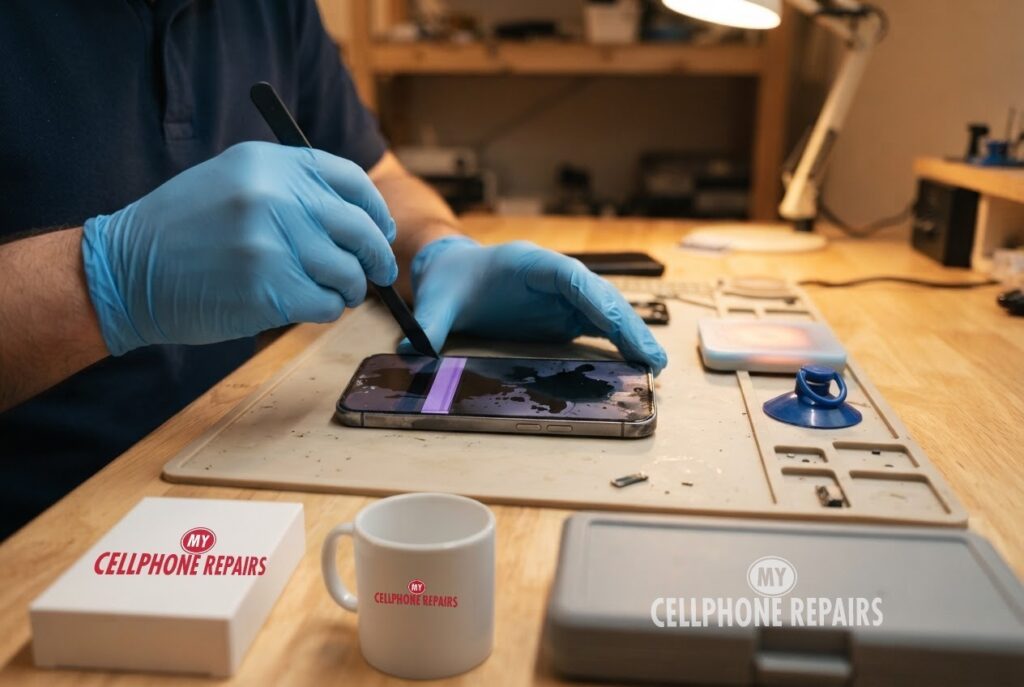
You unlock your phone in the morning and there it is: a dark blot in the corner, like someone dripped ink behind the glass. By lunchtime it is bigger, and a coloured stripe has joined it. Ink spots and black patches on a Pixel 9 screen look alarming, and they usually are.
In this guide we explain what is physically happening inside an OLED screen, which software steps Google recommends first, how to tell a fixable glitch from a damaged panel, and what the repair involves. Our free diagnosis tells you where you stand, and most screen repairs are done the same day.
Quick facts
- Pixel 9 screen replacement from $229.99.
- Free diagnosis, always. Same day for most repairs.
- 30-day warranty on premium screens and other repairs (budget screens have no warranty).
- Walk-ins welcome. Open Sundays at 9 of our 10 listed stores.
Key takeaways
- An OLED pixel makes its own light. Where the panel is damaged, pixels can stop lighting and show as dark patches or lines.
- Google’s first step for flicker, green tint or lines is a system update (Settings, System, System update).
- Cracks and dead pixels call for a repair, says Google. A spreading patch that survives an update and a restart is a hardware sign.
- Do not press on the patch or keep using a damaged screen for weeks. Back up your data first.
- Pixel 8 owners with lines or flicker should check Google’s Extended Repair Program before paying for anything.
In this article
- Why does a Pixel screen show ink spots?
- What should I try first on a Pixel 9?
- Is it spreading? Signs that need a repair
- What happens if I wait?
- Pixel 8 owners: check this program first
- Screen patch myths and facts
Why does a Pixel screen show ink spots?
Your Pixel 9 uses an OLED display. Android Authority explains that each pixel is a cluster of red, green and blue LEDs, with thin organic films between two conductors that emit light when current passes through them. A transistor and capacitor for each pixel hold its charge between refreshes. There is no backlight, because each pixel makes its own light and can switch fully off.
That design gives deep blacks and thin screens, but it also explains the “ink” look. If part of that layer is damaged, the pixels there stop producing light and show black or a flat colour. Google’s help page lists physical damage such as cracks and dead pixels as repair cases. Neither Google nor the other pages we read describe a software cure for ink-style spots, so we cannot honestly promise one.
Damage can come from a drop, pressure on the screen, a bent frame, liquid getting in or age. Sometimes the glass looks perfect while the panel underneath is hurt. That is why a patch can appear without a visible crack.
What should I try first on a Pixel 9?
Always rule out the easy things. Here is the order Google suggests, adapted for dark patches and lines:
- Install updates. Settings, then System, then System update. Google says to do this first for flicker, a green tint or lines.
- Restart a few times. Google recommends restarting after troubleshooting.
- Remove the case and any screen protector, and clean the screen. Google’s touch page says this can improve responsiveness. It will also show whether the “patch” is just a bubble or dirt under a film.
- On Pixel 9, run Touch diagnostics under Display & touch. It checks touch response, but it will not fix a damaged panel.
- Try Safe mode. Google says it can help find app problems. A patch that appears in Safe mode too is not an app.
If the patch is still there after these steps, stop. Google’s own guidance for lines, flicker or cracks is to contact support or get the phone repaired.
Is it spreading? Signs that need a repair
- The patch grows over hours or days.
- Coloured stripes, such as a purple or green line, appear next to it.
- The screen flickers or the touch behaves strangely near the damage.
- There was a drop, a squeeze or contact with water before it started.
- The patch comes and goes with pressure.
Some owners report that damage like this keeps getting worse over time. We cannot predict how fast it will spread on any one phone. What we can say is that a dead area will not heal, so the question is when you replace the screen, not whether.
What happens if I wait?
Waiting will not make the patch smaller. A bigger dead area is harder to read around, and touch problems can start to affect everyday use. If the screen is also cracked, dust and moisture can get in. Google notes that a cracked display or coverglass, or other damage such as liquid, can disqualify a phone from its repair programs, which matters if you are hoping for free help.
Whatever you decide, back up your phone now. Google recommends backing up to your Google Account before sending a phone in for repair, and turning on Repair mode in Settings under System. If the screen stops responding, getting data off becomes harder.
Pixel 8 owners: check this program first
Google has an Extended Repair Program for Pixel 8 phones with display vertical lines and flickering. It covers one free display replacement for 3 years from the original purchase date. The phone must show the symptoms and have a qualifying IMEI or serial number, and a cracked display, coverglass or liquid damage can make it ineligible.
If you have a Pixel 9 like the one in this article, this program is for the Pixel 8 only, so do not count on it. If you are unsure about your model, ask us and we will tell you honestly what we see.
Screen patch myths and facts
- Myth: A factory reset will remove ink spots. Fact: Google’s help sends hardware symptoms to repair. A reset cannot restore pixels that stopped lighting.
- Myth: Pressing on the patch will push it back. Fact: Pressure can make damage worse.
- Myth: It must be burn-in. Fact: Android Authority calls burn-in dreaded but relatively rare, and Google’s page does not describe it for these symptoms.
Try this first: restart and force restart your Google Pixel
These steps delete nothing. They help when a glitch, not a broken panel, is behind a screen oddity:
- Restart: press and hold the Power button (on some models Power and Volume Up), then tap Restart.
- Force restart (frozen screen): press and hold the Power button for up to 60 seconds and let go when the G logo appears.
- Safe mode: open the power menu, touch and hold Restart until “Reboot to safe mode” appears, then tap OK.
A factory reset will not fix a damaged screen. If you do reset for a software problem, back up first and know your Google account password. Google’s page: Fix a Pixel phone that freezes.
When to stop and come in: the phone will not turn on after a force restart and 30 minutes on the charger, it vibrates but the screen stays black (usually a screen problem), the patch is spreading, or the phone got wet. Free diagnosis at any of our stores.
Full step-by-step guide: How to restart and reset your Google Pixel →
Budget (Incell LCD) vs premium (Soft OLED) screens
- Budget (Incell LCD): darker, lower brightness and resolution, slower touch, a thicker fit and can run slightly warm. No warranty and no refunds. Good as a temporary fix, for a trade-in or for data recovery.
- Premium (Soft OLED): bright, the same resolution as the original, smooth touch and a slim fit. 30-day warranty (excludes physical or accidental damage and internal discoloration). Best for long-term use.
Ask us which screen types are available for your Pixel 9 when you come in for your free diagnosis.
Repair prices
A Pixel 9 screen replacement starts from $229.99 at My Cellphone Repairs, using the price listed on our appointment page. You get a free diagnosis first, and an exact quote before we start.
If you are searching for “Google Pixel repair” or “phone screen replacement”, search your model on our appointment page to see live prices, or walk in.
We also fix tablets and computers
Screen damage is not only a phone problem. We also repair tablets and computers: tablet repair near me, iPad screen repair cost questions, laptop screen repair and MacBook repair near me. Bring any device in for a free diagnosis.
Frequently asked questions
Why is there a black spot on my phone screen?
On an OLED screen, a black spot usually means the pixels in that area stopped lighting because of physical damage. Update, restart and test in Safe mode, then book a free diagnosis if it stays.
Is the black spot on my screen spreading?
Spreading is a common sign of panel damage and it will not heal by itself. Back up your data and come in for a free diagnosis and an exact quote.
How much is a Pixel 9 screen replacement?
It starts from $229.99 here, and most repairs are done the same day. Book a repair or walk in.
Sources
- Pixel Phone Help: Fix screen appearance issues on your Pixel phone
- Pixel Phone Help: Fix touch and response issues on your Pixel screen
- Pixel Phone Help: Extended Repair Program for Pixel 8
- Android Authority: AMOLED vs LCD, all the key differences explained
#MyCellphoneRepairs #GooglePixel #Pixel #PixelRepair #Pixel9 #ScreenBleeding #DisplayRepair #PhoneRepair #ScreenReplacement #BowieMD #CampHillPA
Get it fixed at My Cellphone Repairs: most repairs are done the same day. Walk in or book online.
Book NowPhone frozen or acting up? See our step-by-step restart & reset guides →
Our locations
- Towson Mall825 Dulaney Valley Rd, Second Level, Towson, MD 21204
(410) 828-4404 - Grand Rapids3077 28th St SE, Grand Rapids, MI 49512
(616) 799-6996 - PG Plaza Mall (Hyattsville)3500 East-West Hwy, Mall at Prince George's, Target Entrance, Hyattsville, MD 20782
(301) 559-1105 - Bowie Town Center15630 Emerald Way, Bowie, MD 20716
(240) 614-3600 - Capital City Mall (Camp Hill / Harrisburg area)3604 Capital City Mall Dr, Camp Hill, PA 17011
(717) 919-7868 - Cumberland Mall (Vineland)3849 S Delsea Dr, next to Boost Mobile, Dick's Sporting Goods entrance, Vineland, NJ 08360
(856) 765-5049 - Mondawmin Mall2401 Liberty Heights Ave, Lower Level, Baltimore, MD 21215
(443) 826-7711 - Baltimore Inner Harbor100 East Pratt St, Suite 101, Baltimore, MD 21202
(443) 838-8989 - St Charles Mall (Waldorf)11110 Mall Cir, Waldorf, MD 20603
(301) 645-7755 - Alexandria7650 Richmond Hwy, Alexandria, VA 22306
(703) 341-6789