
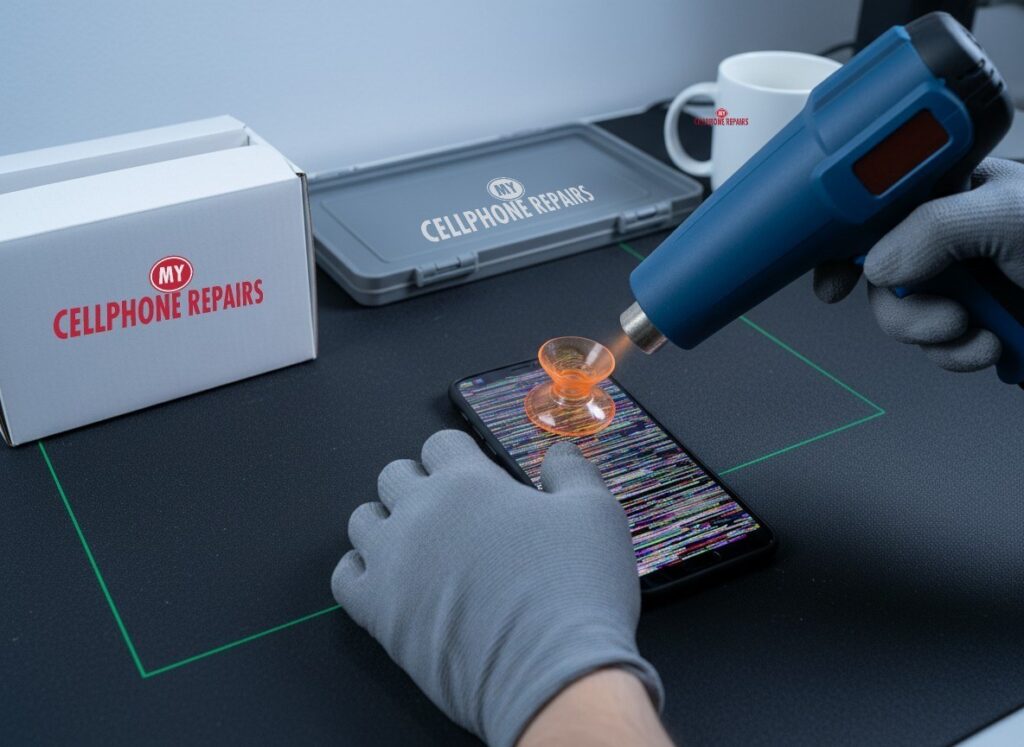
Your Pixel 10 screen suddenly fills with snow, or flickers like an old TV, and you wonder if it is a bug or a broken display. Good news: the answer is often simple to test at home. A temporary glitch that clears on its own is usually software. Static or lines that stay put, especially after a drop, usually mean the screen itself. If it is the screen, we offer free diagnosis and same day phone screen replacement for most repairs.
Some owners report the static returning even after earlier fixes, so here is how to tell the difference, what to try first, and when to replace.
Key takeaways
- Google acknowledged a Pixel 10 “screen snow” bug in 2025 and shipped software fixes, so update first.
- Static that clears by itself in about ten minutes points to software. Static or lines that never leave point to hardware.
- A quick screenshot test and Safe mode help you tell the two apart in minutes.
- Check your Google warranty before paying for any repair.
- Pixel 10 screen replacement starts from $209.99 here, with free diagnosis first.
In this article
- What is the Pixel 10 screen static problem?
- Software or hardware: how can I tell?
- What should I try first?
- When is a screen replacement the right fix?
- Myths vs facts
- Pixel 10 model notes and prevention
- Frequently asked questions
What is the Pixel 10 screen static problem?
It is a display glitch where the screen looks like TV snow, freezes, or flickers. In 2025, Android Authority reported that some Pixel 10 screens froze and showed a static-like image, then recovered on their own after about ten minutes. During one episode the phone still gave haptic feedback to gestures, which suggests the phone itself was still running while the picture was not.
Google told Android Authority the issue affected “a small number of Pixel 10 devices” and that it began rolling out fixes on September 3, 2025, with more to follow. A later September update was reported to fix a fuzzy display, and Notebookcheck noted an October update for the Pixel 10, 10 Pro and 10 Pro XL that fixes an issue “occasionally causing frozen or fuzzy display under certain conditions.”
Since then, some owners report display problems coming back. We have not found Google confirming a new cause, so treat any explanation as unconfirmed. Android Authority said the cause was likely display or graphics drivers, but that was not confirmed either.
Software or hardware: how can I tell?
Software glitches come and go, while hardware faults stay and often get worse. Think of the screen as two parts: the phone’s software that decides what to draw, and the OLED panel that lights each tiny pixel. If the software hiccups, the picture can break up. If the panel or its flex cable is damaged, the damage is physical and no update can repair it.
- Likely software: it started after an update, it clears by itself, it changes with an app, or it vanishes in Safe mode.
- Likely hardware: it started after a drop, pressure or water, lines or patches are always there, the phone responds but the picture stays broken, or it looks the same in Safe mode.
- Screenshot test: take a screenshot while the static is showing. If the saved image looks clean, the phone is drawing a good picture and the fault is likely in the display itself. If the static is in the screenshot too, software is the more likely cause.
What should I try first?
Start with the free fixes below, in this order, and stop when the problem is gone. Google’s own help pages suggest a restart, then Safe mode, before anything drastic.
- Install updates. Go to Settings, System, System update. Google’s fixes came through monthly updates.
- Remove the case and screen protector. Google’s screen help also suggests checking for cracks and anything that could interfere.
- Check display settings. Try lowering brightness or switching Smooth Display to a fixed refresh rate for a day, and turn off Always On Display. Some users said turning off Always On Display or Dark mode helped, but others still had the issue, so this is a test, not a cure. Menu names may differ slightly on your model.
- Try Safe mode (steps in the box below). If the static disappears, a downloaded app is likely the cause.
- Factory reset last. It will not fix a damaged screen, so only consider it if everything points to software.
Try this first: Google Pixel
- Restart: press and hold the Power button (on some models Power + Volume Up), then tap Restart.
- Force restart (frozen screen): press and hold the Power button for up to 60 seconds and let go when the “G” logo appears. It deletes nothing.
- Safe mode: open the power menu, touch and hold Restart until “Reboot to safe mode” appears, then tap OK. Restart normally to leave it. It deletes nothing.
- Factory reset (last resort): Settings, System, Reset options, Erase all data. Back up first, know your Google account password, and charge the phone. A reset will not fix a damaged screen.
Steps may be named slightly differently on your model. Maker instructions: Google: find problem apps with safe mode and Google: fix a Pixel that freezes.
When to stop and come in: static or lines that stay in Safe mode, a screen that stays broken after updates, damage after a drop or water, or a phone that works but shows a broken picture. Bring it in for a free diagnosis.
Full step-by-step guide: How to restart and reset your Google Pixel →
All restart & reset guides →
When is a screen replacement the right fix?
Replace the screen when the problem survives updates and Safe mode, or when it began after damage. A cracked or pressure-damaged OLED panel cannot be repaired with settings. Before you pay, check whether your Pixel is still under Google’s warranty, because that may be your best first stop.
If you are out of warranty, we can run a free diagnosis and confirm whether the screen is the culprit before you spend anything. Many Pixel jobs are finished the same day, and you can find a Google Pixel repair near you without an appointment: walk-ins are welcome.
Pixel 10 screen prices, from: Pixel 10 $209.99, Pixel 10 Pro $209.99, Pixel 10 Pro XL $249.99. Prices come from our online booking system and the final quote is confirmed at diagnosis.
Incell LCD vs Soft OLED: which screen?
| Budget: Incell LCD | Premium: Soft OLED | |
|---|---|---|
| Cost | Lower | Higher |
| Warranty | No warranty, no refunds | 30-day warranty |
| Best for | Tight budget, short-term fix | Closest match to an OLED phone like the Pixel 10 |
Myths vs facts
- Myth: Static always means the screen is dead. Fact: Google acknowledged a software bug and patched it, so update first.
- Myth: A factory reset fixes any screen problem. Fact: It will not repair a damaged panel, and it erases your data.
- Myth: If it clears by itself, it is nothing. Fact: Some owners report it returning, so note when it happens and check your warranty.
Pixel 10 model notes and prevention
The reports cover the Pixel 10 series, including the Pixel 10, 10 Pro, 10 Pro XL and 10 Pro Fold. Our screen prices above cover the Pixel 10, 10 Pro and 10 Pro XL. Fold screens are quoted after a free diagnosis.
- Keep Android and Play updates installed.
- Use a case with a raised lip and a screen protector to reduce drop and pressure damage.
- Avoid heat and do not press hard on the screen.
- Back up your phone regularly so a repair or reset never costs you photos.
We also fix tablets and computers. Need tablet repair near me or laptop screen repair? Bring them in with your Pixel.
Quick facts
- Pixel 10 screen from $209.99, or a free quote after diagnosis
- Same day for most repairs
- 30-day warranty on premium screens and other repairs
- Free diagnosis
Frequently asked questions
Is Pixel 10 screen static covered by warranty?
Possibly, so check your Google warranty first. If it is out of warranty or you want a quick opinion, book a free diagnosis and we will tell you whether it is software or the screen.
Can a software update fix the flicker?
Sometimes, because Google shipped display fixes in 2025 updates. Install the latest update, then try Safe mode, and if it persists come in for a free diagnosis.
How long does a Pixel screen repair take?
Most repairs are done the same day. Walk in or book a repair online and we will give you an exact time at diagnosis.
Sources
- Android Authority: Pixel 10 screen snow issue
- Android Authority: fuzzy display fix
- Notebookcheck: Pixel update notes
- Google Pixel Help: safe mode
- Google Android Help: fix a screen that isn’t working right
#MyCellphoneRepairs #GooglePixel #Pixel #PixelRepair #Pixel10 #ScreenRepair #DisplayRepair #PhoneRepair #SameDayRepair #TowsonMD #Baltimore
Get it fixed at My Cellphone Repairs: most repairs are done the same day. Walk in or book online.
Book NowPhone frozen or acting up? See our step-by-step restart & reset guides →
Our locations
- Towson Mall825 Dulaney Valley Rd, Second Level, Towson, MD 21204
(410) 828-4404 - Grand Rapids3077 28th St SE, Grand Rapids, MI 49512
(616) 799-6996 - PG Plaza Mall (Hyattsville)3500 East-West Hwy, Mall at Prince George's, Target Entrance, Hyattsville, MD 20782
(301) 559-1105 - Bowie Town Center15630 Emerald Way, Bowie, MD 20716
(240) 614-3600 - Capital City Mall (Camp Hill / Harrisburg area)3604 Capital City Mall Dr, Camp Hill, PA 17011
(717) 919-7868 - Cumberland Mall (Vineland)3849 S Delsea Dr, next to Boost Mobile, Dick's Sporting Goods entrance, Vineland, NJ 08360
(856) 765-5049 - Mondawmin Mall2401 Liberty Heights Ave, Lower Level, Baltimore, MD 21215
(443) 826-7711 - Baltimore Inner Harbor100 East Pratt St, Suite 101, Baltimore, MD 21202
(443) 838-8989 - St Charles Mall (Waldorf)11110 Mall Cir, Waldorf, MD 20603
(301) 645-7755 - Alexandria7650 Richmond Hwy, Alexandria, VA 22306
(703) 341-6789