
A refurbished iPhone may look flawless but disappoint when you rely on its camera, battery, or Face ID. Knowing what to check when buying a refurbished iPhone means looking beyond appearance and testing the features you use every day.
Choosing a refurbished phone can be a practical way to get an iPhone that suits your needs. The key is to understand its condition before you decide what it’s worth. Battery health above 80% is generally a reliable starting point, but that alone doesn’t tell you whether the phone is ready for you.
This guide shows you how to assess battery health, confirm Activation Lock is off, review parts and service history, and test the cameras and biometric features. You’ll also learn which everyday checks can reveal problems before you commit, so you can make a clear, informed decision.
Key Takeaways
- Use battery health as a practical pricing signal: below 80% maximum capacity may mean the battery needs replacement.
- Make sure the iPhone powers on and Activation Lock is off before you decide to buy it.
- Review Parts and Service History, and ask which components have been replaced.
- Test cameras in bright and low light, then check that Face ID can be set up and used reliably.
- Understand the seller’s certification and return terms so you know what to do if the phone arrives in a different condition than expected.
Battery health and replacement
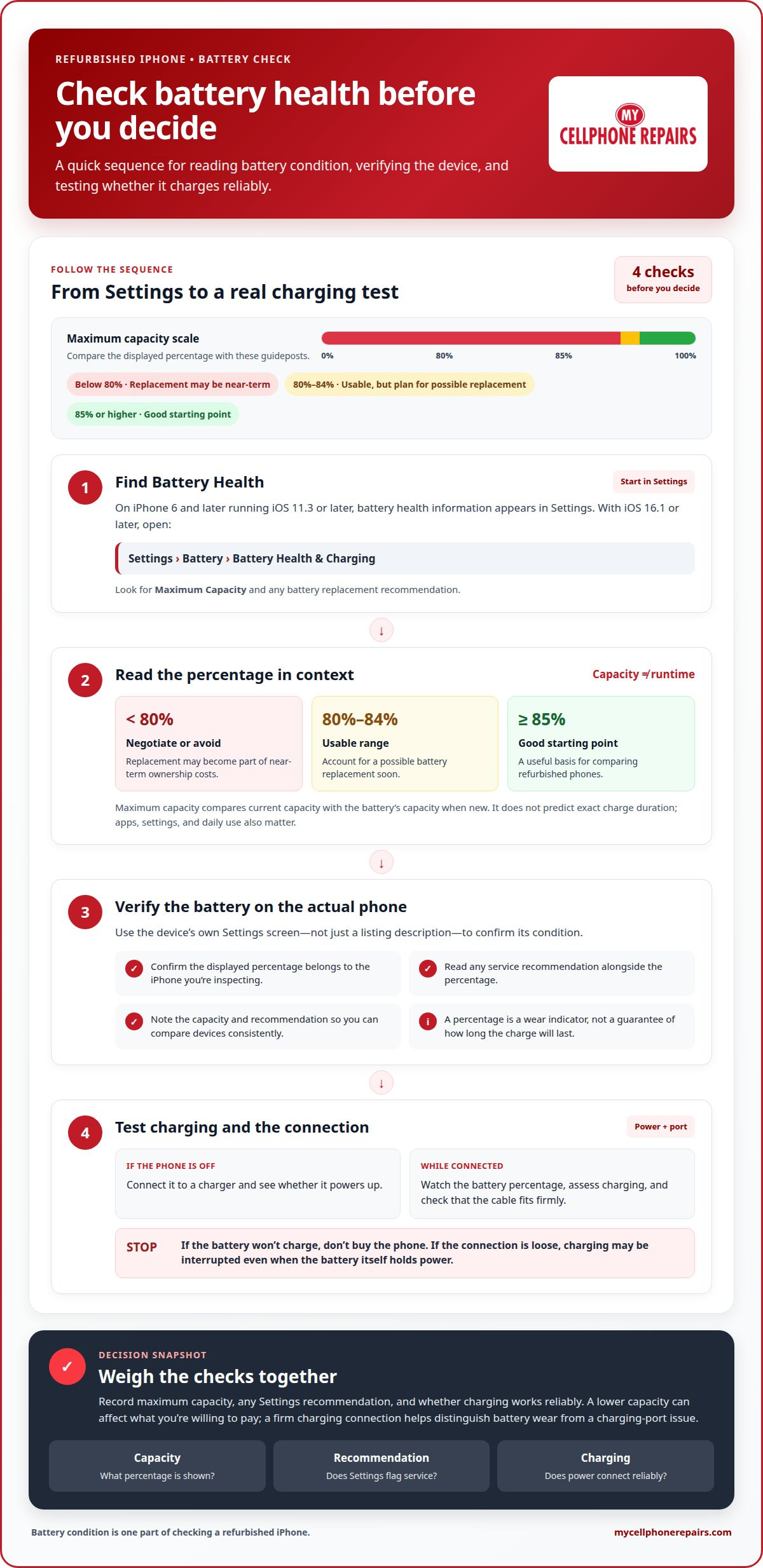
Start by checking the battery’s maximum capacity, then test whether the phone charges. Maximum capacity compares the battery’s current capacity with its capacity when new. It can help you assess wear, but it doesn’t tell you exactly how long a charge will last. Apps, settings, and daily use also affect battery life.
On iPhone 6 and later models running iOS 11.3 or later, battery health information appears in Settings. On iPhones running iOS 16.1 or later, open Settings > Battery > Battery Health & Charging. Check Maximum Capacity and any recommendation about battery replacement.
- Look for 85% or higher maximum capacity. This is considered good and gives you a clear starting point when comparing refurbished phones.
- Treat 80% to 84% as usable, but account for possible replacement soon. This range can help you decide whether the device still suits your needs.
- Negotiate or avoid a phone below 80% maximum capacity. Lower capacity may make battery replacement part of your near-term ownership costs.
- Read any battery service recommendation in Settings. A recommendation adds context to the percentage, especially when the phone is near the 80% threshold.
Capacity is only one part of the check. Ask to see the battery screen on the actual iPhone, not just a listing description. Confirm the displayed percentage belongs to the device you’re considering. If the phone runs iOS 11.3 or later, its battery settings can show health information and whether replacement is recommended.
Next, test charging. If the iPhone won’t turn on, connect it to a charger and see whether it powers up. Don’t buy it if its battery won’t charge. If it starts, watch the battery percentage while connected. Test charging speed during your inspection, and check that the cable fits firmly in the charging port. A loose connection can interrupt charging, even when the battery itself holds power. If you encounter any power issues, professionals at My Cellphone Repairs can assist you with diagnostic services.
Use the results together. For example, an iPhone showing 82% may remain usable, but a replacement could be needed soon. That should affect what you’re willing to pay. A phone at 88% with a firm charging connection presents a different battery picture, though its performance still depends on actual use. Don’t judge by appearance alone.
For a useful comparison, note the maximum capacity, any recommendation shown in Settings, and whether charging works reliably. These checks can help distinguish battery wear from charging-port trouble and give you a clearer basis for deciding what to check when buying a refurbished iPhone.
Checking power-on status and Activation Lock
Start with the iPhone powered off. Press the side button and wait for the Apple logo and setup screen. If it won’t start, connect it to a charger and try again. A phone that still won’t power on can’t be properly tested. Don’t judge it by appearance alone: scratches show wear, not whether the phone works.
Once it starts, continue through setup far enough to confirm it isn’t tied to someone else’s Apple Account. Activation Lock protects a device linked to an owner’s account. If setup asks for the previous owner’s credentials, stop. Don’t buy an iPhone with Activation Lock enabled. The former owner must remove the lock before you can set up the phone.
- Power the iPhone on. Confirm it reaches the setup screen rather than repeatedly shutting down or showing an error.
- Continue through setup. Watch for a request for the previous owner’s Apple Account credentials, which signals Activation Lock.
- Check cellular service. Use a compatible SIM and confirm the iPhone connects to a cellular network.
- Inspect the Carrier Lock setting. “No SIM restrictions” means the iPhone is unlocked.
Keep Activation Lock separate from a carrier lock. Activation Lock concerns the previous owner’s Apple Account; a carrier lock concerns whether the phone is restricted to a specific carrier. An iPhone can pass one check and fail the other, so assess both before buying. A clean setup screen doesn’t replace checking the Carrier Lock setting.
For carrier status, open Settings, tap General, then About. Find Carrier Lock and look for “No SIM restrictions.” That wording identifies an unlocked iPhone. An unlocked refurbished iPhone can avoid limiting your choice to a specific carrier. Still, confirm that the phone connects to the network you plan to use. A SIM test gives you a practical check of cellular service.
If the Carrier Lock field names a restriction or doesn’t show “No SIM restrictions,” treat the phone as potentially carrier-limited. Don’t rely only on a seller’s description. Check the setting on the device, then test cellular connectivity. If you need a particular carrier, network compatibility matters as much as cosmetic condition.
Use these checks together before buying. Confirm the phone powers on, reaches setup without another person’s credentials, and shows “No SIM restrictions” if you want an unlocked device. If Activation Lock remains enabled, walk away. If cellular service fails, a polished screen or minimal scratches don’t prove the iPhone is ready to use.
Why Consider Refurbished iPhones?
Apple, carriers, and third-party sellers may offer refurbished iPhones under different terms. Compare the same model, storage capacity, condition, and included coverage so you can judge whether the offers are comparable.
Excellent, good, and fair describe a phone’s visible condition, but sellers may use different grading standards. Grade A generally means like new, with minimal or no visible use and full functionality. Grade B can have light scratches or minor wear, while Grade C can look visibly worn but still work.
Older refurbished models may support fewer iOS updates and newer app requirements. Before choosing a model, check whether it supports the updates you need and whether your essential apps run on it.
Marketplace and private-seller purchases can carry practical risks: the phone may differ from its description, have undisclosed damage, or come with unclear return terms. Review the seller’s stated testing process and return policy, then inspect an online purchase promptly.
A refurbished phone has been pre-owned, then tested and repaired before resale. Certification describes a seller’s process, so look for clear details about what was tested and what happens if the phone arrives in unexpected condition. A grade alone doesn’t explain repair history, battery condition, or return rights.
- Read the return policy before paying. A 14- to 30-day return window is described as standard for refurbished iPhone purchases.
- Check warranty length and coverage. A warranty lasting 6 to 12 months is recommended; a warranty of at least 90 days is also recommended.
- Keep the order details and packaging. These help you identify the purchase and preserve the phone’s condition during an initial inspection.
- Inspect the device immediately after delivery. Compare its condition with the listing and use the return window if it differs.
Warranty and return policies are separate. A warranty addresses faults covered under its terms, while a return policy sets the conditions for sending the phone back. Read both carefully. Check what each covers, how to start a claim or return, and when the stated period begins.
Warranty coverage varies by seller, and refurbished phones sometimes include a warranty. Warranties are rare for used phones, so don’t assume a private sale offers the same protection. Compare written terms rather than relying on labels such as “certified” or “excellent.”
Before choosing, compare the exact model, storage, grade definition, testing process, warranty terms, and return deadline. For example, a phone with visible wear may suit you if appearance matters less than clear return terms. Choose an offer whose condition and protections match your priorities.
Prices can differ between Apple, carriers, and third-party sellers, but no seller type is consistently identified as the cheapest. Compare offers with the same model, storage, condition, and coverage to judge their value.
Reviewing replaced parts and service history
A refurbished iPhone may have a replacement screen, battery, or other component. Ask which parts were changed and whether repairs were performed. A clear repair history helps you understand the phone’s condition and compare it with another device. It also provides context if Settings displays a part or service record.
On an iPhone running iOS 15.2 or later, open Settings and look for Parts and Service History. The section may appear depending on the model and whether a part has been replaced. Its presence can provide details about recognized repairs. Its absence does not establish that the iPhone has never been repaired, so consider the seller’s disclosure alongside what the device displays.
- Ask about replaced components. Find out whether the screen, battery, or other parts have been replaced.
- Check Settings. On iOS 15.2 or later, look for Parts and Service History and review any entries.
- Read the exact part label. “Genuine Apple Part” means the replacement used a genuine Apple part, parts, and processes.
- Compare disclosures with the record. Note whether the seller’s repair details align with the information shown on the iPhone.
The “Genuine Apple Part” label has a specific meaning: it identifies the labeled replacement as a genuine Apple part installed using genuine Apple parts and processes. It doesn’t mean every component is original or that the whole device has never been repaired. Review each history entry separately.
Look for clear disclosure about third-party repairs, too. The available history may not include every repair detail, so don’t treat one label as a complete service record. Ask which component was replaced. A disclosed screen replacement, for example, is different from an unexplained entry or a seller unable to describe the repair.
Review the screen and the rest of the device alongside the repair details. Look for visible damage and compare what you see with the seller’s explanation. A clean-looking screen doesn’t establish which part was installed, and a service entry alone doesn’t show whether the phone meets your expectations. Consider the record, disclosure, and device together.
Use a simple decision process: review Parts and Service History, note every listed replacement, and ask about any repair details you still need. Then decide whether the device’s history fits your priorities. If the listing says the screen or battery was replaced, compare that statement with the iPhone’s settings and appearance. Clear, consistent details make it easier to assess the refurbished phone without assuming every replacement is identical.
Keep the distinction clear: “Genuine Apple Part” describes the replacement identified by that label, not the history of every component. A disclosed replacement can help explain a refurbished iPhone’s condition, while missing or conflicting details make its history harder to assess. Compare what Settings shows with the seller’s account before deciding whether the device suits you.
Checking cameras and biometric features
A camera can open normally yet take blurry photos, miss focus, or record unclear video. Test the camera functions you expect to use. These checks offer evidence about the iPhone’s condition beyond its exterior and screen. Checking the cameras and Face ID is an important part of knowing what to check when buying a refurbished iPhone.
Take photos in bright and low light. Check that the subject comes into focus and looks sharp when you review each image. Try close and distant subjects, then move the phone slightly and refocus. If an image stays blurry or focus behaves inconsistently, repeat the test. Comparing different lighting conditions may help reveal a problem.
Record a short video, then play it back on the iPhone. Check that the image stays clear and viewable throughout. Test the microphone by recording a Voice Memo and listening to it. Your voice should sound clear, not faint or distorted. These checks can reveal issues a quick camera preview misses, including unclear audio in a video.
Test Face ID separately. Set it up on the device, then lock and unlock the iPhone repeatedly to assess consistency. Try it from different normal viewing positions. If Face ID won’t set up or unlock reliably, treat that as a feature issue, not a cosmetic flaw. Include this camera and biometric check when deciding what to check when buying a refurbished iPhone.
- Test each camera in bright and low light. Review focus and sharpness in saved photos.
- Record and replay a video. Check the image and listen for clear playback.
- Record a Voice Memo. Listen for a clear voice without obvious distortion.
- Set up Face ID again. Lock and unlock the phone repeatedly to test recognition.
- Check related hardware. Test the touchscreen, buttons, and speakers as separate functions.
A broader hardware check includes testing the display at full and low brightness. Look for areas where touch doesn’t respond, then press each button to confirm it works. Play audio through the speakers. Test Wi-Fi, Bluetooth, and cellular connectivity separately to identify connection issues.
Use the listing as your reference for accessories. Check which items it says are included, then compare the delivered items with that description. Don’t assume every refurbished iPhone comes with the same accessories. For an online purchase, inspect the phone and included items promptly, within the stated return period.
If photos, Face ID, or another camera-related feature fails during testing, factor that fault into your decision. Get cellphone camera repair help if a camera problem needs attention.
My Cellphone Repairs: Refurbished iPhone Sales
My Cellphone Repairs sells refurbished iPhones for readers looking for a pre-owned device. Use the checks above to identify your priorities, from battery condition and service history to camera performance and Face ID. This can help you focus on the model and features that fit your needs.
If your current phone needs attention instead, My Cellphone Repairs also offers iPhone screen repair. Choose a refurbished iPhone if you’re looking for another device; consider screen repair if the problem is a damaged display.
Have questions about your next step? Contact My Cellphone Repairs.
Make the Choice That Fits Your Daily Use
Before choosing a refurbished iPhone, consider how you’ll use it each day. Think about the apps you rely on, how often you take photos, and whether visible wear matters to you. Weigh those priorities against the phone’s condition and the seller’s terms rather than choosing automatically based on the offer.
Knowing what to check when buying a refurbished iPhone helps you set priorities before committing and consider whether repairing your current device may better suit your needs. My Cellphone Repairs offers refurbished iPhone sales and iPhone screen repair, as well as Samsung phone repair and MacBook repair.
Ready to discuss your next step? Contact My Cellphone Repairs today. Choose the option that makes sense for your needs, and move forward with confidence.
Frequently Asked Questions
Why buy a preowned iPhone?
A pre-owned iPhone may suit your needs without choosing a new device. Weigh its condition and history against what you expect from it. For example, a phone with visible wear may work for someone who prioritizes its functions over appearance. Decide which features matter most before comparing devices.
What should I check when inspecting a refurbished iPhone before buying?
Test the iPhone as a working device, not just as a listing. Open the camera, take a photo, play a recording, and check that the touchscreen and buttons respond. Confirm it reaches setup without another owner’s account credentials. Review its condition, repair disclosures, and seller terms, too. Practical tests can reveal issues that photos won’t show.
How can I verify an iPhone’s model, serial number, and IMEI?
Open Settings, tap General, then About to view identifying details, including the model and serial number. To display the IMEI, dial *#06# on the iPhone. If its box is available, compare the IMEI shown there with the phone’s details. Matching identifiers helps confirm that the box and device belong together, but it doesn’t establish the phone’s condition or account status.
How do I check iPhone battery health and replacement history?
Open Settings and review Battery Health & Charging on iPhones running iOS 16.1 or later. Check Maximum Capacity and any battery service recommendation. For replacement information, look under Parts and Service History on iPhones running iOS 15.2 or later; what appears depends on the model and replacement history. Consider both screens together, since battery condition and service records answer different questions.
How can I tell if an iPhone is carrier-unlocked and compatible with my carrier?
Open Settings, tap General, then About, and find Carrier Lock. “No SIM restrictions” indicates that the iPhone is unlocked. To check network use, test a compatible SIM and confirm the phone connects to cellular service. Unlocked status means the device isn’t limited to one carrier, but testing with the carrier you plan to use can help confirm service.
How do I check whether an iPhone is Activation Locked or reported lost or stolen?
During setup, stop if the iPhone requests credentials for a previous owner’s Apple Account. That indicates Activation Lock, and the phone shouldn’t be purchased while the lock is enabled. This check doesn’t establish whether a phone was reported lost or stolen. The IMEI identifies the device, but matching it across records alone doesn’t prove ownership or report status.
What warranty and return policy should a refurbished iPhone seller provide?
Read the written warranty and return terms before paying, and check what each covers. A warranty lasting 6 to 12 months is recommended; at least 90 days is also recommended. A 14- to 30-day return window is described as standard. These are benchmarks, not a guarantee that every seller provides them. Note the deadline and inspect an online order promptly after delivery.
Get it fixed at My Cellphone Repairs: most repairs are done the same day. Walk in or book online.
Book NowPhone frozen or acting up? See our step-by-step restart & reset guides →
Our locations
- Towson Mall825 Dulaney Valley Rd, Second Level, Towson, MD 21204
(410) 828-4404 - Grand Rapids3077 28th St SE, Grand Rapids, MI 49512
(616) 799-6996 - PG Plaza Mall (Hyattsville)3500 East-West Hwy, Mall at Prince George's, Target Entrance, Hyattsville, MD 20782
(301) 559-1105 - Bowie Town Center15630 Emerald Way, Bowie, MD 20716
(240) 614-3600 - Capital City Mall (Camp Hill / Harrisburg area)3604 Capital City Mall Dr, Camp Hill, PA 17011
(717) 919-7868 - Cumberland Mall (Vineland)3849 S Delsea Dr, next to Boost Mobile, Dick's Sporting Goods entrance, Vineland, NJ 08360
(856) 765-5049 - Mondawmin Mall2401 Liberty Heights Ave, Lower Level, Baltimore, MD 21215
(443) 826-7711 - Baltimore Inner Harbor100 East Pratt St, Suite 101, Baltimore, MD 21202
(443) 838-8989 - St Charles Mall (Waldorf)11110 Mall Cir, Waldorf, MD 20603
(301) 645-7755 - Alexandria7650 Richmond Hwy, Alexandria, VA 22306
(703) 341-6789