
A charging cable that feels loose doesn’t always mean the iPhone’s port is damaged. Debris can stop the connector from seating fully, so how to fix a loose iPhone charging port starts with checking the fit before assuming it needs repair.
A cable that shifts, disconnects, or charges only at a certain angle is frustrating. The cause may be packed-in lint, a problem with the cable or adapter, or damage inside the port. Gentle cleaning may help if debris is the issue, but avoid metal tools that could damage the port.
This guide explains how debris affects the connection, what else can cause charging problems, and which simple checks can help narrow down the cause. You’ll also learn when a careful home fix may be enough, when charging-port repair may be appropriate, and what can affect the cost.
Key Takeaways
- Learn how to tell whether a loose fit may come from buildup or a damaged port.
- Use a gentle cleaning approach and avoid tools that could harm the port.
- Consider cable, adapter, and visible port damage when troubleshooting charging problems.
- Understand what can affect repair cost without assuming every loose connection needs a port replacement.
- Know when a home fix may be enough and when professional charging-port repair is the next step.
Lightning port too loose?
Check for debris before assuming the Lightning port is damaged. Follow these steps gently, and stop if you see bent pins or corrosion.
-
Clean Lint and Debris from the Port
Disconnect the cable and inspect the port opening in good light. If you see lint, gently loosen it with a small, soft brush. Work at the opening rather than pushing debris deeper. A wooden toothpick may help lift visible lint, but use a light touch and avoid the port’s contacts.
Never use a pin, needle, or other metal object. Metal can damage the port’s contacts and turn simple cleaning into a repair. Don’t force the cable in to test the fit. After removing visible debris, reconnect it gently and check whether it seats more fully and holds a steadier connection.
-
Consider Professional Port Cleaning
Choose professional cleaning if debris is packed deep, the port is hard to inspect, or gentle cleaning hasn’t improved the fit. A technician can assess the port and distinguish buildup from visible damage, such as bent pins or corrosion. That assessment helps determine whether cleaning may address the problem or repair is needed.
Avoid repeatedly probing with a toothpick if you can’t see what’s inside. Careless probing can damage the port’s small contacts. Don’t use a hairdryer to dry or clean the opening, as heat can cause further damage. If the phone was exposed to water, avoid inserting tools or plugging in a cable while the port is wet.
-
Use Wireless Charging While the Port Is Loose
Use wireless charging temporarily only if your iPhone model supports it and you have a compatible charger. Wireless charging doesn’t rely on the Lightning cable seating in the port, so a loose wired connection won’t affect that charging method.
Keep the port issue separate from the wireless setup: wireless charging won’t remove lint or repair damaged contacts. If wired charging remains unreliable, don’t keep wiggling the connector to maintain power. Use wireless charging while arranging an assessment, and stop if you notice bent pins or corrosion inside the port.
-
Review the Risks of a Loose or Damaged Port
Look for charging that starts and stops or a cable that won’t stay seated. Debris at the bottom of the port can prevent full insertion and make the connection fragile. Debris on the cable end can also interfere with a secure connection, so inspect both surfaces before reconnecting.
Stop using wired charging if the port has visible bent pins or corrosion, or if the connector must be forced to fit. These signs can point to damage rather than removable lint. Don’t continue probing the contacts or using metal tools. A professional assessment can help determine whether the port needs cleaning or repair.
Why debris can prevent a charging cable from seating fully
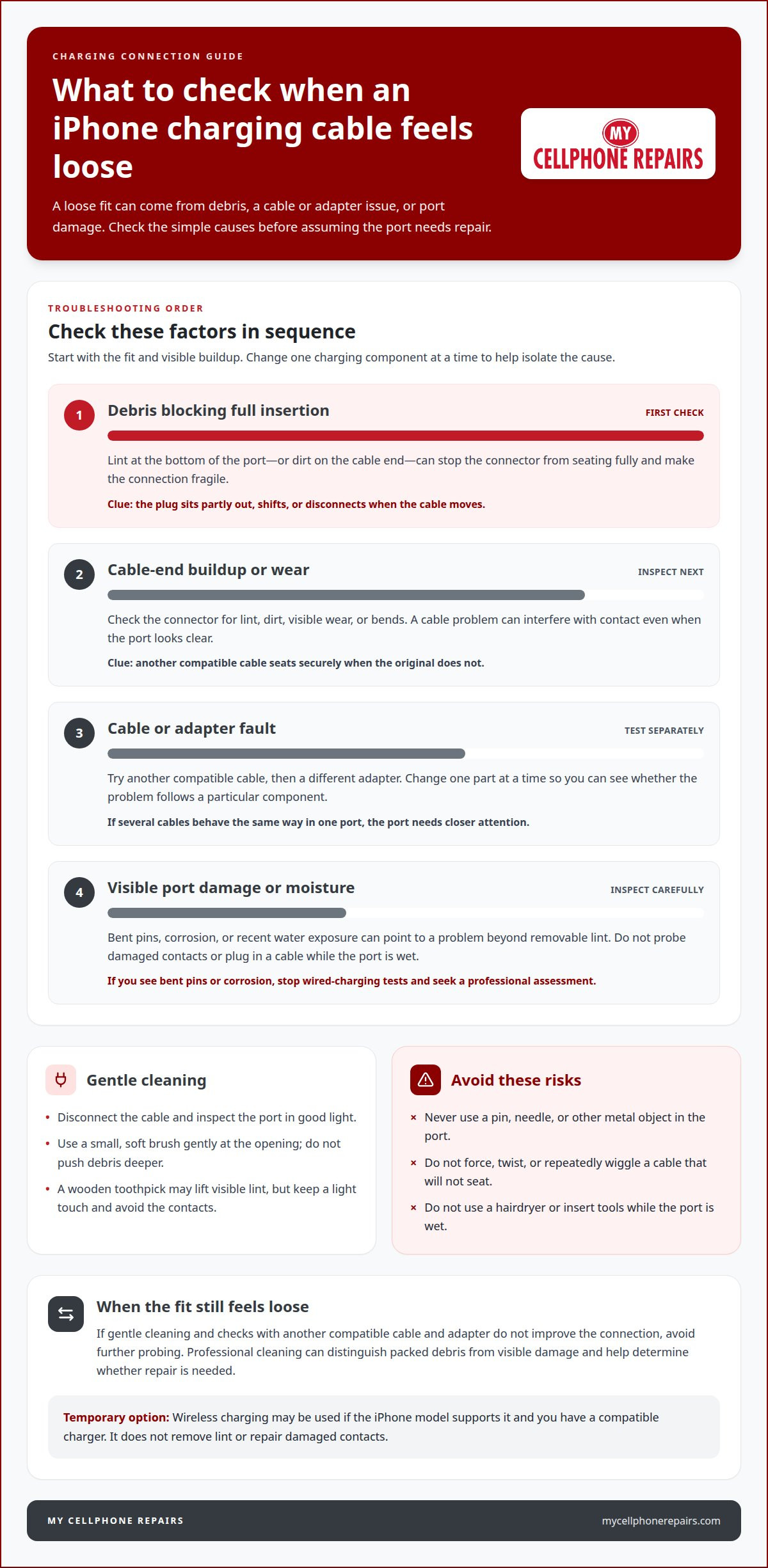
A Lightning connector needs to enter the port far enough to make a stable connection. Lint at the bottom can block it, while debris on the cable end can prevent secure contact. Use these checks to distinguish a fit problem from a cable or adapter issue.
- Inspect how the connector sits. Unplug the cable and look at the port opening in good light. Check whether the connector enters evenly or stops before it feels fully seated. Debris at the bottom can act as an obstruction, leaving the plug partly out. That shallow fit can make the connection fragile, especially if the cable shifts during charging.
- Check the cable end for buildup or damage. Examine the connector before inserting it again. Lint or dirt on the cable end can interfere with contact inside the port, even when the port itself looks clear. Look for visible wear, bends, or grime. Don’t force a connector that catches or sits unevenly; forcing it won’t clear an obstruction and may worsen the fit.
- Test another compatible cable and adapter. If you have a cable that works, try it with a different charging adapter. Change one part at a time to identify whether the cable or adapter contributes to the problem. If another cable seats securely, the original may be worn or dirty. If several cables feel loose in the same port, the issue may be inside the port.
- Replace a worn cable with a compatible option. High-quality replacement cables and certified charging accessories are recommended for compatibility when replacing a worn or damaged charging cable. Check that the new connector enters without pressure and stays seated during ordinary use. A different adapter can help isolate an adapter-related issue, but it won’t correct debris or damage inside the Lightning port.
- Stop repeating tests if the fit stays poor. Once you’ve checked the cable end and tried another adapter, avoid repeatedly inserting, twisting, or wiggling the connector. Those actions don’t remove packed debris and can put extra stress on the connection. If the plug still won’t seat properly, professional charging-port repair can assess whether cleaning or repair is needed.
Common causes of iPhone charging-port problems
Check the cable, adapter, port, and any recent water exposure in sequence. Each clue can help narrow down why charging fails.
- Inspect the port for visible damage. Look into the iPhone’s charging port under good light. Bent pins or corrosion can interfere with the connection and contribute to a loose fit. Don’t probe damaged contacts or force a cable into place. If the port looks damaged, stop testing with wired charging and arrange a professional assessment.
- Test the cable and adapter separately. Try a different compatible cable, then a different charging adapter. Changing one item at a time helps show whether the fault follows the cable or adapter. For example, if another cable charges reliably, the original may be contributing to the problem. If several cables behave the same way, the port needs closer attention.
- Consider recent water exposure. Moisture in the charging port can interfere with a wired connection. If the iPhone got wet, leave it in a dry area for several hours before trying to charge it. Don’t use a hairdryer, as heat can cause further damage. If charging problems continue after drying, or corrosion is visible, seek a professional assessment instead of inserting tools into the port.
- Restart the iPhone to check for a software issue. If the cable fits normally but charging still fails, restart the phone and test again. A restart can help identify whether a software glitch is affecting charging. It won’t correct bent pins, corrosion, debris, or a faulty cable. Try another compatible adapter to help distinguish a phone-side issue from an accessory problem.
- Use the symptoms to decide what to do next. A connector that won’t seat fully points to an obstruction or port damage. A connection that changes with another cable or adapter points to that accessory. Water exposure, visible corrosion, and bent pins call for professional attention. Repair timelines are a common question, but the inspection findings distinguish cleaning from port repair.
A port check is most useful when it stays visual and gentle. Compare what you can see with how the connector sits, but don’t push, twist, or scrape it to test the fit. Visible bent pins or corrosion may contribute to a loose connection, so treat either sign as a reason to stop wired charging, not as a cue to keep adjusting the cable. A loose fit alone doesn’t show which part is responsible; note whether it happens with more than one compatible cable and adapter.
If you seek an assessment, describe what you observed and whether substituting an accessory changed the connection. Mention any recent water exposure, even if the port now looks dry. This gives the professional useful context without requiring you to touch the contacts or attempt a repair. Keep the iPhone and cable available for the assessment, and avoid further wired-charging tests if pins appear bent or corrosion is visible. Let the inspection determine whether cleaning or port repair is appropriate instead of guessing from the loose fit alone.
Estimated charging-port repair cost
- Identify what kind of work the iPhone needs. A loose connection can come from debris, a damaged cable, or a problem inside the port. Cleaning and port repair are different jobs, so don’t assume every charging issue requires replacement. A technician’s inspection helps identify the cause before you compare repair options. The estimate depends on the condition found and the work needed to address it.
- Ask what the estimate includes. A useful estimate should make clear whether it covers cleaning, repair, or parts and labor. Ask how visible bent pins, corrosion, or water exposure affect the recommended work. Those findings can change the repair approach. Compare the described work, not just the final amount, so you understand what is being addressed and what the proposed repair covers.
- Separate accessory costs from port repair. A worn cable or faulty adapter may be the source of charging trouble, rather than the iPhone’s port. Testing another compatible cable and adapter can help distinguish an accessory issue from a phone repair need. If the cable is the problem, replacing it is a separate expense. Don’t treat an accessory replacement and port repair as the same service.
- Review AppleCare+ coverage before choosing how to pay. AppleCare+ coverage depends on the applicable plan terms and the cause of the problem. Review your plan’s coverage for this specific issue before deciding how to proceed. Don’t assume a loose connection automatically qualifies for coverage. Keep the repair estimate separate from any coverage decision, since they answer different questions.
- Get a case-specific quote before approving work. The price depends on the case and is provided after a quote request. Factors include whether the port needs cleaning or repair, the extent of visible damage, and whether water exposure or corrosion is involved. Describe the symptoms clearly, such as a connector that won’t seat or charging that stops when the cable shifts. Then review the proposed work before approving it.
Treat that range as a point of comparison, not a promise that every repair will cost one specific amount. Your iPhone’s quote should reflect the inspection findings and described work, so ask the technician to explain any difference between the general range and your estimate. If the recommendation changes after inspection, ask what newly identified condition changed the scope. Confirm whether the charge covers port work alone and whether any separate accessory is included.
Before accepting, compare estimates on equivalent terms. A lower amount may cover different work or leave out parts or labor. Ask for a clear description of the recommended service, including what the technician intends to address and what is excluded. If cleaning is proposed, confirm the estimate is for cleaning rather than repair; if repair is proposed, ask what part of the port needs attention. Keep a written record of the estimate and agreed scope so you can check that the completed work matches what you approved. If the explanation or scope is unclear, ask for clarification before authorizing the service.
Can a loose iPhone charging port be fixed at home
Home troubleshooting may help if debris or an accessory is causing the problem. For how to fix a loose iPhone charging port at home, stick to gentle checks and stop if you notice damage.
- Back up your iPhone before troubleshooting. Save important information before attempting fixes, especially if the issue may eventually require repair or a reset. A backup won’t correct the Lightning port, but it protects your data if troubleshooting goes beyond cleaning. Note what happens when you connect the cable, such as whether it fails to seat or charging stops when the phone moves.
- Remove only debris you can reach gently. Disconnect the cable and use a small, soft brush to loosen visible dust or lint around the port opening. A toothpick may help lift lint, but use a light touch and keep it away from the contacts. Never use pins or needles. If debris is packed too deeply to reach safely, stop rather than pushing it farther inside.
- Test a different cable and adapter. Change one accessory at a time to see whether the problem follows the cable or adapter. Use an Apple cable or Apple-certified charger when replacing a worn or damaged cable. If another cable seats securely, the original may contribute to the issue. If several cables remain loose, repeated plugging, twisting, or wiggling won’t fix the port.
- Keep the connector out of a wet port. After water exposure, leave the iPhone in a dry area for several hours before connecting a cable. Don’t use a hairdryer, because heat can cause further damage. Avoid putting a toothpick or other tool into a wet opening. If charging remains unreliable after drying, or corrosion is visible, stop home cleaning and seek professional assessment.
- Know where home fixes should end. Restarting the iPhone can help check whether a software glitch affects charging, but it won’t repair physical port damage. Limit home troubleshooting to gentle cleaning and accessory checks. Don’t take the phone apart or force the connector. If bent pins, corrosion, or a loose fit remain, arrange a charging-port assessment.
My Cellphone Repairs: Charging Port Repair
My Cellphone Repairs provides charging port repair when careful cleaning and accessory checks don’t resolve a loose connection. If the cable still won’t seat securely or the port shows visible damage, professional repair is the next step. An assessment can help distinguish debris from a damaged port and identify the appropriate repair.
Stop forcing the connector or probing the port if you see bent pins or corrosion. Share what you’ve already tried, including whether another cable or adapter changed the connection. These details help clarify the issue and guide the repair discussion.
Contact My Cellphone Repairs to discuss your iPhone charging-port problem.
Keep your iPhone ready for daily use
A dependable charging connection matters beyond getting through a single charge. It affects how easily you can rely on your iPhone throughout the day, especially when you need it for communication, navigation, or work. Knowing how to fix a loose iPhone charging port also means knowing when further troubleshooting isn’t useful. Choose a next step that protects the device instead of putting more strain on its connection.
If the port still feels unreliable, a repair assessment can help clarify the issue and your next step. Share the symptoms and the troubleshooting you’ve already tried. That gives the repair discussion a practical starting point without requiring more trial and error at home.
Discuss your charging-port repair with My Cellphone Repairs and take the next step toward dependable charging.
Frequently Asked Questions
How do you clean lint and debris from an iPhone charging port safely?
Turn the iPhone off and inspect the port under a light before cleaning. Use a clean, dry, soft-bristled brush to gently loosen surface lint, keeping the bristles near the opening rather than forcing them inside. Don’t use liquid or a metal tool. If debris is tightly packed or cleaning doesn’t improve the connection, stop and have the port checked to avoid damage.
How can you tell whether an iPhone charging port is loose or the charging cable is damaged?
Try a different compatible cable and power adapter before assuming the port is loose. If the original cable fails but another connects and charges normally, the cable may be the problem. If multiple cables disconnect easily or work only when held at an angle, the port may need inspection. To work out how to fix a loose iPhone charging port, compare how different cables fit without pushing or bending the connector.
What tools are safe to use to clean an iPhone charging port?
Use a flashlight to inspect the port and a clean, dry, soft-bristled brush for loose debris. Avoid metal picks, pins, liquids, and tools that could scrape the connector or leave material inside. Don’t force a tool into the opening. If you can’t reach the debris gently, leave the port alone and seek a professional inspection rather than trying sharper tools or repeatedly scraping.
How much do independent iPhone charging port repairs cost?
Independent repair prices vary, so ask for a quote for your specific iPhone before approving work. The listed repair price includes inspection, parts, labor, and warranty. If you’re comparing options in Towson, Baltimore County, Hyattsville, College Park, Cumberland, Vineland, Harrisburg, Kentwood, or Bowie, request the port-specific total.
Get it fixed at My Cellphone Repairs: most repairs are done the same day. Walk in or book online.
Book NowPhone frozen or acting up? See our step-by-step restart & reset guides →
Our locations
- Towson Mall825 Dulaney Valley Rd, Second Level, Towson, MD 21204
(410) 828-4404 - Grand Rapids3077 28th St SE, Grand Rapids, MI 49512
(616) 799-6996 - PG Plaza Mall (Hyattsville)3500 East-West Hwy, Mall at Prince George's, Target Entrance, Hyattsville, MD 20782
(301) 559-1105 - Bowie Town Center15630 Emerald Way, Bowie, MD 20716
(240) 614-3600 - Capital City Mall (Camp Hill / Harrisburg area)3604 Capital City Mall Dr, Camp Hill, PA 17011
(717) 919-7868 - Cumberland Mall (Vineland)3849 S Delsea Dr, next to Boost Mobile, Dick's Sporting Goods entrance, Vineland, NJ 08360
(856) 765-5049 - Mondawmin Mall2401 Liberty Heights Ave, Lower Level, Baltimore, MD 21215
(443) 826-7711 - Baltimore Inner Harbor100 East Pratt St, Suite 101, Baltimore, MD 21202
(443) 838-8989 - St Charles Mall (Waldorf)11110 Mall Cir, Waldorf, MD 20603
(301) 645-7755 - Alexandria7650 Richmond Hwy, Alexandria, VA 22306
(703) 341-6789