
A repair doesn’t automatically mean your files will be erased, but the type of work matters. Good data security when repairing a MacBook starts with making a backup, securing sensitive files, and signing out of personal accounts. If the internal storage or main logic board is replaced on a Mac with Apple silicon or a T2 chip, plan to restore your data from a backup afterward.
It’s reasonable to want your photos, documents, and account details protected while your MacBook is being repaired. Back up important files, use encryption, limit access to personal information, and prepare your Mac before service. The steps below explain how different repairs can affect your files, so you can focus on the precautions that apply to your repair.
Key Takeaways
- Create a backup before repair, and consider keeping a second copy so your important files have another layer of protection.
- Use encryption and move highly sensitive files off the MacBook when practical to reduce exposure during service.
- Find out how storage or logic-board work can affect your files, and plan to restore from a backup if needed.
- Sign out of personal accounts and remove private files or memory cards that aren’t needed for testing.
- Prepare your Mac’s service settings before drop-off, and keep your account credentials private.
Backing up important files before repair
Whether you choose Apple Store service, an authorized provider, or an independent repair shop, privacy depends on what access the repair requires and how your files are handled, not just the provider’s label. Ask whether testing requires a login, and don’t share your personal account password.
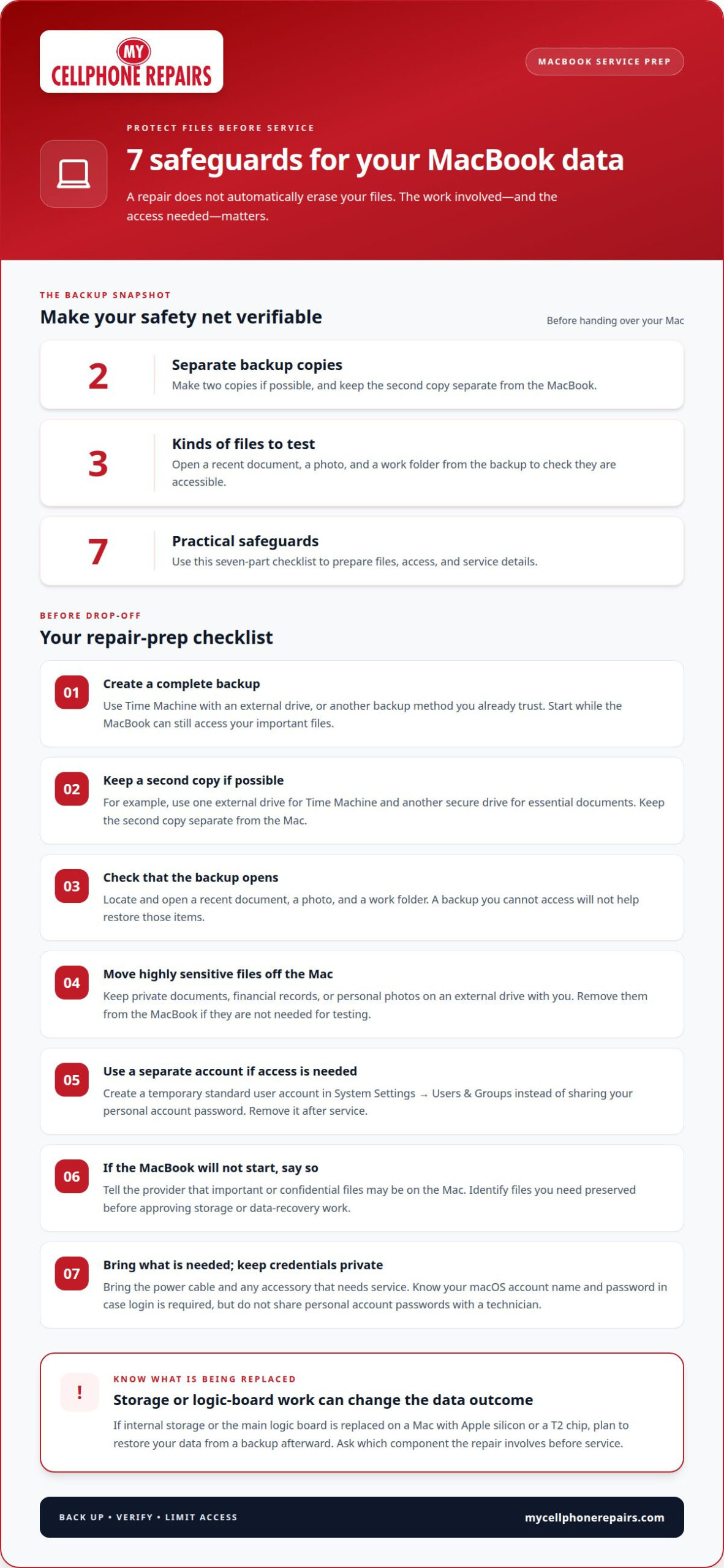
- Make a complete backup. Use Time Machine with an external drive, or another backup method you already trust. A backup gives you a way to restore files if a repair affects the Mac’s storage. Start before service, while the MacBook can still access your documents, photos, and other important files.
- Keep a second copy if possible. Make two separate backups before handing over your MacBook. For example, use Time Machine on one external drive and save essential documents to another secure drive. Keep the second copy separate from the MacBook so one device problem doesn’t affect every copy.
- Check that your backup works. Open the backup drive and locate a few files you’d need, such as a recent document, a photo, and a work folder. Confirm the files open. A backup that exists but can’t be accessed won’t help you restore those items after service.
- Move highly sensitive files off the Mac. Copy private documents, financial records, or personal photos to an external drive you keep with you. Then remove those files from the MacBook if they aren’t needed for repair testing. Don’t erase the whole device by default; preserve files the technician may need to diagnose the problem.
- Create a temporary user account if repair access is needed. In macOS, open System Settings, select Users & Groups, and choose the option to add a user. Create a separate standard account for service rather than giving out your personal account password. Share access only when needed, and remove the temporary account after the repair.
- Prepare for a MacBook that won’t start. If a battery problem or another fault prevents a backup, tell the service provider that the Mac contains important or confidential information. A laptop’s storage may still hold data even when the computer is broken. Mention files you need preserved before approving work involving storage or data recovery.
- Bring the essentials and keep credentials private. Take the power cable and any accessory that needs service. Bring the sales receipt if available, and know your macOS account name and password in case login is required. Don’t share email, banking, or other personal account passwords with a repair technician.
Disable Find My Mac and Activation Lock before repair
Prepare Find My Mac before service if the repair requires the technician to access or test your Mac. Activation Lock is tied to Find My and your Apple Account, so understand what the setting does before changing it.
- Confirm whether the repair requires the setting to change. Find My Mac helps you locate a device through your Apple Account. Some repair work may require it to be turned off so the Mac can be serviced. Ask about the specific testing or repair steps before drop-off, especially if your MacBook won’t start.
- Locate Find My Mac in macOS settings. Open System Settings and select your Apple Account. Find the iCloud settings, then locate Find My Mac. Menu wording can differ across macOS versions, so use Settings search if the option is not immediately visible. Don’t change other Apple Account settings unnecessarily.
- Turn off Find My Mac only when needed for service. Follow the on-screen prompts and enter your Apple Account password if macOS requests it. This setting change can affect Activation Lock, which helps prevent someone else from activating a protected Mac. Keep your password private; enter it yourself rather than giving it to the technician.
- Check the Mac’s status before handing it over. Return to the Find My Mac setting and confirm its current state. If the Mac is offline or cannot start, don’t assume the change succeeded. Tell the service provider that Find My may still be enabled and explain any error shown on screen.
- Keep account access separate from repair access. A technician may need to test the Mac, but that doesn’t mean they need your Apple Account password. If service requires a macOS login, use the separate account prepared for repair. Avoid sharing credentials for email, cloud storage, banking, or other personal accounts.
- Act promptly if the MacBook is lost or stolen during repair. Use Find My from another Apple device or through your Apple Account to locate the Mac and mark it as lost if that option is available. Change your Apple Account password and contact the service provider with the device’s serial number and repair details.
- Restore protection after service. Once the MacBook is back with you, sign in to your Apple Account and review Find My Mac. Turn it back on if you disabled it for service, then confirm the Mac appears among your devices. This final check helps ensure location and Activation Lock protections are active again.
Erase All Content and Settings before storage or logic-board replacement
- Identify the planned repair first. Erasing is most relevant when internal storage or the main logic board will be replaced. On a Mac with Apple silicon or a T2 chip, replacing either can mean the original data won’t remain available afterward. Ask what component the repair involves, then decide whether a full erase fits your privacy needs.
- Confirm your Mac supports the erase option. Erase All Content and Settings is available on Macs with Apple silicon or a T2 chip running macOS Monterey or later. It removes user data and settings by destroying the encryption keys needed to decrypt the Data volume. It doesn’t work like overwriting each file with random data.
- Finish your backup before erasing. Erase All Content and Settings removes local accounts, files, and settings. Confirm your backup contains the documents and photos you need, and open sample files from it. Keep a copy separate from the MacBook. After erasing, restoring your personal data requires a backup or another saved copy.
- Start the erase from macOS settings. Open System Settings, choose General, then Transfer or Reset. Select Erase All Content and Settings and follow the prompts. The Mac may request an administrator password or Apple Account details. Read each confirmation carefully, especially if you’re preparing the computer for storage or a logic-board replacement.
- Don’t confuse signing out with erasing. Signing out of an Apple Account or removing a user doesn’t erase every file on the Mac. Erase All Content and Settings is the relevant full-device option on supported Macs. If the Mac only needs a battery repair, wiping it may be unnecessary; match the privacy step to the work being done.
- Plan for a Mac that won’t start. You can’t run the settings-based erase if the computer cannot reach macOS. A damaged Mac’s internal storage may still contain data, even when the screen stays black. Tell the technician that the device holds private files, and discuss storage handling before authorizing a replacement or data recovery.
- Prepare for setup after the repair. When internal storage or the main logic board is replaced on a Mac with Apple silicon or a T2 chip, expect to restore from a backup. After service, follow macOS setup and choose the appropriate restore method. Keep your backup available until you’ve checked that key files and settings are back.
Before handover for replacement, owners can erase T2 or Apple silicon Macs; on macOS 12 Monterey, this destroys the Data volume’s encryption keys. Broken laptops may retain unbacked-up data.
Data impact of common hardware repairs
MacBook repair doesn’t always affect your files. The component being removed or replaced is the clearest indication of what may happen to your data.
-
Assess Third-Party Repair Data Risks
Before authorizing third-party service, ask what access testing requires and whether anyone will view, copy, or transfer your files. A technician who can access your macOS user account may see personal information, including browser history. Don’t share email or banking passwords. For data security when repairing a MacBook, limit access to what diagnosis actually requires.
-
Check Warranty Repair Data Impact
Ask which part the warranty repair will replace, especially whether it involves internal storage or the main logic board. Warranty service doesn’t by itself tell you whether files will remain. On a Mac with Apple silicon or a T2 chip, expect to restore from a backup if internal storage or the main logic board is replaced.
- Match the repair to the data risk. A screen repair targets the display, while a battery repair targets the power component. Neither inherently requires removing internal storage, but diagnostic needs or unexpected damage can change the work. Before service, ask which parts the technician plans to remove or replace and whether testing requires a login.
- Ask about charging-port work. A charging issue may involve the port or related hardware. The repair doesn’t automatically mean your files must be erased. Tell the service provider if your Mac contains confidential information, and ask whether the planned tests require access to your account or files.
- Flag liquid damage clearly. Water damage can affect multiple components, so the final repair plan may differ from what the initial symptom suggests. If your MacBook won’t turn on, tell the technician that it contains important data. Ask how storage will be handled before approving a part replacement or data-recovery work.
- Treat storage and logic-board replacement differently. These components directly affect access to saved data. If a Mac with Apple silicon or a T2 chip has either its internal storage or main logic board replaced, plan to restore from a backup afterward. Don’t assume the original files will transfer with the replacement component.
- Get the repair plan before authorizing work. Ask which component is involved, whether it will be removed or replaced, and what testing will follow. A battery replacement and a logic-board replacement, for example, have different implications for stored files. Use those details to decide what information to disclose and which backup to restore afterward.
How to protect personal data when Apple or a repair shop services a MacBook
Limit account access before service, and tailor each privacy step to the repair. These precautions help protect sensitive files while still allowing the technician to test your Mac.
- Enable FileVault. Open System Settings and search for FileVault. On Macs with Apple silicon or a T2 chip, the internal Data volume is encrypted, and FileVault protects the encryption key with your password. The National Institute of Standards and Technology recommends at-rest encryption for sensitive data because it can protect media if it’s lost or stolen.
- Keep your account password private. Don’t give a technician the password for your personal macOS account, email, cloud storage, or banking. The Centers for Medicare & Medicaid Services (CMS) explains that encrypted data can’t be decrypted without the right keys. If service requires a login, use a separate account with limited access.
- Sign out of personal accounts. Before drop-off, sign out of email, cloud storage, social media, and banking accounts. For example, close your personal email session in your browser and sign out of banking apps. This reduces the number of active sessions available if someone accesses your user account during testing.
- Remove private removable media. Take out an SD card if it holds personal photographs, work documents, or other private files. Check the card slot and any connected storage before handing over the MacBook. Keep those items with you unless the repair specifically requires testing that accessory.
- Review firmware settings on an Intel Mac. If your Intel-based Mac has a firmware password, turn it off before service if possible. Keep a note of the setting change for yourself, not the password for the technician. Macs with a T2 chip or Apple silicon use Secure Boot to prevent people without user-account access from changing partitions or volumes.
- Clarify the access required. Ask whether the repair involves viewing, copying, or transferring files, and whether a login is needed. If your MacBook won’t turn on, tell the technician that it contains important or confidential information. If you can’t complete a requested settings change, discuss the available options before service proceeds.
- Reset credentials after service if needed. If you shared your macOS login password for testing, change it after getting the MacBook back. Review active email and cloud sessions, too. For practical help preparing your device, arrange MacBook repair.
The National Institute of Standards and Technology says encryption at rest protects against unauthorized access or compromise if media is lost or stolen, and recommends enabling it. Encryption is one layer of protection, not a reason to share credentials. Don’t give the repair technician bank, email, or other personal account login information. Keep those logins private, and discuss another way to test the repair if access seems necessary.
Before bringing in your laptop, sign out of personal email, cloud storage, social media, and banking accounts, and remove any SD card containing private photos or documents. If you bring your Mac to a service location, know your macOS user account name and password in case you need to log in yourself. If you can’t complete the requested settings steps, discuss your options with the technician before proceeding.
My Cellphone Repairs: Samsung Phone Repair
My Cellphone Repairs provides MacBook Repair for computers that need hardware service, including issues such as a damaged display, battery problem, or charging fault. Before service, prepare a backup and explain any data concerns, especially if your MacBook won’t start or contains confidential files. Knowing whether the repair involves storage or the main logic board can help you plan to restore your data afterward. My Cellphone Repairs also provides Samsung Phone Repair, iPhone Screen Repair, and Battery Replacement. Contact My Cellphone Repairs to discuss your MacBook repair.
Take the next step with confidence
Preparing your MacBook for service is a good time to decide what access is appropriate. Keep your account credentials private and share only the information needed to explain the fault. That makes data security when repairing a MacBook part of your preparation, not an afterthought.
If your device needs hardware service, My Cellphone Repairs provides MacBook Repair, along with Samsung Phone Repair and iPhone Screen Repair. Share the issue affecting your MacBook and the steps you’ve already taken to move forward with a clear repair plan.
Contact My Cellphone Repairs to discuss your MacBook repair. A practical next step can make the service process easier to approach, and you can prepare your device at your own pace.
Frequently Asked Questions
What Happens to My Data During Mac Repair?
Your files may remain untouched during repairs that don’t involve internal storage or the main logic board. The repair plan determines the risk: replacing those parts on a Mac with Apple silicon or a T2 chip means you should expect to restore from a backup. Before authorizing work, ask which component is affected and whether testing involves your files. That gives you a clearer picture of what to prepare.
What happens to old hard drives/SSDs you replace?
Don’t assume a replaced drive will be returned, erased, or kept by the service provider. Before authorizing storage work, ask what will happen to the original drive and whether you can keep it. If it contains important files, discuss data recovery before approving replacement. A drive that no longer works inside the Mac may still hold data, so treat it as sensitive until you know how it will be handled.
What if my Mac has confidential business data?
Tell the technician if your Mac contains confidential business information, such as client records or financial documents. Move files not needed for diagnosis off the device, and use encryption to protect sensitive data. Keep work-account credentials private and provide only the access required for testing. If the Mac won’t start, explain which information must remain confidential before approving storage replacement or recovery work.
Should you erase a MacBook before sending it for repair?
No, erasing the entire MacBook isn’t usually necessary for routine repair. Back up important files and remove sensitive information the technician doesn’t need to test the device. Consider Erase All Content and Settings when preparing a supported Mac for internal-storage or main-logic-board replacement. Back up first, because erasing removes local files and settings. Let the repair component and your privacy needs guide your decision.
Can MacBook repair technicians access files without the login password?
Encryption can prevent someone from reading protected files without the right keys, but an unencrypted storage drive may expose files if accessed separately. The Centers for Medicare & Medicaid Services explains that encrypted data can’t be decrypted without the appropriate keys. For repair testing, use a separate account with limited access where practical, and don’t share passwords for email, banking, or cloud accounts.