
What if your Galaxy passes a self-test but still behaves unpredictably? A Samsung phone diagnostic service can help you investigate what’s happening, but a test result isn’t always a complete explanation. If your phone freezes, drains its battery quickly, or misses touch inputs, it’s reasonable to want clearer information before deciding what to do next.
Samsung’s built-in tools give you a useful first check. Device Care can review battery, storage, and memory, while the Samsung Members app offers interactive tests for components such as the touchscreen, battery, and sensors. A result can point to an area of concern or show that a tested component responded during the check. It may not explain intermittent symptoms or reveal every underlying hardware problem.
This guide covers how to run Samsung’s self-diagnostics, what the results can and can’t tell you, and how to choose a sensible next step. You’ll learn when a self-check may be enough and when to consider professional Samsung phone repair for a persistent issue. My Cellphone Repairs provides Samsung phone repair and hardware repair for Samsung phones.
Key Takeaways
- Use Samsung Members and Device Care to run checks and see which parts of your phone may need attention.
- A Samsung phone diagnostic service can offer a different kind of assessment from a self-check. Treat test results as clues rather than a final answer.
- Record when the issue happens and save relevant diagnostic screens so you can describe the symptoms clearly.
- If self-checks don’t clarify a persistent problem, consider professional Samsung phone repair.
Samsung Phone Diagnostic Service: What It Can Help You Find
A phone diagnostic is a set of checks that can help identify possible device issues. On a Samsung Galaxy, self-checks are a practical starting point when something feels wrong. A Samsung phone diagnostic service offers a different route: rather than relying only on checks you run yourself, an in-person repair assessment can consider your symptoms and what may need attention.
Think of a self-check as a clue, not a verdict. It can show how a selected function responds during a test, but it may not capture an intermittent fault or explain why a problem occurs. A repair professional can consider your description alongside the test information. That context helps guide the discussion without assuming that a single result tells the whole story.
Symptom → Self-check → Review the result → Choose a next step
Example: The phone feels slow → review Device Care → note what the check reports → see whether the issue continues or needs further assessment.
What kinds of issues can a Samsung Galaxy self-check explore?
Samsung’s built-in tools offer different kinds of checks. Device Care, also called Battery and device care, helps review battery, storage, memory, security, and overall device performance. Samsung Members offers interactive diagnostics for selected phone components. Depending on the tool and model, checks may cover hardware functions as well as software or device-status concerns.
The available options can vary between Galaxy models, so you may not see every menu or test on your phone. Choose checks that are available and relevant to the symptom. If the phone feels slow, for example, Device Care may help you review its general status. If a particular component seems unreliable, a matching Samsung Members test may offer a more focused clue.
What a diagnostic result does, and does not, tell you
A result can narrow the question. It may indicate that a tested function responded as expected or draw attention to a potential concern. It doesn’t automatically identify the underlying cause, and a passed test doesn’t rule out every possible fault. A problem that comes and goes may not appear during a brief check.
Illustrative result
Test: Selected component check
Result: Review the status shown on your phone
Meaning: A clue about the tested function, not a complete diagnosis of every symptom
Read the result alongside what you’ve noticed. Does the symptom happen only during certain tasks? Does it persist after a restart, or appear at random? Those details help distinguish a one-off glitch from a recurring concern. If the result is unclear or the problem continues, use the test as information for the next assessment, not as proof that the phone is completely fault-free.
How to Run Samsung Members and Device Care Diagnostics
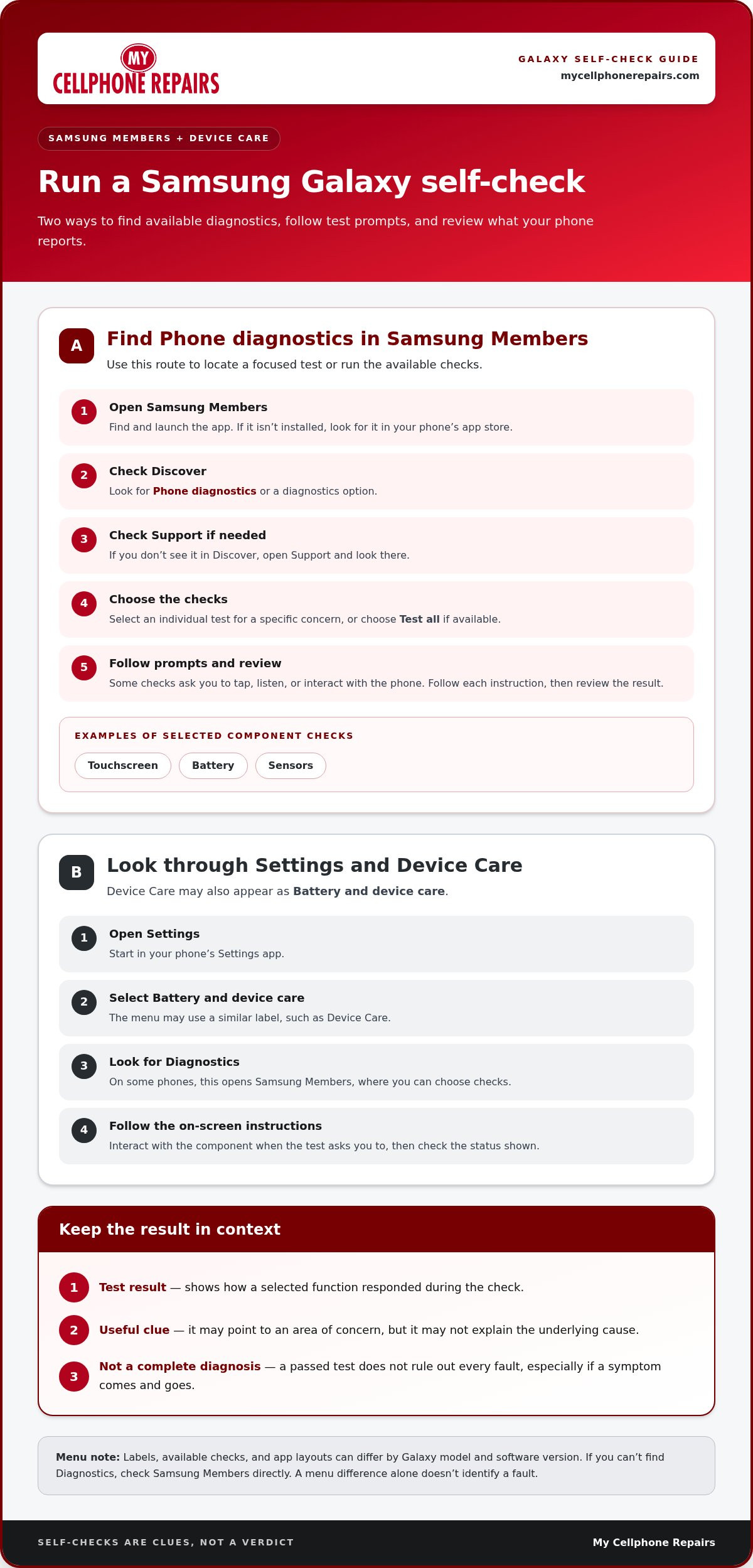
Samsung support describes two routes for self-checks: Samsung Members and Device Care, which may appear as Battery and device care in Settings. Menus can look different across Galaxy models and software versions. If a label below doesn’t match your screen, look for the closest equivalent.
Finding Phone diagnostics in Samsung Members
Samsung Members may need to be installed before you can open it. Once the app is available, check the Discover and Support tabs for Phone diagnostics. The exact route can vary, so scan both tabs if you don’t see the option straight away. The Samsung phone diagnostics guide also offers an independent walkthrough of the built-in tools.
- Screen 1: Open Samsung Members. Find and launch the app on your phone.
- Screen 2: Check Discover. Look for Phone diagnostics or a diagnostics option.
- Screen 3: Check Support. If it isn’t under Discover, open Support and look for Phone diagnostics.
- Screen 4: Choose a check. Select an individual test for a specific concern, or choose Test all if that option is available and you want to run the offered checks.
- Screen 5: Follow the prompts. Some tests ask you to tap, listen, or interact with the phone in another way. Follow each on-screen instruction and review the result.
Use this sequence as a navigation guide, not a promise that every screen will match. App layouts and test choices can change with the device. If Samsung Members isn’t installed, look for it in your phone’s app store before following the steps.
Using Device Care and following test prompts
Samsung’s US support guide also describes a route through Device Care. Open Settings, select Battery and device care or the closest matching label, then look for Diagnostics. On some phones, tapping this option opens Samsung Members, where you can select the checks. Follow the on-screen instructions, especially for tests that ask you to interact with a component.
Menu wording can differ. Available tests and labels depend on the model and software version. If you can’t find Diagnostics, check Samsung Members directly. A menu difference alone doesn’t identify a fault.
Self-checks can help you gather useful information, but they may not settle a persistent hardware concern. If the issue continues, My Cellphone Repairs provides Samsung phone repair.
Self-Diagnostics vs. Samsung Phone Diagnostic Service
A built-in check and an in-person repair assessment serve different purposes. Self-diagnostics let you check selected functions yourself. A Samsung phone diagnostic service gives you a way to discuss a concern that continues or remains unclear after those checks. Neither a passed nor a failed test should be treated as a complete report on the phone’s overall condition.
What to compare
Built-in self-diagnostics
In-person repair assessment
Access
Run selected checks through Samsung’s phone tools.
Discuss the phone concern with a repair professional.
Purpose
Check a particular function and gather information about what you noticed.
Consider a persistent or unresolved concern in the context of repair.
Next step
Use the result to decide whether to monitor the issue or seek further guidance.
Discuss whether Samsung phone repair is appropriate for the concern.
When a built-in Samsung diagnostic may be a useful first step
Start with a self-check when you notice a new concern and want to see whether a related function responds during a test. For example, if touch input seems unreliable, an available screen test can focus your attention on that function. If the phone feels sluggish, a general device check may give you information to consider. A self-check is a practical first step, not a replacement for a repair assessment.
Choose an individual test when you have a specific symptom in mind. That keeps the result relevant and makes it easier to compare the check with what you experience during everyday use. If the result doesn’t match the problem, don’t assume your experience is mistaken. A test checks a selected function under test conditions, so it may not reproduce a concern that comes and goes.
When to consider professional Samsung phone repair
Consider repair if the same concern keeps returning, affects normal use, or remains unexplained after you’ve used the relevant self-check. A passed result doesn’t rule out every possible issue. A failed result points to a concern with the tested function, but doesn’t automatically explain the phone’s full condition or determine what repair is needed.
Bring together what you observed and the results you saw. That gives you a clearer starting point for discussing the issue. My Cellphone Repairs provides Samsung phone repair and hardware repair for Samsung phones. If self-diagnostics haven’t answered your question, use the information you gathered to discuss the concern and possible next steps.
Prepare for a Samsung Phone Diagnostic: Symptoms, Screenshots, and Results
A clear description can make a repair conversation more useful. Before seeking a Samsung phone diagnostic service, take a moment to record what you notice and when it happens. You don’t need technical terms or a perfect explanation. Note what the phone does, how often you see it, and what you observed during any self-check.
Record the issue clearly before seeking repair
Describe the behavior in plain language. Note whether it happens every time or only occasionally, and what you were doing when it appeared. For example, write “the screen sometimes doesn’t respond to taps” rather than guessing at a cause. Keep the note factual. A symptom log explains the concern without turning an observation into a diagnosis.
- What happens? Describe the behavior you can see or hear.
- When does it happen? Note the task or situation, if you know it.
- How often? Record whether it’s consistent or intermittent.
- What did you check? Add the name of any relevant test you ran.
Sample symptom log
Symptom: [Describe what the phone does]
When it appears: [Describe the situation, if known]
Pattern: [Consistent / intermittent / unsure]
Diagnostic test: [Test name, if run]
Result shown: [Copy the wording or summarize the screen]
How to read your notes
Symptom note: “The phone sometimes doesn’t respond to taps.” This records your experience.
Diagnostic result: “[Enter the result displayed by the test].” This records what the selected check reported.
Keep them separate: A symptom describes what happened; a test result describes what appeared during that check. Neither note alone explains the cause.
Save useful Samsung diagnostic information
If you run a Samsung diagnostic, keep the test name and result together in your notes. A screenshot of the relevant screen can help you recall the exact wording and share what appeared, especially if you’re unsure how to interpret it later. Capture only screens related to the concern. Your notes don’t need to be a technical report.
- Write down the symptom before interpreting the result.
- Record the test name and the result displayed.
- Save a relevant screenshot if it helps show the screen clearly.
- Bring your notes together when discussing the issue.
Keep your notes focused on the phone’s behavior and diagnostic information. Don’t include passwords or account details. If the issue persists, bring your symptom log to My Cellphone Repairs for Samsung phone repair guidance.
Get Help with Samsung Phone Repair in Your Local Area
Self-diagnostics are useful when you want to check a new concern or see what a selected test reports. They’re only one part of the picture. If a problem keeps happening, disrupts normal use, or remains unclear after a relevant check, consider discussing repair. A result can help you describe the issue, but you don’t need a complete diagnosis before taking the next step.
Your next-step path: Notice a symptom → run a relevant self-check → record what happened and the result → discuss persistent concerns through Samsung phone repair.
Turn a Samsung diagnostic concern into a clear repair conversation
Keep the conversation grounded in what you observed. Describe the symptom in plain language, say whether it happens consistently or intermittently, and share the name and result of any relevant test. You don’t need to explain what caused it. This gives a repair professional useful context without treating a single test result as the whole story.
If the issue is still affecting your device, use your notes and diagnostic information to explain what’s happening. These details provide a clear starting point for discussing the repair concern.
Find Samsung phone repair help around Towson
If you’re in Towson and looking for Samsung phone repair, focus on connecting the symptoms you’ve noticed with a clear repair conversation. A self-check can help you describe what you tested, while a persistent concern may call for repair. Share what the phone does and what the test displayed. You don’t need to interpret the result yourself.
Before taking the next step, gather the details that help explain the issue:
- Symptom: What the phone does, in your own words.
- Pattern: Whether it happens every time or only sometimes.
- Test information: The diagnostic name and the result shown, if you ran one.
- Context: What you were doing when you noticed the issue, if you remember.
That’s enough to make your concern easier to describe. You don’t need to diagnose the phone yourself or assume a passed check means repair isn’t needed. If self-checks haven’t resolved your concern, take the next step with My Cellphone Repairs’ Samsung phone repair service.
Get help with your Samsung phone repair.
Move Forward with Confidence
You don’t need to identify a failed part before taking the next step. A useful repair conversation can begin with a straightforward description of what’s troubling you and how it affects your phone use. Let the information you’ve gathered guide the discussion, rather than feeling responsible for diagnosing the device yourself.
A Samsung phone diagnostic service can be part of deciding what to do, but you don’t need perfect certainty before seeking repair. If the issue continues to disrupt your routine or you’re unsure how to interpret the results, focus on explaining the concern and discussing a practical way forward.
When you’re ready, get help with your Samsung phone repair and move from uncertainty toward a clearer plan.
Frequently Asked Questions
Can Samsung Members diagnose my Galaxy phone?
Samsung’s support guide describes Phone diagnostics in Samsung Members as a way to check possible hardware and software issues. You can choose an individual test or select Test all when that option is available. Some checks ask you to interact with the phone and follow prompts. Tests can vary by model, so treat the options in your app as a guide, not a guarantee that every fault will be identified.
How do I find diagnostics on a Samsung phone?
Samsung’s support material describes two routes: Phone diagnostics in Samsung Members and diagnostics through Device Care. In Samsung Members, look under Discover or Support for Phone diagnostics. Device Care may use a label such as Battery and device care. If your screen looks different, the menu name or layout may vary with your model and software version. Follow the closest available option rather than expecting every Galaxy phone to show identical menus.
Do Samsung phone diagnostic tests work on every Galaxy model?
Diagnostic options can differ by device model, and menu names or layouts can change with the software version. Another Galaxy owner may see a different test list from yours. Use the checks displayed on your own phone instead of relying on a list from another model. If you don’t see a test that matches your concern, that difference alone doesn’t prove the phone has a fault.
What should I do if a Samsung diagnostic test fails?
Review any suggestions shown after the test, and check whether Samsung Members displays related FAQs. A recommendation may help you decide what information to gather next, but a failed check isn’t by itself a confirmed repair diagnosis. Note the test name and displayed result. If the phone’s behavior still concerns you, use those details when seeking further support. Recommendations can vary, so your screen may not show the same guidance as another device.
Can a Samsung self-diagnostic identify every hardware problem?
No self-check should be treated as a complete explanation for every symptom. Samsung describes its diagnostic tools as checks for possible issues, and the available tests depend on the device. A result relates to the check you ran, not necessarily to every part of the phone. If you’re using a Samsung phone diagnostic service to decide what to do next, treat the test as one piece of information, not a full assessment.
When should I seek professional Samsung phone repair instead of using self-diagnostics?
Consider professional repair if the concern continues or the checks available on your phone don’t clarify what’s happening. Self-diagnostics help you gather information; a repair conversation is a separate step for discussing an ongoing issue. My Cellphone Repairs provides Samsung phone repair for customers in Towson and Baltimore County, as well as Hyattsville, College Park, Cumberland, Vineland, Harrisburg, Kentwood, and Bowie.
Can I run one Samsung diagnostic test without testing everything?
Yes. Samsung’s US support guide says Samsung Members lets you select an individual test or choose Test all when available. An individual check can help you focus on a particular concern rather than run every offered test. The available choices depend on your device, and some tests require you to follow on-screen prompts. Choose from the options shown on your phone, since the menu may differ from another Galaxy model.