
A screen that flickers after an impact may need more than a restart. If your iPhone screen is flickering after a drop, a screen replacement may help when the display itself is damaged. Persistent flickering, especially with touch problems or distorted colors, needs a closer hardware assessment.
A drop can damage internal display components even when the outer glass looks intact, so it’s reasonable to wonder whether replacing the screen will solve the problem. This guide covers common causes of flickering after a drop, signs of screen damage, and when a replacement may help. It also explains what to do first, which actions could worsen the damage, and why a persistent glitch may involve more than the display.
Key Takeaways
- Look for changes in color, touch response, or dark patches, not just cracks in the glass.
- A glitch that starts after impact may involve the display or its connections. Avoid twisting or tapping the phone to test it.
- Use a well-fitted case and screen protector to help reduce damage from future drops.
- A restart can help rule out a temporary software issue, but ongoing flickering or unresponsive touch may need repair diagnosis.
- Back up important data while the display is usable, and avoid pressing damaged areas or resetting the phone as a first fix.
What causes coloured lines after a drop?
A cracked display, disturbed connector, or damaged OLED can cause flickering after impact. Professional accidental-damage coverage and related service fees depend on your specific device warranty and repair category at My Cellphone Repairs.
-
Inspect Physical and Internal Damage
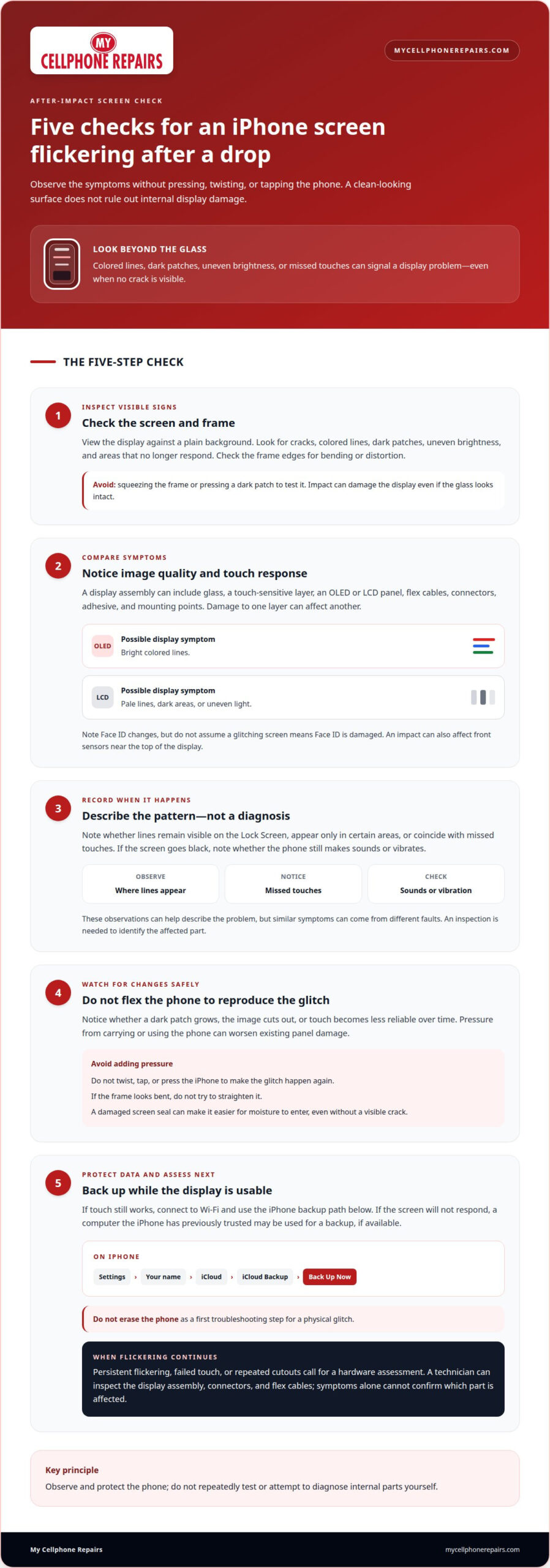
View the screen against a plain background. Look for cracks, colored lines, dark patches, uneven brightness, or areas that no longer respond. Check the frame edges for bending or distortion that could press against the display. Don’t squeeze the frame or press a dark patch to test it. An iPhone XS screen, for example, was reported to have a fracture extending about an inch across the bottom, but impact can also damage a display without visible cracks.
-
Identify Display and Sensor Damage
Compare the flickering with the touch response and image quality. A display assembly may include glass, a touch-sensitive layer, an OLED or LCD panel, flex cables, connectors, adhesive, and mounting points. Damage to one layer can affect another. A damaged OLED may show bright colored lines, while LCD damage may appear as pale lines, dark areas, or uneven light. Note any Face ID changes, but don’t assume a glitching screen means Face ID is damaged. An impact can also affect front sensors near the top of the display.
- Note when the lines appear and what changes. Check whether they remain visible on the Lock Screen, occur only in certain areas, or coincide with missed touches. These observations can help distinguish a display symptom from a touch-layer problem. A dropped iPhone may have internal damage even if the glass looks intact, so a clean-looking surface doesn’t rule out a damaged panel. If the screen goes black, note whether the phone still makes sounds or vibrates.
- Watch for changes over time without flexing the phone. Note whether a dark patch grows, the image cuts out, or touch becomes less reliable. Pressure from carrying or using the phone can worsen existing panel damage. If the frame looks bent, don’t try to straighten it, as this can add pressure to the display. A damaged screen seal can also make it easier for moisture to enter, even without a visible crack.
- Use the symptoms to decide what needs attention, rather than trying to diagnose internal parts yourself. Colored lines, dark areas, and touch failures can point to display damage, while Face ID trouble may involve nearby front sensors. Protect the iPhone from pressure and back up important data while the display is usable. If flickering continues after the drop, arrange a repair assessment at My Cellphone Repairs instead of repeatedly testing the screen.
Can a loose screen connection cause glitches?
Yes. A drop can disturb display connectors or flex cables, or damage the screen itself, causing flickering and intermittent glitches. Back up your iPhone while the display still responds, then avoid twisting or tapping it to reproduce the fault.
- Track when the glitch appears. Note whether flickering starts after impact, changes when the phone moves, or comes and goes during normal use. An intermittent display can point to a disturbed connection, but a damaged panel can produce similar symptoms. These observations help describe the problem, but an inspection is needed to identify the failed part.
- Look for signs of an unstable display connection. A screen that cuts out and returns, shows changing lines, or responds inconsistently after a drop may have damaged flex cables or connectors. Impact can disrupt the path that carries image and touch signals between the display assembly and the phone. A failing panel can cause similar symptoms, so flickering alone can’t confirm that a connector is loose.
- Don’t twist, tap, or press the iPhone to make the glitch happen again. Repeated movement can worsen damage to a connector or display panel. Avoid opening the phone to reseat a cable, since delicate internal parts can be damaged during an untrained repair. Even if the display works again temporarily, an intermittent screen may fail completely with little warning.
- Back up your data before the display becomes harder to use. If touch still works, connect the iPhone to Wi-Fi, open Settings, tap your name, choose iCloud, then iCloud Backup and Back Up Now. If the screen won’t respond, use a computer the iPhone has previously trusted, if available, to create a backup. Don’t erase the phone to troubleshoot a physical glitch.
- Arrange a hardware assessment if flickering continues, touch fails, or the screen repeatedly cuts out. A technician can inspect the display assembly, connectors, and flex cables to identify whether a connection or the panel needs attention. Opening an iPhone without diagnosis risks harming delicate cables or nearby components. For persistent post-drop glitches, iPhone screen repair is a practical next step.
Connector trouble isn’t the only possible hardware explanation. The guide also lists a failing screen and GPU issues as possible causes of phone-screen flickering. Flickering that begins after a drop is likely hardware-related, according to the guide, but timing alone can’t identify the affected component. Don’t keep testing the screen by moving the phone: repeated twisting or tapping can worsen damage to a connector or panel.
One guide advises powering off a phone before applying slight pressure around the screen edges to address possible connector looseness. That differs from repeatedly pressing, bending, or tapping the device, and it doesn’t prove that a connector is at fault. On iPhone XS, screen cables and connectors are secured with a metal cover and screws treated with Loctite. This is why opening the device or trying to reseat parts isn’t a casual check: visible flickering alone can’t show whether a connector, screen, or GPU issue is responsible. If symptoms continue, a hardware assessment is a more reliable way to distinguish among those possibilities.
Preventing future flicker with cases and screen protectors
Use a protective case and a well-fitted screen protector to help reduce impact damage and scratches. If the display started flickering after a drop, try a force restart and software checks, but don’t treat those steps as repairs for visible damage.
- Choose a case that fits your iPhone securely and protects the screen edges during everyday handling. A case and screen protector may reduce the chance that a drop or scratch worsens display problems, but they can’t undo damage that has already occurred. Replace a damaged protector rather than pressing it flat against the screen.
- Check the screen protector’s fit before troubleshooting touch problems. A damaged or poorly fitted protector can interfere with touch, especially around the edges. Look for lifted corners, cracks, or areas that sit unevenly. If touch problems began after fitting a protector, remove it carefully and test the screen without it. Don’t press hard on a flickering display.
- Try a force restart to rule out a temporary software glitch. On iPhone 8, iPhone SE (2nd or 3rd generation), and all Face ID models, press and release Volume Up, then press and release Volume Down. Hold the Side button until the Apple logo appears. For an iPhone 7 or iPhone 7 Plus, hold Volume Down and the Side button together.
- Use the button sequence for older models rather than repeating another iPhone’s steps. On iPhone 6s, the first-generation iPhone SE, or an earlier model, hold the Home button and the Side or Top button together. If the screen remains glitchy after restarting, check for an available iOS update under Settings > General > Software Update. A restart can help rule out a temporary issue, but it won’t reconnect damaged hardware.
- Try display settings only if the screen remains responsive and there’s no obvious physical damage that needs attention. In Settings > Accessibility > Display & Text Size, temporarily disable Auto-Brightness or Reduce Motion to see whether the flicker changes. Restore any settings that don’t help. If lines, black patches, or touch failures continue after a restart and software check, stop troubleshooting and arrange a repair assessment.
Treat a case and screen protector as preventive measures, not as a fix for a display that is already flickering. They can help reduce impact damage from drops and prevent scratches that may worsen display issues. Their purpose is prevention: once the screen is affected, extra protection can’t undo the damage. Protection may reduce risks, but it isn’t a guarantee against display problems or a repair for symptoms that are already present.
Keep the goal practical: reduce the chance that an impact or scratch makes a display issue worse. A case and screen protector provide safeguards during everyday handling, but persistent flickering still calls for attention to the screen’s condition. Don’t assume that changing or adding protective accessories will resolve an existing problem. The recommendation is about prevention, so base your next steps on whether the display still glitches, shows visible damage, or has touch failures. Protection supports careful handling, but it doesn’t replace an assessment when symptoms continue.
Will a screen replacement fix glitching, flickering, unresponsiveness?
A screen replacement can fix symptoms caused by a damaged display, but diagnosis comes first. Stop using the iPhone and seek repair if flickering worsens, touch stops responding, or ghost touches trigger unintended actions.
-
Get a Repair Diagnosis
Arrange an assessment if a restart doesn’t clear persistent flickering after impact. Note whether touch fails, colors look distorted, or the screen cuts out. When an iPhone screen flickers after a drop, these symptoms can point to display damage, but unresponsive touch or distorted colors may also indicate GPU or motherboard damage. Diagnosis helps determine whether the screen needs replacement or another component needs attention.
-
Replace the Screen Assembly or Digitizer
Use the diagnosis to determine the right screen repair for the fault. For an iPhone XS with flickering and touch problems after a drop, replacing the complete screen assembly is the recommended repair. A damaged screen or touch-sensitive layer can cause display or touch symptoms, but those symptoms alone don’t reveal which part has failed. Avoid opening the iPhone or attempting a cable repair yourself.
- If the screen still responds, rule out a temporary software fault before deciding on a replacement. Restart the iPhone, then check Settings > General > Software Update for available iOS updates. A restart can help distinguish a temporary software issue from persistent physical damage. If your iPhone screen still flickers after the drop, especially with touch failure or distorted colors, arrange a repair diagnosis rather than repeatedly resetting the phone.
- Stop using the iPhone for routine tasks if touch becomes unreliable or the display glitch intensifies. Ghost touches can trigger unintended actions, and repeated incorrect passcode entries may temporarily lock the phone. Avoid entering your passcode while the screen registers touches incorrectly. If the screen remains usable, back up important data before arranging a repair.
- Be clear about what a replacement can solve. A new screen can address flickering or unresponsive touch caused by a damaged display assembly, but it won’t correct a separate GPU or motherboard fault. If symptoms continue after screen work, the device needs further diagnosis. Choose a repair based on the cause found, not simply because the iPhone was dropped.
Actions to avoid
Don’t keep using a flickering iPhone as if its display were reliable. Limit use, back up important data while touch works, and stop testing the screen if symptoms worsen.
- Don’t press a black patch or push down on damaged glass. Pressure can extend display damage and make a small dark area larger. Keep the phone somewhere it won’t be squeezed in a pocket or bag. If the patch grows or touch becomes unreliable, stop handling the screen and arrange a repair assessment.
- Don’t twist, tap, or bend the iPhone to reproduce a glitch. Repeated movement can worsen damage to a display panel or connector. Avoid pressing around the edges to try to seat a loose part. The cables and connectors inside the phone are delicate, and opening it without proper diagnosis can damage other components.
- Don’t factory reset the iPhone as your first response to visible screen damage. Erasing content can remove data without repairing a damaged display. Back up the phone first if its screen still responds. For persistent software issues, a reset may be considered after backup, but it won’t fix physical damage from a drop.
- Keep a dropped iPhone switched off if you suspect liquid entered it. Don’t use rice or apply heat to dry the phone. Heat can add stress, while rice won’t repair internal moisture damage. Avoid charging the phone until it has been assessed, especially if it became wet or the display glitch appeared after liquid exposure.
- Keep the iPhone away from direct sunlight and freezing conditions. Extreme temperatures can contribute to screen-flickering problems, so don’t leave the device in a hot window or exposed to freezing weather. If the phone feels hot, stop using it and let it cool naturally. Don’t use a heater or put it in a freezer.
- Don’t ignore an intermittent display or ghost touches. The screen may fail completely with little warning, and severe ghost touches can trigger unintended actions or repeated passcode attempts. Avoid entering a passcode while the display responds incorrectly. Back up accessible data, then arrange iPhone screen repair if flickering or touch problems continue.
My Cellphone Repairs: iPhone Screen Repair
My Cellphone Repairs provides iPhone Screen Repair for display problems such as persistent flickering, damaged screens, and unreliable touch after a drop. If a restart hasn’t resolved the issue, a repair assessment can help determine whether the screen assembly needs replacement or another component needs attention.
Before arranging a repair, back up your data if the display still responds. Note symptoms such as colored lines, dark patches, or missed touches. This gives the technician useful context for the assessment. Avoid pressing the damaged area or opening the phone yourself, as either may worsen internal damage.
If your iPhone screen continues to flicker after impact, contact My Cellphone Repairs about iPhone Screen Repair.
Choose a clear next step for your iPhone
If your iPhone screen starts flickering after a drop, identify the cause before choosing a repair. Display faults and damage elsewhere can produce similar symptoms, so the next step is an assessment to distinguish between them. The right repair depends on the diagnosis.
Prepare by noting your iPhone model and what changed before you sought help. If the screen remains usable, keep essential information backed up. These simple steps can make it easier to explain the issue and decide how to proceed without attempting a risky fix yourself.
My Cellphone Repairs offers iPhone Screen Repair for drop-related display problems. Contact My Cellphone Repairs to discuss your iPhone screen and take the next step toward a clear repair plan.
A flickering screen can disrupt your day, but a careful diagnosis provides a practical way forward.
Frequently Asked Questions
Can a bent frame affect the screen?
Yes. A bent or distorted iPhone frame can press against the display and affect how it works. Look at the phone’s outline from the side and note any visible bend alongside flickering or touch problems. Don’t try to force the frame back into shape. If the display symptoms began after the frame was damaged, have the phone assessed for frame and screen issues together.
Can an iPhone screen be damaged without cracking?
Yes. An impact can damage internal display parts while leaving the outer glass uncracked. The image may develop lines or uneven lighting, or touch may stop responding normally even when the glass looks smooth. Treat new screen symptoms after a drop as a reason to protect the device from pressure. No visible cracks doesn’t prove that the display assembly is working properly.
Could the problem still be software?
Yes. Software causes can include a corrupted app, an operating-system bug, an incompatible update, or heavy background processes affecting the GPU. Restart the iPhone and install an available iOS update if the screen responds. If flickering began immediately after impact and continues across different screens, hardware damage becomes more likely. A software issue can also happen around the same time as a drop.
How can I tell whether an iPhone screen flicker is caused by software or hardware damage?
Note when the flickering occurs and whether it began after an impact. If it appears only in a particular app, close that app and see whether the symptom changes. Restart the phone and install an available update. Flickering that began after a drop and persists across the Lock Screen and other apps points more toward hardware. These checks can narrow the possibilities, but they can’t identify a damaged part.
Get it fixed at My Cellphone Repairs: most repairs are done the same day. Walk in or book online.
Book NowPhone frozen or acting up? See our step-by-step restart & reset guides →
Our locations
- Towson Mall825 Dulaney Valley Rd, Second Level, Towson, MD 21204
(410) 828-4404 - Grand Rapids3077 28th St SE, Grand Rapids, MI 49512
(616) 799-6996 - PG Plaza Mall (Hyattsville)3500 East-West Hwy, Mall at Prince George's, Target Entrance, Hyattsville, MD 20782
(301) 559-1105 - Bowie Town Center15630 Emerald Way, Bowie, MD 20716
(240) 614-3600 - Capital City Mall (Camp Hill / Harrisburg area)3604 Capital City Mall Dr, Camp Hill, PA 17011
(717) 919-7868 - Cumberland Mall (Vineland)3849 S Delsea Dr, next to Boost Mobile, Dick's Sporting Goods entrance, Vineland, NJ 08360
(856) 765-5049 - Mondawmin Mall2401 Liberty Heights Ave, Lower Level, Baltimore, MD 21215
(443) 826-7711 - Baltimore Inner Harbor100 East Pratt St, Suite 101, Baltimore, MD 21202
(443) 838-8989 - St Charles Mall (Waldorf)11110 Mall Cir, Waldorf, MD 20603
(301) 645-7755 - Alexandria7650 Richmond Hwy, Alexandria, VA 22306
(703) 341-6789