
A repair should fix your phone, not expose your private life. Whether your data will be safe during Samsung repair depends in part on the protections you set up before handing over your device. On supported Galaxy phones, Maintenance mode limits access to personal files and apps while allowing repair-related system access.
It’s reasonable to feel uneasy about photos, messages, and other private information staying on your phone during a repair. A screen lock and a backup add useful safeguards, while choosing an authorized Samsung repair technician helps you make a more informed decision about who handles your device.
This guide explains how Maintenance mode works, how to turn it off and restore your usual access after the repair, and what to back up beforehand. You’ll also learn how to choose an authorized technician and what to consider if your Galaxy doesn’t offer Maintenance mode. Take a few practical steps before the repair, then hand over your phone with a clearer understanding of how your data is protected.
Key Takeaways
- Use Maintenance mode on supported Galaxy phones to limit access to personal files and apps during a repair.
- Make a separate backup before handing over your phone, since a Maintenance mode backup may not include all your data.
- Learn what to expect when Maintenance mode is turned off and how your regular phone access returns.
- Prepare for the possibility that repair processes can involve data loss, and take steps to protect important files first.
- Prioritize a Samsung-authorized repair technician and understand what to consider about privacy before your device is serviced.
How Maintenance mode separates personal data from repair access
A warranty repair does not automatically mean your Galaxy will be factory-reset. A Samsung Community commenter believed Samsung Service Centres reset devices during repairs, so back up important files before handing yours in.
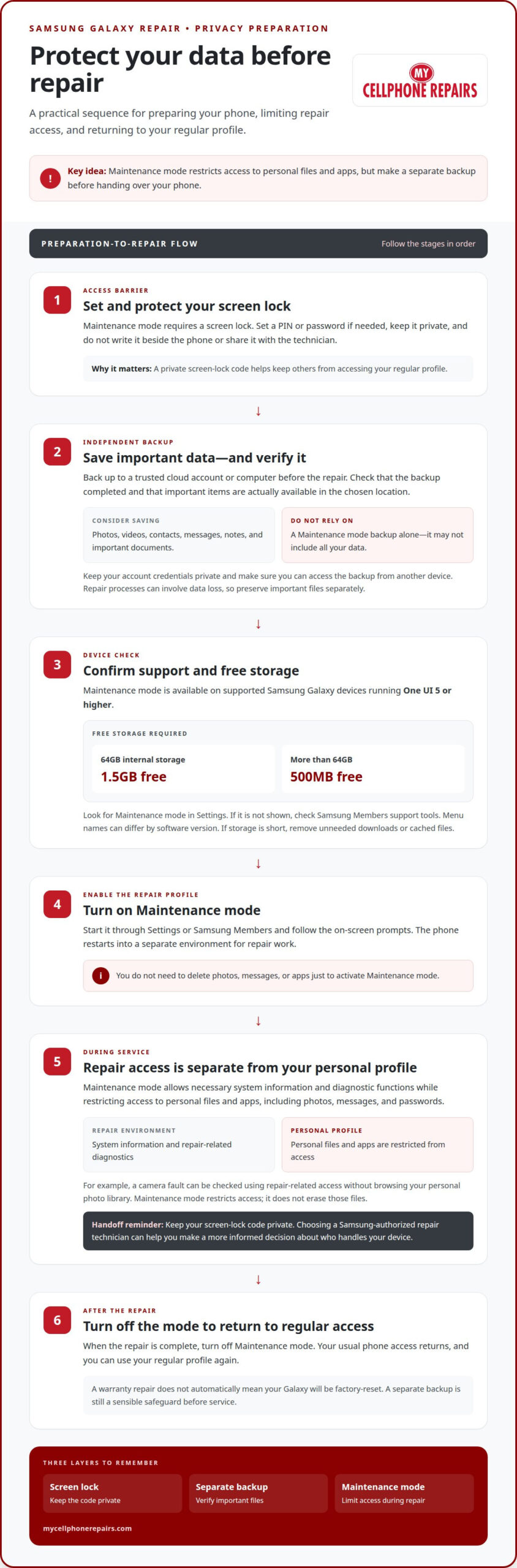
- Set a lock screen first. Maintenance mode requires a screen lock on your Samsung Galaxy. Open your security settings and set a PIN or password if you haven’t already. Keep that code private. A technician can’t use your regular profile simply because the phone is powered on, and sharing your screen-lock code would weaken that protection.
- Check your Galaxy’s software. Maintenance mode is available on Samsung Galaxy devices running One UI 5 or higher. Open Settings and look for Maintenance mode. If your device doesn’t show it, use Samsung Members to look for the mode in its support tools. Menu names can differ between software versions.
- Start the mode through Settings or Samsung Members. Follow the on-screen prompts to enable Maintenance mode before the repair. Your phone will restart into a separate environment. This gives the technician access to necessary system information and diagnostic functions without opening your everyday phone profile.
- Understand what the repair profile hides. Maintenance mode restricts access to personal files and apps, including photos, messages, and passwords. For example, a technician checking a camera fault can use repair-related system access without browsing your personal photo library. The mode separates personal information from the environment used for repair work; it doesn’t erase those files.
- Don’t delete personal content just to activate the mode. Maintenance mode itself restricts access to personal data, so you don’t need to remove photos, messages, or apps solely to hide them from the repair profile. Keep your PIN or password private, and leave your screen lock enabled. Those steps preserve a barrier between your normal profile and repair access.
- Check available storage before turning it on. A Samsung Galaxy device with 64GB of internal storage needs 1.5GB of free space. A device with more than 64GB needs 500MB free. If your phone falls short, remove unneeded downloads or cached files, then try again. Keep personal photos and documents unless you’ve backed them up.
Before repair, make the lock decision deliberately: choose a PIN or password and use it to help prevent unauthorized access to your phone. Avoid treating the code as a formality. The purpose is to put an access barrier in place before anyone else handles the device. If you already use a screen lock, confirm that you can still unlock the phone yourself; if you do not, set one before proceeding with repair preparation.
Keep the credential under your control throughout the handoff. Enter it yourself when needed, rather than telling it to another person, and do not leave it written beside the phone. A PIN or password helps prevent unauthorized access when it is set on the device and kept private. Pair that basic precaution with Maintenance mode: the lock helps protect access to the phone, while the mode provides a separate repair environment. This keeps preparation focused on access control without requiring you to remove personal content.
Backing up data before repairs
- Choose what must be preserved. List the files and account details you rely on daily. Include photos, videos, contacts, messages, notes, and important documents. Think of a recent photo or a specific contact you can locate later. This gives you a practical way to check that your backup contains the material you care about, rather than assuming everything copied successfully.
- Use a backup method you can access. Back up your Samsung phone to a trusted cloud account or a computer. Follow the backup options available in your phone’s settings, and use an account you can sign into from another device. A backup is useful only if you can retrieve it, so make sure you know the account credentials before the repair begins.
- Run the backup before handing over the phone. Connect to a reliable network or computer, start the backup, and wait for its completion status. Don’t treat a button press as proof that files were saved. Open the backup details and review the categories or latest items shown. If a recent photo or contact is missing, repeat the backup process before proceeding.
- Check what Maintenance mode’s backup leaves out. Maintenance mode backups may not include all data. Treat that temporary backup as separate from your own full preparation. Save important files independently, especially documents or media you can’t replace. For example, if a family video matters, confirm it appears in your chosen backup location instead of relying solely on Maintenance mode.
- Protect account access and recovery. Keep your account password private, and make sure you can complete any sign-in prompts on another device. If a repair leaves your phone unavailable, a second device or computer can help you reach saved files. Avoid storing a password in an unprotected note on the phone you’re sending for repair.
- Consider remote security tools. Security apps can enable remote location and wiping if a phone is lost. Set up those functions before repair only if you understand how they work and can sign in to the associated account. Remote wiping is a protective option, not a substitute for backup. Your separate copy remains important if the phone can’t be accessed.
- Do a final review. Check the backup’s completion status, open its file list, and confirm that key items appear. Then leave your originals intact until you’ve verified the copies. If you’re arranging service for a damaged Galaxy, the Samsung repair process is the next step after safeguarding your files.
Does Samsung repair erase or reset my phone data?
- Distinguish a repair from a factory reset. A factory reset erases stored information and restores the phone’s software to a clean state. A repair request by itself doesn’t establish that a reset will happen. The work matters. A hardware diagnosis differs from troubleshooting a software problem that involves resetting the device. If you’re asking whether your data will be safe during Samsung repair, prepare for possible data loss before service.
- Put community reports in context. A Samsung Community commenter believed Samsung Service Centres factory-reset devices as part of repairs. That comment doesn’t establish a rule for every Samsung repair. Treat it as a reason to prepare, not proof that your Galaxy will automatically lose its data. The repair process and the issue being diagnosed are relevant to whether a reset is involved.
- Document the fault clearly. Before service, note the symptoms and when they occur. For example, record whether your Galaxy restarts while charging or its display stops responding after startup. This gives the technician useful diagnostic context without relying on private messages or photos stored on the phone. A clear description can also help keep the repair discussion focused on the reported problem.
- Keep an independent copy of important files. Preserve photos, contacts, and documents in a backup you can access outside the phone. Maintenance mode backups may not include all data, so don’t rely on that temporary backup alone. Check that important items appear in your separate copy. This gives you a way to restore files if a reset or another repair-related issue makes them unavailable.
- Ask about any proposed reset before agreeing. If a technician says a reset is needed, ask what issue it addresses and what information it erases. A software fault and a hardware fault can require different diagnostic steps. Understanding the reason helps you make an informed decision about the repair. Keep your account credentials private, and provide only the access needed for the agreed work.
- Check the phone after service. Before leaving, review the Galaxy’s basic functions and confirm whether your usual profile remains available. Check key items, such as contacts, photos, and essential apps. If the phone was reset, use your own account credentials to restore saved information. To judge whether your data will be safe during Samsung repair, keep your backup until you’ve confirmed that the files you need are accessible.
If access to personal data is a concern, a Samsung Community commenter recommended using a reputable repair shop as another way to address that concern.
Use Samsung Maintenance Mode to protect data during repair
- Prepare your phone before activating the mode. Save important files separately, then make sure your Galaxy has a working screen lock. A PIN or password protects your regular profile, while Maintenance mode provides a separate environment for repair. Keep your credentials private. For example, don’t write your PIN on a note attached to the phone or include it with repair instructions.
- Open Maintenance mode from Settings. On a supported Galaxy, open Settings and find the Maintenance mode option. Follow the prompts shown on your device to begin setup. Samsung’s menu wording can guide you through the activation. Read each prompt before continuing, especially if it asks you to restart the phone or prepare the device for its repair environment.
- Use Samsung Members if you don’t start in Settings. Open the Samsung Members app and look for Maintenance mode in its support tools. Follow the steps displayed there. The available route depends on which entry point you use, but both are ways to start the feature on a supported device. Don’t hand over the phone until you can see that Maintenance mode is active.
- Check the repair environment before handing over your Galaxy. Once the phone has restarted into Maintenance mode, confirm that your regular profile is no longer open. The mode limits access to personal files and apps while allowing access to necessary system information. This helps keep personal content separate during repair. It doesn’t replace a backup, so keep your independent copy of important files.
- Leave the mode active during the repair. Don’t turn it off to make the phone easier to use or show personal content. If the technician needs information about the fault, describe it directly. For example, explain that the screen flickers after startup instead of opening personal messages or photos. Keep your screen-lock credentials private throughout the service.
- Turn Maintenance mode off after the work is complete. Use the option on your Galaxy to exit the mode and follow the device prompts. Turning it off restores the phone to its original state. Changes made during the repair aren’t saved, so don’t expect files created in that environment to remain. After returning to your regular profile, check that your usual apps and personal content are accessible.
- Use the outcome to guide your next step. If Maintenance mode isn’t available, don’t assume the phone is protected by that feature. Keep the screen lock on, maintain a separate backup, and avoid sharing your regular passcode. If you need to enable the mode but can’t access Settings or Samsung Members, explain the phone’s condition when arranging repair.
What data privacy and security policies apply to Samsung authorized repair centers?
- Verify the technician’s Samsung authorization. Samsung recommends verifying that a repair technician is authorized before handing over your device. Authorization helps you identify a technician approved by Samsung for repairs. It does not replace your own data safeguards. Keep Maintenance mode active when available, and maintain a separate backup of important files before service.
- Separate authorization from privacy details. Don’t assume that the authorized label alone explains how your specific repair handles personal data. Authorization and access controls serve different purposes. Maintenance mode limits access to personal files and apps, while the technician can access necessary system information. Ask what access the repair needs and how it relates to the reported fault.
- Describe the problem without exposing private content. Give a clear example of the fault, such as a Galaxy screen that stays black after startup. Share the symptoms and when they occur. Don’t open private messages, photos, or account pages to demonstrate a hardware issue. Maintenance mode can help keep personal apps separate from the repair environment.
- Keep your screen-lock credentials private. Use your PIN or password to secure your regular profile, but don’t include it in written repair instructions. If a diagnostic step appears to require access beyond Maintenance mode, ask what function needs access and why. Share only information needed for that step, rather than leaving the device unlocked for general use.
- Clarify any requested reset before service begins. A Samsung Community commenter believed Samsung Service Centres factory-reset devices during repairs. That report does not establish a universal policy. If a reset is proposed, ask what issue makes it necessary and what data it would erase. Keep your independent backup available before approving any step that may remove stored information.
- Use your own protections as well as repair-center safeguards. Maintenance mode, a screen lock, and a separate backup each address a different risk. For instance, the lock protects your normal profile, while the backup preserves files if data becomes unavailable. Don’t change security settings simply to make the phone easier to service; keep protections enabled throughout the repair.
- Make privacy part of the repair handoff. State that personal data matters to you, identify the fault, and explain that Maintenance mode is active. Keep a record of the agreed repair and any access discussed. For help with a Samsung device issue, arrange Samsung phone repair with your privacy priorities clear.
My Cellphone Repairs: Samsung Phone Repair
My Cellphone Repairs provides Samsung Phone Repair for hardware problems, including damaged screens, battery issues, and charging-port faults. Before bringing in your Galaxy, back up important files and activate Maintenance mode if your phone supports it. Keep your screen lock enabled, and describe the fault without sharing your personal passcode. These steps help protect your information while making the repair issue clear.
If your device has a different problem, My Cellphone Repairs also offers Battery Replacement, iPhone Screen Repair, and MacBook Repair. Prepare your phone with the safeguards that fit its condition, then contact My Cellphone Repairs to discuss Samsung Phone Repair.
Make your repair handoff a confident next step
Asking whether your data will be safe during Samsung repair is a good reason to clarify access before service begins. Explain what the technician needs to know about the fault, and keep your personal account details private. If a repair step could affect your data, ask what it involves before proceeding. A clear handoff keeps the focus on the device problem and your privacy preferences.
You don’t have to figure out every technical issue alone. Describe the fault and share your data-access preferences with My Cellphone Repairs. Visit a local store or book online to arrange Samsung Phone Repair.
Contact My Cellphone Repairs for help. Your repair can start with a clear plan and greater peace of mind.
Frequently Asked Questions
How does prioritizing customer data privacy build trust?
Clear communication about device access can make the repair handoff more transparent. For example, if a repair requires camera diagnostics, clarify whether the technician needs to access personal photos. Privacy safeguards don’t replace careful preparation, but they can help keep the repair focused on the device issue.
Does Samsung recommend backing up data before a repair?
Make a separate backup before repair, since a Maintenance mode backup may not include all your data. Save important files somewhere you can access without your Galaxy, such as a computer or an account available on another device. Before handing over your phone, check that key items, such as recent photos or contacts, appear in the backup.
Can Samsung repair technicians access my photos, messages, or files?
When Maintenance mode is active, access to personal files and apps, including photos and messages, is restricted. The repair environment still allows access to necessary system information. Without Maintenance mode, access depends on the phone’s condition and the access provided. Keep your screen lock enabled, and don’t share your regular PIN unless a specific repair step requires it and you understand why.
How do I back up a Samsung phone before sending it for repair?
Open your Galaxy’s backup settings and choose a cloud account or computer you trust. Start the backup and wait for it to finish. Then review the saved content on another device, checking items such as a recent photo, an important contact, and a document. Keep your account sign-in details available, but don’t save them in an unprotected note on your phone.
Get it fixed at My Cellphone Repairs: most repairs are done the same day. Walk in or book online.
Book NowPhone frozen or acting up? See our step-by-step restart & reset guides →
Our locations
- Towson Mall825 Dulaney Valley Rd, Second Level, Towson, MD 21204
(410) 828-4404 - Grand Rapids3077 28th St SE, Grand Rapids, MI 49512
(616) 799-6996 - PG Plaza Mall (Hyattsville)3500 East-West Hwy, Mall at Prince George's, Target Entrance, Hyattsville, MD 20782
(301) 559-1105 - Bowie Town Center15630 Emerald Way, Bowie, MD 20716
(240) 614-3600 - Capital City Mall (Camp Hill / Harrisburg area)3604 Capital City Mall Dr, Camp Hill, PA 17011
(717) 919-7868 - Cumberland Mall (Vineland)3849 S Delsea Dr, next to Boost Mobile, Dick's Sporting Goods entrance, Vineland, NJ 08360
(856) 765-5049 - Mondawmin Mall2401 Liberty Heights Ave, Lower Level, Baltimore, MD 21215
(443) 826-7711 - Baltimore Inner Harbor100 East Pratt St, Suite 101, Baltimore, MD 21202
(443) 838-8989 - St Charles Mall (Waldorf)11110 Mall Cir, Waldorf, MD 20603
(301) 645-7755 - Alexandria7650 Richmond Hwy, Alexandria, VA 22306
(703) 341-6789