
You open your MacBook Pro to find a cracked display, flickering image, or blank screen. The disruption is immediate, but the cause isn’t always obvious. A MacBook Pro screen replacement may be the right fix, yet some symptoms can point to another issue that needs diagnosis first.
It’s reasonable to worry about repair quality, your files, and handing over a valuable device. Start by noting what the screen does, when the problem began, and whether the Mac still starts up. Back up your data if you can, and avoid pressing on damaged glass or attempting a repair without the right experience.
This guide covers common signs of display damage, what a professional assessment and screen replacement can involve, and how to prepare your Mac before repair. You’ll also learn why the correct repair depends on your MacBook Pro model and why diagnosis matters. My Cellphone Repairs provides professional MacBook hardware repairs, including screen replacement, to help you move from uncertainty toward a practical next step.
Key Takeaways
- Cracks, flickering, lines, or a blank display can signal trouble, but symptoms alone don’t confirm the screen is the cause.
- A MacBook Pro screen replacement may involve the display assembly or a specific component, depending on the model and diagnosis.
- Compare DIY and professional repair based on the tools, technical skill, and model knowledge the work requires.
- Before repair, note your MacBook Pro model and take practical steps to protect your data and simplify the assessment.
- My Cellphone Repairs provides professional MacBook screen repair, guided by the device’s model and condition.
MacBook Pro Screen Damage: How to Recognize the Problem
Cracks, colored lines, flickering, dark patches, discoloration, or a completely blank display can all signal a problem. Some symptoms appear after a drop or pressure on the lid; others start without obvious physical damage. These clues help describe what’s happening, but they don’t confirm that the screen panel itself has failed.
Which MacBook Pro screen symptoms need attention?
Look for changes in the image and note when they occur. A crack or dark area near an impact point may indicate physical screen damage. Lines, distorted colors, or flicker can come and go. An intermittent display may change as the laptop starts or the lid moves, but avoid repeatedly flexing the lid to test it. MacBook Pro screens and designs have evolved across MacBook Pro models, so the model helps guide an accurate assessment.
- Cracks or loose glass: Stop using the Mac if the damage worsens or glass is loose. Don’t press on the affected area.
- Lines, dark spots, or discoloration: Note where they appear and whether they stay in the same place.
- Flicker or intermittent image: Record when it happens, such as during startup or after adjusting the lid.
- Blank display: Note whether the Mac seems to start even though the screen stays dark.
If it’s safe, take a photo or short video of the symptoms before arranging repair. Include the affected area and any visible external damage. This gives the technician useful context without requiring you to guess at the cause.
Could the display problem come from another component?
Yes. A blank or unstable image may involve the display panel, its connection, or graphics-related hardware. Liquid exposure can also affect how a Mac behaves, even if screen damage isn’t visible. If the device may have been exposed to liquid, avoid further use and read the MacBook liquid damage repair guide.
An external display can offer an additional clue. If it shows an image while the built-in screen doesn’t, the fault may be in the internal display path. That still isn’t a definitive diagnosis. Symptoms overlap, and a hands-on assessment is needed to identify the faulty component before deciding whether a MacBook Pro screen replacement is appropriate. Share what happened, what you observed, and when it began. Clear details help guide the next repair step.
What Happens During a MacBook Pro Screen Replacement?
A MacBook Pro screen replacement means removing and replacing the damaged display assembly or, where appropriate, the relevant display component. The repair plan depends on the exact model and what an inspection finds. A cracked panel may look like the whole problem, but the surrounding display area and related components should also be assessed before choosing the repair.
Why does the MacBook Pro model matter?
MacBook Pro generations and configurations can differ in display assemblies and repair requirements. The exact MacBook Pro model matters because it helps identify display parts that are compatible with that specific device. Before discussing repair details, locate the model name or identifier in the Mac’s system information, if it’s accessible, and share it with the technician. Don’t assume parts fit simply because two laptops look similar.
What should a professional repair process include?
A professional repair starts with an inspection. The technician reviews the screen damage, considers related issues, and explains the proposed repair before work begins. This assessment helps distinguish a display problem from damage elsewhere and gives the repair a clear direction.
Once the repair approach is established, the damaged display assembly or relevant component is carefully removed and replaced. The exact work varies by model and diagnosis, so there isn’t one universal screen-swap procedure. For background on the broader consumer repair landscape, FindLaw’s overview of Right to Repair laws offers additional context.
What happens after the replacement?
After installation, the technician checks the display’s basic function and reviews the repair for apparent issues. The specific checks depend on the device and work performed. Ask for a clear explanation of the completed repair and any relevant findings. A careful process accounts for the MacBook Pro model, the diagnosed fault, and the screen’s final condition rather than treating every damaged display the same way.
Having your model information ready can make the first repair discussion more focused. For professional MacBook screen replacement, My Cellphone Repairs assesses the device and guides the repair based on its condition.
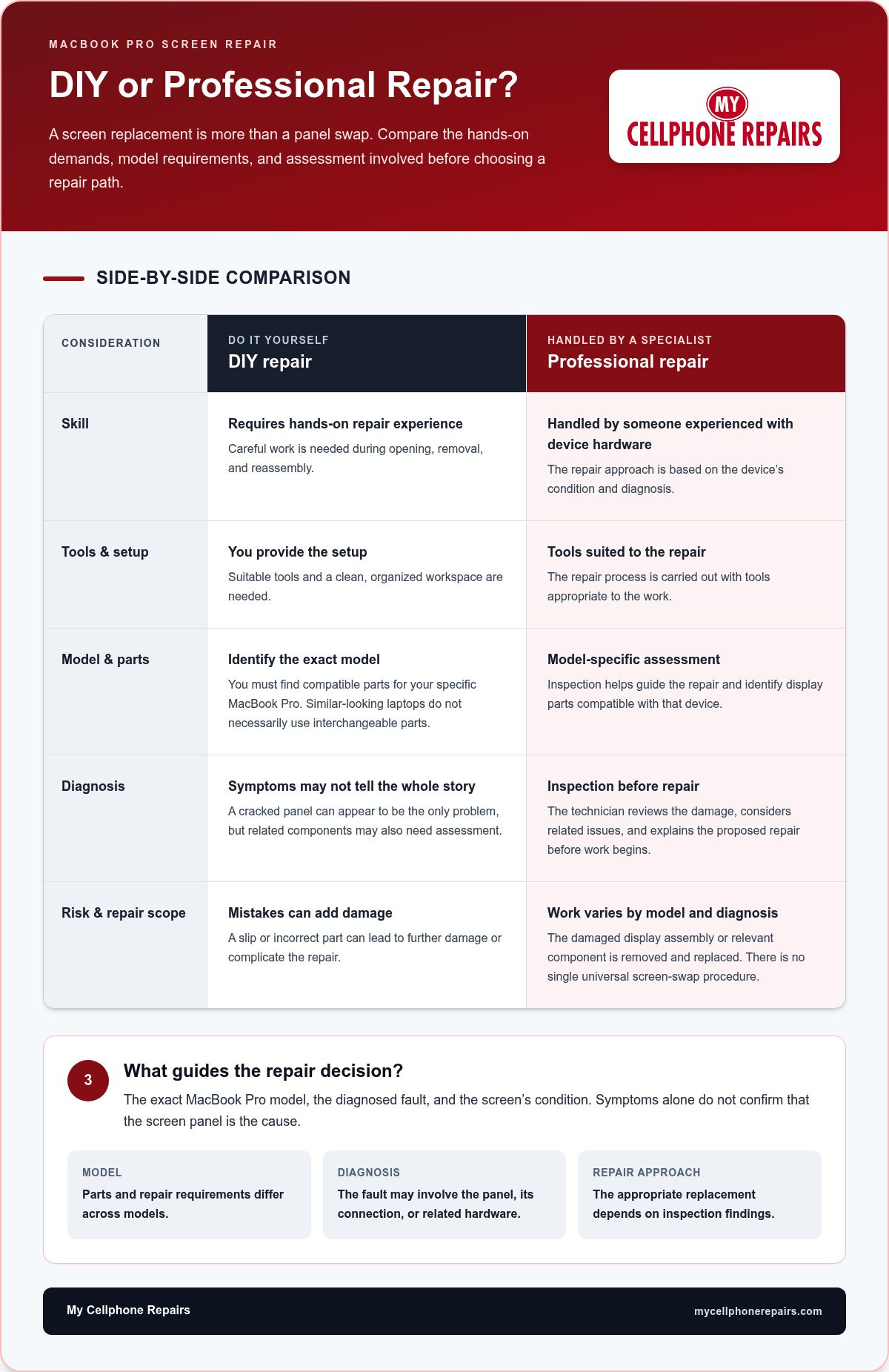
MacBook Pro Screen Repair: DIY vs Professional
A screen replacement can look like a straightforward swap, but the work involves more than removing a damaged panel and fitting another one. MacBook Pro models vary, compatible parts must match the device, and opening the laptop requires care. A mistake during disassembly or reassembly can complicate diagnosis or cause additional damage.
When might DIY repair be a poor fit?
DIY may not suit you if you haven’t repaired laptops before, lack the right tools, or aren’t sure which parts match your MacBook Pro. Display components can be delicate, and the visible symptom may not identify the faulty component. Opening the device before the cause is clear can make it harder to assess what’s wrong. Pause if you’re uncertain rather than forcing a step.
What does professional service offer instead?
Professional service starts with an inspection, then uses the device’s condition and model to guide the repair. This can help distinguish screen damage from a related issue before replacement work begins. It’s a practical option if you’d rather not open the laptop, source parts, or manage the repair yourself. A professional MacBook Pro screen replacement follows device assessment rather than guesswork.
The right choice depends on your repair experience, available tools, and the condition of your MacBook Pro. If you’re comfortable with laptop repair and can identify the correct parts, DIY may be an option. If not, professional MacBook repair can take the uncertainty out of the next step.
How to Prepare Your MacBook Pro for Screen Repair
A little preparation can make a repair assessment clearer and help protect your information. You don’t need to diagnose the fault yourself. Record what you’ve observed, back up important files if the Mac is usable, and handle damaged glass with care.
What information should you have ready?
Start with the device details and a short description of the problem. If the MacBook is working, find its model name in the Apple menu under “About This Mac.” Note when the issue began and whether it followed a drop, pressure on the lid, or possible liquid exposure. These details help the technician understand the history without relying on guesswork.
Use this checklist:
- Model: Record the MacBook Pro model name or identifier, if available.
- Symptoms: Describe cracks, lines, flickering, dark areas, discoloration, or a blank screen.
- Pattern: Note whether the problem is constant or intermittent, and when it appears.
- Recent events: Mention any impact, pressure, or liquid exposure you know about.
- Evidence: If it’s safe, take a photo of visible damage or a short video of intermittent behavior.
Clear notes help distinguish what you’ve observed from what still needs diagnosis. Avoid guessing which component has failed.
How can you protect your data and device?
Back up important files before a MacBook Pro screen replacement if the laptop remains usable and you have access to a backup option. If the screen prevents you from using the device, don’t keep trying to force access just to create a backup. A backup is a sensible precaution, but it isn’t a substitute for describing the fault accurately.
- Keep passwords private. Don’t leave them written on the MacBook or include them with the device.
- Use sensible account-security practices, and follow any secure access instructions provided for the repair.
- If the glass is cracked or loose, avoid pressing on it or handling the damaged area unnecessarily.
- Don’t run extra tests or repeatedly open and close the lid if doing so worsens the damage.
Once you’ve recorded the model, symptoms, and relevant history, you’re better prepared for a clear assessment. For professional MacBook Pro screen repair, My Cellphone Repairs can guide the next step.
Get Professional MacBook Pro Screen Replacement from My Cellphone Repairs
A damaged display can disrupt work and make it hard to tell whether the screen itself is at fault. Take a straightforward path: recognize the symptoms, identify your MacBook Pro model, prepare the device, and arrange a professional assessment. My Cellphone Repairs provides professional MacBook hardware repair, including screen replacement.
When should you arrange a screen inspection?
Arrange an inspection if cracks, display problems, or worsening symptoms interfere with normal use. Flickering or a blank screen can have causes beyond the display panel, so symptoms alone can’t establish which repair is needed. An inspection helps determine whether screen replacement is appropriate or whether the issue may involve another component.
Describe what you’ve noticed and share relevant history, such as an impact or possible liquid exposure. Avoid pressing on damaged glass or continuing to use the Mac if the damage is worsening. Repair details depend on the device’s condition and specific model, so the next step should follow an assessment, not an assumption.
What is the next step for a damaged display?
Before arranging repair, have the model name or identifier ready if you can access it. Prepare a concise description of the fault: what the display does, when the issue began, and whether it followed a drop, pressure, or liquid exposure. If the Mac remains usable and you have a backup option, save important files first.
These details give the technician a useful starting point. My Cellphone Repairs assesses MacBooks and explains the screen repair approach based on the model and inspection findings. You’ll have a clearer picture of the repair path without relying on a remote guess or assuming every display problem needs the same fix.
Explore MacBook repair services from My Cellphone Repairs and take the next step toward resolving the display issue. Bring your model information and symptom notes so the assessment can begin with practical details.
Take the Next Step Toward a Clearer Display
Cracks, flickering, lines, or a blank screen can point to display trouble, but symptoms alone don’t confirm the cause. The right MacBook Pro screen replacement starts with an accurate assessment of the device and its model. Note what’s happening, share any relevant impact or liquid exposure, and back up important files if your Mac is usable.
DIY repair may suit someone with the right experience and tools. If you’d rather not open your laptop, professional support offers a practical path from inspection to repair. My Cellphone Repairs provides professional MacBook hardware repair, including screen replacement. The recommended approach depends on the MacBook Pro model and inspection findings.
Ready to move forward? Explore MacBook repair services and take the next step with your model details and a clear description of the screen problem. With the right information and professional guidance, you can make a confident plan to get your MacBook back on track.
Frequently Asked Questions
Can a MacBook Pro screen be replaced?
Yes, a MacBook Pro screen can be replaced by a professional repair service. The repair may involve replacing the display assembly or a relevant display component, depending on the model and what an inspection finds. MacBook Pro configurations can differ, so the correct repair approach and compatible parts depend on identifying the specific device. A technician can assess the damage and explain the appropriate next step.
How do I know if my MacBook Pro screen needs replacement?
Cracks, lines, flickering, dark areas, discoloration, or a blank display are signs that need attention, but they don’t prove the panel has failed. A cable, graphics-related issue, or other component may also affect the image. Note when the symptoms appear and whether the Mac was dropped or exposed to pressure. A hands-on assessment can determine whether screen replacement is the right repair.
Is it worth replacing a MacBook Pro screen?
It depends on the MacBook’s condition, how well it meets your needs, and the repair assessment. Consider whether the screen issue is the main problem or whether other faults are affecting the device too. Compare the recommended repair with the value you expect to get from continuing to use your Mac. A clear diagnosis helps you make a practical decision rather than relying on the visible damage alone.
Can I replace a MacBook Pro screen myself?
It’s possible, but DIY screen repair requires suitable tools, repair experience, and the correct parts for your MacBook Pro model. The job isn’t always a simple swap. Delicate components and differences between models make careful handling important. If you’re unsure about the fault or part compatibility, opening the device may complicate diagnosis or cause additional damage. Professional repair is an option if you’d rather not do the work yourself.
How long does MacBook Pro screen replacement take?
Repair time varies with the MacBook Pro model, the damage found during inspection, and the repair approach required. A related fault may need assessment in addition to the display issue. The repair plan and timing depend on the device and the work involved. Sharing the model and a concise description of the symptoms gives the repair discussion a useful starting point.
Will I lose my data during MacBook Pro screen replacement?
A screen replacement is hardware repair, not a process intended to erase your files. Still, data access or preservation can’t be guaranteed during any repair. Back up important files first if your MacBook remains usable and you have access to a backup option. If the screen prevents you from using the device, don’t risk worsening the damage just to create a backup. Keep account passwords private.
Can liquid damage cause MacBook Pro screen problems?
Yes, liquid exposure can affect the display or other parts of a MacBook Pro and may lead to image problems or unreliable operation. A screen symptom alone can’t confirm liquid damage, so share any known exposure during assessment, even if it happened before the display issue appeared. Avoid continuing to use or charge a device that may have liquid inside, and arrange professional inspection to identify the affected components.